WordPress Tutorials for Beginners: Easy Step-by-Step Guide

WordPress Tutorials For Beginners: Start Here: What WordPress Can Do
WordPress is a website publishing system that lets you create, organize, and update content without building every page from code. It can power a personal blog, portfolio, community, online shop, nonprofit site, or business website. The software is flexible, but beginners often feel unsure about the difference between WordPress.com and WordPress.org, themes and plugins, pages and posts, or hosting and domains. This guide explains those decisions in a practical order, then walks through the essential setup tasks.
The most effective way to learn is to build a small, real website while reading. You do not need to master every setting first. Begin with a clear purpose, use a simple design, publish useful information, and improve the site gradually. A reliable backup routine, careful plugin choices, and basic security habits matter more than collecting advanced features.
Choose the Right WordPress Option
WordPress.org refers to the free, open-source software that you install on web hosting. You choose the host, register or connect a domain, manage updates, and control the site’s files and data. This route usually offers broader customization, especially for businesses, professional projects, and stores.
WordPress.com is a hosted service. Its provider manages much of the technical infrastructure, while your available tools depend on the plan and settings you select. It can be convenient when you want a simpler start and prefer not to manage hosting separately.
Neither choice is automatically best. Consider your goals, budget, technical confidence, and need for control. A hobby site may benefit from a managed experience. A growing organization may prefer self-hosted WordPress because it can support specialized themes, plugins, integrations, and hosting arrangements. Read current plan details before deciding, since features and pricing can change.

Domain, Hosting, and SSL
A domain is the address people type to reach your site. Hosting is the server space where the site’s software, media, and database reside. Secure Sockets Layer, commonly shown through HTTPS, encrypts communication between visitors and the website. Many hosts include an SSL certificate, but you should confirm that it is active before publishing.
Choose a domain that is easy to pronounce, spell, and remember. Avoid unnecessary hyphens and confusing abbreviations. Select hosting based on support quality, backups, performance, renewal terms, and compatibility with WordPress, not solely on an introductory price.
Install WordPress and Configure Essentials
Many hosting providers offer a guided installer. Typically, you select a domain, create an administrator username and strong password, choose a site title, and allow the installer to complete. Never use an obvious administrator name or reuse a password from another service. If your host does not offer one-click installation, follow its official documentation or WordPress’s current installation instructions.
After signing in, open the dashboard and review Settings. Set the site title and tagline, choose the correct language and time zone, and confirm the preferred date format. In the Reading settings, decide whether the homepage displays recent posts or a specific page. In Discussion settings, review comment approval and notification options. Save each change before moving elsewhere.
Delete sample content you do not need, including demonstration posts, pages, comments, and unused themes. Removing clutter makes later maintenance easier. Do not delete the currently active theme or essential system components without understanding their purpose.
Build a Sensible Site Structure
Before designing, list the information visitors need. A small service site might require Home, About, Services, Blog, and Contact. An online store may also need Shop, Cart, Checkout, Account, shipping information, returns, and privacy details. Keep the primary navigation focused; place less important links in the footer.
Use pages for stable information that belongs in navigation. Use posts for dated or regularly published content, such as news, tutorials, announcements, and articles. Categories group related posts, while tags can describe narrower topics. Do not create dozens of overlapping categories. A modest, consistent structure helps visitors and simplifies future editing.
Select a Theme Without Losing Control
A theme controls the site’s visual framework, including layouts, typography, colors, templates, and some navigation behavior. From the dashboard, open Appearance and browse available themes. Prefer a theme that is actively maintained, compatible with your WordPress version, responsive on small screens, and clear about its customization tools.
Do not choose a theme merely because its demonstration site contains impressive animations. Demonstrations often depend on particular images, plugins, and carefully prepared content. Instead, inspect the menu system, header options, page templates, typography controls, accessibility information, and documentation. A lightweight, readable theme is often a stronger starting point than a visually crowded one.
If the theme supports the Site Editor, you may edit templates and global styles directly. Other themes provide a Customizer or theme-specific settings. Learn which system your chosen theme uses before following tutorials, because instructions for one theme may not match another.
Customize the Design
Choose one primary typeface family, a restrained color palette, and consistent spacing. Make headings visibly different from body text, but preserve comfortable line length and contrast. Add a logo only if it remains legible at small sizes. Your design should guide attention toward the content and next action, not compete with it.
Check the website on a phone, tablet, and desktop. Test navigation, buttons, forms, images, and headings. A layout that looks attractive on a large monitor may create horizontal scrolling or tiny controls on a phone. Make changes at the smallest practical screen size, then review larger views.

Create Pages and Publish Content
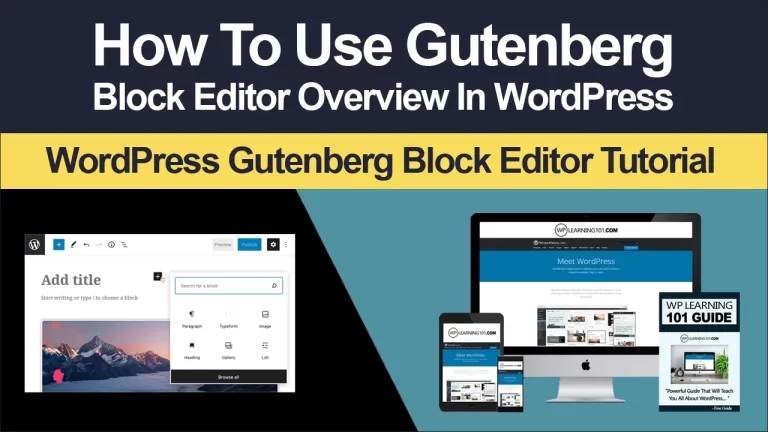
Open Pages, choose Add New, and enter a descriptive title. WordPress uses the block editor, where paragraphs, headings, images, lists, buttons, columns, and other elements are added as blocks. Select the plus icon to insert a block, then use the block toolbar and settings panel to adjust it.
Create a clear heading hierarchy. Use one main page title, then H2 headings for major sections and H3 headings when a section needs subdivisions. Do not select heading levels simply to make text larger. Visual size should be controlled by styles; hierarchy should communicate meaning.
Write for a visitor who has not seen your business before. Explain the problem you solve, who you help, what action visitors should take, and how they can contact you. Break long paragraphs into manageable sections. Use specific buttons such as “Request a consultation” rather than vague labels such as “Click here.”
Add Images Responsibly
Use images that you own, have permission to use, or obtain from a clearly suitable license. Resize large files before uploading when practical, and choose an appropriate format. Add alternative text that describes the image’s meaningful purpose. If an image is decorative, an empty alternative-text value may be appropriate. Alternative text is not a place to insert a list of keywords.
Name media files descriptively, organize them carefully, and avoid uploading several almost identical versions. Add captions when context or attribution matters. Check how images crop on mobile screens, especially in hero sections and galleries.
Preview every page before publishing. Confirm links, spacing, spelling, forms, and featured images. Set a readable URL slug, then publish or schedule the page. Changing a published URL later can create broken links, so choose carefully.
Publish Posts That People Can Use
Posts work best when each one answers a specific question or helps readers complete a task. Before writing, identify the intended audience and the result you want to provide. A useful tutorial might explain preparation, numbered steps, common mistakes, and a brief checklist.
Use categories consistently and select a featured image only when it supports the article. Add excerpts if your theme displays them on archive pages. Preview the post, verify internal links, and ensure the introduction tells readers what they will learn. Proofread on both a large screen and a phone.

Avoid publishing thin variations of the same topic. Fewer, clearer articles are easier to maintain than a large archive with overlapping information. Update important posts when procedures, interfaces, product details, or legal requirements change. If an update materially changes the article, review old links and screenshots too.
Add Plugins Carefully
Plugins extend WordPress with features such as contact forms, backups, caching, accessibility tools, security controls, analytics connections, and ecommerce functions. To install one, open Plugins, select Add New, review its description and compatibility information, then install and activate it. Uploading a plugin from another source requires particular care because its origin and maintenance practices matter.
Install only what you can justify. Too many plugins increase configuration complexity and may create conflicts or security exposure. Before activation, check whether the plugin is maintained, documented, compatible with your setup, and appropriate for your required feature. Read its permissions and settings rather than accepting every default blindly.
After activation, test the site. Visit the homepage, menus, forms, checkout if relevant, and several posts. If something breaks, deactivate the newest plugin and consult its documentation. Never troubleshoot by randomly changing many settings at once; record each change so you can reverse it.
Essential Plugin Categories
A backup solution should create recoverable copies and, ideally, store them separately from the website. A security solution may help with login protection, monitoring, or malware detection, but it cannot replace strong passwords, updates, and careful administration. A performance tool may improve caching or asset delivery, yet poor hosting, oversized media, and inefficient design can still slow the site.
A form tool can collect inquiries, but configure spam protection and notification delivery. An SEO tool can provide controls for titles, descriptions, sitemaps, or structured data, but it cannot compensate for unclear writing or confusing navigation. Ecommerce plugins add substantial responsibilities, including payments, taxes, order data, shipping, refunds, and customer support. Choose tools according to a genuine requirement, not a feature list.
Protect, Maintain, and Improve the Site
Keep WordPress core, themes, and plugins updated through a controlled routine. Before major changes, make a recent backup and confirm that you know how restoration works. Updates can occasionally conflict with custom code or another component, so test important sites after updating. If your host offers staging, use it for higher-risk changes.
Use unique passwords, enable two-factor authentication when available, and limit administrator accounts. Give contributors only the permissions they need. Review users periodically and remove accounts that no longer require access. Never share an administrator login casually.
Check backups by restoring a copy in a safe environment when possible. A backup that has never been tested may not be dependable. Monitor forms, broken links, storage use, and unusual login activity. Keep a written record of hosting details, licenses, integrations, and emergency contacts.
Improve performance through practical steps: compress images, avoid unnecessary sliders, limit heavy scripts, use a suitable host, and remove inactive plugins and themes. Performance is not merely a technical score. Faster, clearer pages help visitors reach information and complete forms with less frustration.
Basic Accessibility Practices
Use sufficient color contrast, descriptive link text, keyboard-friendly controls, and meaningful headings. Do not communicate information through color alone. Label form fields clearly, and ensure error messages explain how to correct a problem. Automated checkers can identify some issues, but manual keyboard testing and careful reading remain important.
Accessibility is an ongoing quality practice rather than a final decoration. If your site serves a public institution, regulated activity, or broad audience, consult applicable accessibility guidance and qualified professionals. Requirements can vary by location and purpose.
Troubleshoot Common Beginner Problems
If a page shows a blank screen or an error after a change, identify the newest theme, plugin, or code adjustment. Use a backup or staging copy when possible, and contact your host if server access or resource limits may be involved. Avoid editing production files without a recovery plan.
If changes do not appear, clear the browser, site, or caching layer carefully. Confirm that you edited the correct page and that the intended template controls its display. If a menu is missing, check its assigned location and whether the desired pages are published.
If email from a contact form does not arrive, inspect spam folders, verify the recipient address, and check the form’s delivery settings. Hosting mail delivery can be unreliable, so a properly configured transactional email service may be appropriate. Test with an address you control, and never assume a successful screen message proves delivery.
For slow pages, test several URLs rather than judging only the homepage. Look for oversized images, excessive scripts, unreliable third-party embeds, and hosting limitations. Make one change at a time and compare results.
Frequently Asked Questions
Is WordPress difficult for complete beginners?
The basics are approachable, especially when you learn through a small project. The challenging part is not writing a page; it is making consistent decisions about structure, maintenance, security, and content. Follow a narrow learning path instead of trying every feature immediately.
Do I need to learn coding?
No. You can create and manage many websites without coding. Basic HTML, CSS, or PHP knowledge becomes useful when you need custom layouts, advanced integrations, or troubleshooting. Learn code gradually, and do not paste snippets into a live site unless you understand their purpose and have a backup.
How many plugins should I install?
There is no universal safe number. Quality, maintenance, compatibility, and configuration matter more than a specific count. Install the smallest set that solves real problems, remove unused tools, and test after updates.
Can I change themes later?
Usually, yes, but changing a theme can affect menus, widgets, templates, spacing, and custom settings. Make a backup, document the current design, test the replacement on staging, and review every important page before switching publicly.
Should I publish immediately?
Publish when the site clearly explains its purpose, works on mobile, has functioning contact methods, and contains accurate essential information. It does not need to be perfect. A small, useful site can improve through measured updates, while an unfinished site should not be promoted widely.
Is WordPress suitable for an online store?
It can be, when paired with appropriate ecommerce software, hosting, payment arrangements, and operational processes. Stores require more than product pages: they also need secure transactions, tax handling, inventory, shipping, returns, privacy information, and customer support. Get professional advice for legal, tax, or compliance questions.
A Practical First-Week Plan
On the first day, define the audience, purpose, domain, and essential pages. On the second, select hosting and install WordPress. On the third, configure settings, remove sample content, and choose a responsive theme. On the fourth, create the homepage, About page, contact page, and navigation. On the fifth, add only essential plugins and configure backups. On the sixth, test mobile layouts, forms, links, accessibility basics, and performance. On the seventh, proofread, publish, and write down a maintenance schedule.
This schedule is flexible. If a task requires unfamiliar work, slow down and learn the underlying reason rather than copying instructions blindly. Documentation for your host, theme, and plugins should take priority over outdated tutorials because interfaces change.
Conclusion
WordPress becomes manageable when you treat it as a sequence of small decisions: choose the right platform, establish a clear structure, select a maintained theme, publish useful content, add only necessary plugins, and protect the site through backups, updates, and disciplined access. Those habits create a stronger foundation than elaborate design or a long list of features.
Start with one focused website and one clearly defined audience. Build the essential pages, test the experience on a phone, invite a trusted person to review the navigation, and improve based on real questions. Keep notes about every important setting and schedule regular maintenance. With that approach, beginners can move from uncertainty to confident publishing while retaining room to expand the site responsibly.