WordPress Tutorials for Beginners: A Complete Guide

WordPress Tutorials For Beginners: Start Here: What WordPress Is
WordPress is a content management system that lets you create, organize, and publish a website without building every page from code. It powers blogs, portfolios, business sites, online magazines, membership communities, and stores. For beginners, its greatest advantage is flexibility: you can start with a simple site and add features as your needs grow.
This guide explains the practical path from choosing WordPress to publishing a dependable website. You will learn the difference between WordPress.com and self hosted WordPress, how to select hosting and a domain, install WordPress, choose a theme, create pages, publish posts, add plugins, improve security, and maintain your site. The goal is not merely to make a website look attractive. It is to help you understand the decisions behind a useful, manageable website.
You do not need advanced technical knowledge. You need a clear purpose, a willingness to learn basic terminology, and a habit of making backups before important changes. Work through the sections in order, but return to them whenever your website develops new requirements.
Choose the Right WordPress Option
WordPress.com and self hosted WordPress
WordPress.com is a hosted service. The provider manages much of the technical infrastructure, while you create content through an account. This can be convenient when you want a quick start and prefer fewer maintenance responsibilities. Available features, customization, storage, and monetization options depend on the plan you choose.
Self hosted WordPress uses the free WordPress software installed on hosting that you purchase separately. You generally gain broader control over themes, plugins, files, databases, and business integrations. You also become responsible for updates, backups, performance, and security, although many hosting companies simplify these tasks.

Neither option is universally better. Choose WordPress.com when convenience and a managed environment matter most. Choose self hosted WordPress when you need extensive customization, specialized plugins, or direct control of your website. Before committing, check migration options, renewal costs, support quality, and the features included in the relevant plan.
Plan Your Website Before Installing
A small amount of planning prevents confusing navigation and expensive redesigns. Write one sentence describing your site’s purpose and audience. For example, a site might introduce a local service, publish cooking articles, or display a photographer’s work. This statement guides your design, content, and plugin decisions.
List the main information visitors need. A typical business site may require Home, About, Services, Blog, and Contact pages. A personal site may need Home, Portfolio, Resume, and Contact. Keep the first version focused. You can add resources later, but a small site with clear information is more persuasive than a large site filled with unfinished sections.

Select a site name that is memorable, easy to pronounce, and appropriate for future growth. Avoid names that are difficult to spell or too narrow if your services may expand. Prepare a simple brand direction: one or two colors, readable typography, and a consistent image style. You do not need a complete visual identity before publishing.
Domain, Hosting, and Installation
A domain is your website’s public address. Hosting is the server space and related technology that delivers your website to visitors. Compare hosting providers by reliability, customer support, backup tools, security features, storage, traffic policies, and ease of management. A low introductory price is not the only useful measure; examine renewal terms and what assistance is included.
After purchasing hosting, many providers offer a guided WordPress installation. You may choose a domain, create an administrator username, set a strong password, and select a site title. Never use an obvious administrator name or reuse a password from another service. Record your credentials in a reputable password manager.
If installation is manual, the usual process involves creating a database, uploading WordPress files, configuring the database connection, and completing the web installer. Beginners should normally use managed installation unless they specifically want to learn server administration. After installation, visit your administration address, commonly your domain followed by `/wp-admin`, and sign in.
Essential first settings
Open Settings and review the site title, tagline, timezone, language, and membership setting. Visit Permalinks and choose a readable URL structure, commonly one using the post name. Save changes before adding substantial content. Also check the Site Health screen, which can identify configuration concerns without requiring technical diagnosis.
Understand the WordPress Dashboard
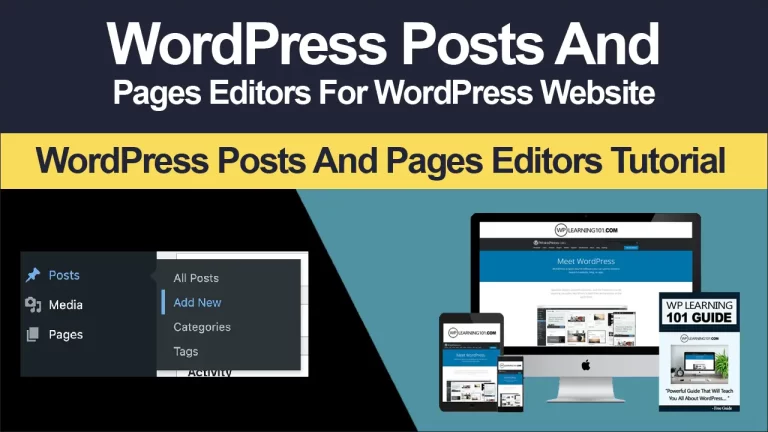
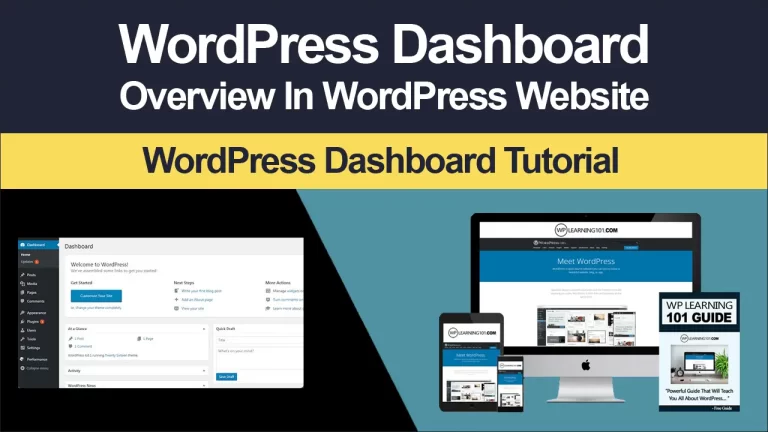
The dashboard is your control center. Posts are usually time based articles, while Pages contain relatively permanent information. Media stores uploaded images and documents. Comments manages reader responses. Appearance controls themes and design options. Plugins add capabilities, and Users manages accounts and permissions.
Spend a few minutes opening each area without changing anything. Familiarity reduces hesitation later. Use the toolbar to preview the site, view updates, and access your profile. Keep the administrator account for administrative work, but consider creating a separate author account for everyday writing. Assign users only the role they need. An editor may manage content, while an author may publish their own posts; exact capabilities can vary by configuration and plugins.
Choose and Customize a Theme
A theme controls the visual structure of your site, including layouts, colors, typography, headers, and templates. Start with a theme that is actively maintained, compatible with current WordPress features, responsive on small screens, and documented clearly. A simple theme with excellent readability is usually a stronger choice than a complicated theme packed with effects you will not use.
Install themes through Appearance, then activate one at a time. If your theme supports the Site Editor, you can adjust templates and global styles through blocks. Other themes may use a Customizer or their own settings panel. The exact interface differs, but the principles remain similar: establish consistent typography, sufficient color contrast, clear navigation, and generous spacing.
Preview your site on a phone, tablet, and desktop. Test menus, buttons, forms, headings, and images. Avoid changing themes repeatedly after publishing because layouts and theme-specific settings may not transfer perfectly. If you need custom code, use a child theme or a carefully documented customization method rather than editing core theme files, which updates can overwrite.
Build Pages and Navigation
Create your core pages before promoting the site. Use the block editor to add headings, paragraphs, images, lists, buttons, galleries, columns, and other blocks. Each page should have one primary purpose. A Services page should explain what you offer, who benefits, what the process involves, and how visitors can take the next step.
Write headings that help visitors scan. Keep paragraphs focused and place the most important information near the beginning. Use descriptive link text rather than vague phrases such as “click here.” Compress images before uploading, choose meaningful filenames, and write alternative text when an image conveys information. Decorative images may use empty alternative text so screen readers can skip them.
Set a static homepage if your site should present a controlled introduction. Create a separate Blog or News page for posts, then select both under the reading settings. Add your main pages to a primary navigation menu. Check every menu link after saving, especially on mobile devices.
A useful page structure
Begin with a clear statement of the visitor’s problem or goal. Explain your solution using evidence you can support, describe the next step, and provide an accessible contact method. Do not promise outcomes you cannot guarantee. Accurate, specific language builds more trust than exaggerated claims.
Publish Helpful Blog Posts
Posts are valuable when they answer a real question, explain a process, document expertise, or provide a useful perspective. Before writing, define the reader and intended result. A beginner tutorial should not assume specialist knowledge. Explain necessary terms, show steps in order, and mention common mistakes.
Use the editor’s outline to structure the article. A strong post often includes a direct introduction, descriptive subheadings, examples, cautions, and a practical conclusion. Assign one primary category and add tags only when they help users browse related content. Do not create dozens of overlapping categories.
Set a featured image when your theme displays one, but do not treat it as a substitute for a useful headline. Preview the post, check links, confirm the author, and schedule or publish it. After publication, read it as a visitor would. Correct broken links, unclear instructions, and formatting problems promptly.
Add Plugins Carefully
Plugins extend WordPress with forms, backups, caching, accessibility tools, analytics connections, ecommerce functions, and more. Install only what solves a specific problem. Too many plugins can increase maintenance, create conflicts, or add unnecessary settings. A plugin is not automatically safe because it appears in a directory; review its documentation, update activity, compatibility information, and support history.
Before installing, ask whether your theme or hosting already provides the feature. Two plugins performing the same task can interfere with each other. Install one solution, configure it, test the site, and document important settings. Delete inactive plugins you do not need rather than leaving them available for future use.
A contact form plugin should send test messages. A caching plugin should be checked after publishing new changes. An ecommerce plugin requires careful testing of products, checkout, taxes, shipping, payment processing, emails, and customer accounts. For financial or legal requirements, consult qualified local guidance rather than relying on a plugin’s default settings.
Protect, Back Up, and Maintain Your Site
Security begins with ordinary discipline. Use strong unique passwords, enable two factor authentication when available, limit administrator accounts, and update WordPress, themes, and plugins from trusted sources. Remove unused software. Be cautious with unexpected login messages, download requests, and support claims.
A backup is useful only if it can be restored. Configure automatic backups through your host or a reputable backup solution, and keep copies in a location separate from the website. Test restoration periodically according to your risk and resources. Before major updates, create a fresh backup and note what you changed.
Maintenance is ongoing rather than a one time launch task. Review Site Health, update software, test forms, inspect important links, check storage, and confirm backups. Monitor performance from different devices and networks. If an update causes trouble, restore a backup or deactivate the likely component methodically. Do not make many changes at once, because that makes diagnosis harder.
Improve Performance and Accessibility
A fast, accessible site serves more people and usually feels more professional. Resize and compress images, avoid uploading unnecessarily large files, limit decorative animation, and remove scripts you do not need. Your host, theme, and plugins all affect performance, so change one factor at a time and observe the result.
Accessibility is not a cosmetic extra. Use a logical heading order, keyboard friendly navigation, readable text, visible focus states, captions or transcripts when appropriate, and sufficient color contrast. Do not put essential text only inside images. Write alternative text that communicates an image’s purpose, not every visual detail. Automated checks can help identify issues, but they do not replace human review.
Make Content Discoverable
Search visibility begins with useful content and clear structure. Write page titles that accurately describe the subject, use headings to organize information, and connect related pages with descriptive internal links. Keep URLs readable and avoid changing them without a plan. If a URL must change, use an appropriate redirect where possible.
A search plugin may help manage titles, descriptions, sitemaps, and structured settings, but no plugin guarantees visibility. Avoid copying other sites, stuffing phrases unnaturally, or publishing shallow pages solely to attract visits. Measure success using goals that fit your purpose, such as inquiries, subscriptions, downloads, or engaged readership. Give content time to earn attention, then improve pages based on genuine visitor questions and behavior.
Troubleshoot Common Problems
When a problem appears, stay calm and change one thing at a time. A blank page or error after an update may indicate a plugin, theme, memory, or configuration conflict. If available, use recovery tools, review hosting logs, and contact the host with the exact error, time, and recent changes. Restore a known good backup when business interruption is serious.
If changes do not appear, clear relevant browser, caching, or content delivery caches, then verify that the change was saved in the correct location. If emails fail, test the form, confirm the recipient address, and use a properly configured mail delivery service when necessary. If a page is missing, check its publication status, visibility, menu link, and URL.
Do not repeatedly reinstall WordPress as a first response. That can destroy information while failing to identify the cause. Keep notes during troubleshooting; a short record of symptoms and actions can save time and help support staff assist you.
FAQ
Is WordPress free?
The WordPress software is available without a license fee, but a website commonly requires a domain and hosting. Premium themes, plugins, maintenance services, and professional support may add costs. WordPress.com plans have their own pricing and feature arrangements, so review current terms before choosing.
Can I build a WordPress site without coding?
Yes. The block editor, visual settings, and managed hosting allow many beginners to build a complete site without writing code. Coding becomes useful for specialized layouts or integrations, but it is not a prerequisite for publishing a credible website.
How many plugins should I install?
There is no universal ideal number. Quality, compatibility, configuration, and maintenance matter more than a simple count. Install necessary plugins from trustworthy sources, keep them updated, and remove those that no longer serve a clear purpose.
Should I update everything immediately?
Updates often include security and compatibility improvements, but timing should reflect your backup process and site importance. Back up first, review the update notes when available, and test important functions afterward. For a mission critical site, use a staging environment or qualified maintenance help.
How often should I publish?
Publish when you can provide something genuinely useful and maintain its quality. A sustainable schedule is better than frequent posts that repeat existing material. Update older pages when information, services, screenshots, or links change.
Do I need an SSL certificate?
Visitors should access a site through HTTPS. Many hosting providers include an SSL certificate, but confirm that it is active and that the site redirects correctly. Contact your host if browsers display security warnings.
What should I do if my site is hacked?
Limit further damage by contacting your host or a qualified security professional, changing credentials from a clean device, and preserving relevant information. Do not assume deleting one suspicious file solves the problem. After recovery, update software, review users, strengthen authentication, and investigate how the compromise occurred.
Conclusion
WordPress becomes manageable when you treat it as a sequence of decisions rather than a mysterious technical project. Define your purpose, select the hosting model that matches your control and maintenance preferences, establish a clear structure, publish genuinely useful content, and add features only when they solve identifiable problems.
Your first website does not need to be perfect. It needs to be understandable, accessible, secure enough for its circumstances, and easy to improve. Plan before installing, back up before changing important settings, test from a visitor’s perspective, and keep learning through small, deliberate experiments. With those habits, WordPress can provide a practical foundation for a durable website rather than a source of unnecessary complexity.