How to Build a WordPress Website: Choose a Domain and Hosting

Build A WordPress Website: Start With a Clear Website Plan
Building a WordPress website is manageable when you treat it as a sequence of decisions rather than a technical mystery. WordPress provides the content management system, while hosting, a domain name, a design, and useful content turn that system into a working website. The best approach is to define your purpose first, choose reliable foundations, build a simple structure, and improve the site before promoting it.
Begin by answering three questions. Who should visit the site? What should visitors accomplish? Which information will help them trust you? A business may need service pages, contact details, testimonials, and appointment options. A blogger may prioritize categories, subscriptions, and readable articles. An online shop needs product pages, payment tools, shipping information, and customer support. These different goals influence every later choice.
Write a short description of your ideal visitor and a practical list of required pages. Most new sites need a home page, an about page, a services or products page, a contact page, and a privacy page. You may also need terms, shipping information, a returns policy, accessibility information, or a portfolio. Keep the first version focused. A smaller site with clear navigation is usually more useful than a large site filled with unfinished pages.
Choose a Domain and Hosting
Your domain is the address people type to reach your website, such as yourbrand.example. Choose a name that is easy to pronounce, spell, remember, and connect with your organization. Avoid unnecessary punctuation, confusing abbreviations, and names that could be mistaken for another brand. If your preferred name is unavailable, choose a sensible alternative rather than adding a string of random numbers.
Hosting stores your WordPress files, database, images, and other resources on a server. When comparing hosts, examine WordPress compatibility, backup practices, security features, support availability, performance expectations, and renewal pricing. The cheapest introductory offer is not automatically the best value. A dependable provider with clear support can save time when an update, configuration problem, or traffic increase creates trouble.

There are several hosting models. Shared hosting places multiple websites on one server and can suit a small, early-stage site. Managed WordPress hosting may handle updates, caching, backups, and technical maintenance, often at a higher cost. A virtual private server provides more control but requires more administration. Select the simplest option that can support your expected needs; do not pay for complexity before your website requires it.
Register the domain through a reputable registrar or your hosting provider, then confirm that ownership details, renewal settings, and administrative email access are correct. Domain privacy may reduce public exposure of personal registration information where available, but review the provider’s terms rather than assuming it is included.
Install WordPress Correctly
Many hosts offer an automated WordPress installer. During setup, create a strong administrator username and password, use an email address you monitor, and select the correct site language and time zone. Avoid using “admin” as the username because predictable administrator names make attacks easier. Store credentials in a reputable password manager and never send them casually through ordinary messages.
Some providers require a manual installation. The process generally involves creating a database, uploading WordPress files, connecting configuration settings, and completing the installation in a browser. If those terms are unfamiliar, managed hosting or provider support may be a safer choice. A website owner should understand the outcome without feeling pressured to perform every server task personally.
After installation, sign in at the administration address, usually ending in /wp-admin. Visit Settings, then review the site title, tagline, language, time zone, and preferred date format. If you are building privately, discourage search visibility temporarily, but remember to change that setting when the site is ready. Set a meaningful permalink structure, commonly using the post name, before publishing substantial content. Changing URLs later can create broken links and redirect work.
Delete sample content, unused themes, and unnecessary plugins. Every installed component increases maintenance responsibility, especially if it remains active. Keep one suitable fallback theme, however, because WordPress may need it when troubleshooting.
Select a Theme and Build the Design
A theme controls the visual framework of your site, including typography, colors, layouts, headers, footers, and responsive behavior. Choose a maintained theme from a trustworthy source. Review its documentation, update history, accessibility attention, customization options, and compatibility with the WordPress version and essential plugins. Avoid choosing solely because a demonstration site looks attractive; a demo may depend on images, settings, or features you do not need.
WordPress supports block themes and more traditional themes. Block themes allow broad visual editing through the Site Editor, while traditional themes may provide customizer controls and theme-specific settings. Neither approach is universally superior. Choose the one whose editing method feels understandable and whose structure fits your planned content.
Design for clarity before decoration. Use a limited color palette, readable text, consistent button styles, and generous spacing. Ensure strong contrast between text and its background. Do not place important information only inside images or decorative sliders. Visitors should understand what you offer within seconds, especially on a mobile screen.
Create a header containing your logo or site name and a concise navigation menu. Add a footer with contact information, important links, social profiles if genuinely useful, and legal pages. Check the site at different browser widths. A menu that works on a wide monitor may become crowded or unusable on a phone.
Create a Useful Homepage
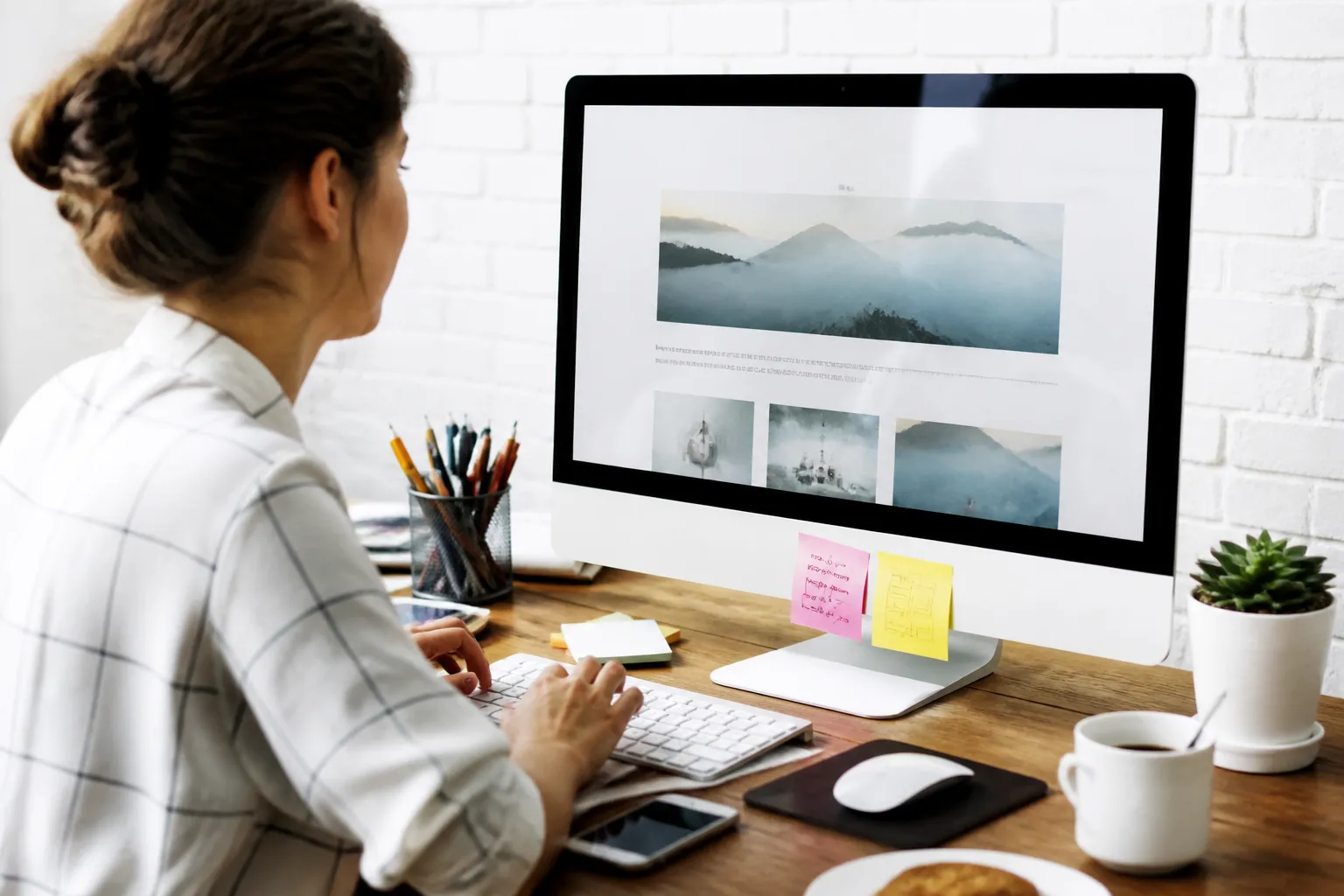
The home page should direct visitors, not merely display a welcome message. Explain what you do, whom you serve, and what action visitors can take next. A service business might use a headline, a short explanation, selected services, evidence of credibility, and a contact button. A publication might feature recent or recommended articles and an email subscription option.
Use real, relevant imagery with appropriate licenses and reasonable file sizes. Write alternative text for meaningful images so people using assistive technology can understand their purpose. Decorative images should generally have empty alternative text, allowing assistive technology to skip them.
Add Pages, Posts, and Essential Content
Pages usually contain stable information, such as About, Contact, Services, and Policies. Posts are dated entries commonly used for news, articles, announcements, or a blog. WordPress can organize posts with categories and tags, but use these tools deliberately. Categories should describe broad subjects; tags should add useful, specific connections. Do not create a separate category for every single post.
Write for a real reader’s questions. Each page should have one clear purpose, a descriptive heading, short paragraphs, and useful next steps. Explain benefits without making unsupported promises. A product page should describe what the product does, who it suits, important limitations, what is included, and how to obtain help. A service page should explain the process, likely outcomes, boundaries, and contact method.
Use the block editor to add headings, paragraphs, lists, images, buttons, tables, quotations, and columns where they improve comprehension. Headings should follow a logical order rather than functioning as enlarged decorative text. Keep pages scannable, but do not reduce complicated instructions to vague marketing language.
The contact page should provide an obvious route to communication. A form is convenient, yet it should not be the only option if users cannot access it. Consider listing an email address or other suitable method. Explain how submitted information will be handled, and avoid collecting details you do not need.
Install Plugins With Restraint
Plugins add capabilities, such as forms, backups, security controls, ecommerce, analytics, caching, or search features. Install only plugins that solve a defined problem. Before installing one, check whether WordPress or your theme already provides the function. Multiple plugins offering the same feature can create conflicts, duplicate scripts, confusing settings, and slower maintenance.

Evaluate a plugin’s developer reputation, documentation, update activity, compatibility information, support quality, and privacy implications. “Free” does not mean costless: you may spend time configuring it, resolving conflicts, or migrating away later. Premium software is not automatically reliable either, so assess the actual product rather than its price.
Activate plugins one at a time and test the site after each major change. If a problem appears, you will know where to investigate. Keep plugins updated, but create a recent backup first when the site is important. Remove inactive plugins you no longer need, rather than leaving them forgotten.
For online stores, a mature ecommerce plugin can provide catalogs, carts, checkout, payment integrations, order management, and tax settings. Configure these carefully and test the entire customer journey. Place test orders, verify confirmation messages, examine inventory behavior, and confirm that refund and support procedures are understandable.
Protect, Back Up, and Maintain the Site
Security begins with basic discipline. Use unique passwords, limit administrator accounts, enable additional authentication where available, and keep WordPress, themes, and plugins updated. Do not install software from unknown sources. Review user roles so contributors receive only the access required for their work.
Use HTTPS through a valid certificate, especially when visitors submit information or make purchases. Many hosts provide certificate setup, but you should still confirm that both the secure and nonsecure versions redirect consistently. Avoid assuming that a certificate alone makes a site secure; it protects transmission, not every weakness in software or account management.
Backups are essential because updates, mistakes, compromised accounts, and hosting failures can damage a site. A useful backup strategy includes the database and uploaded files, stores copies separately from the live server, and allows restoration. Schedule backups according to how often your content changes. A site publishing daily may require more frequent copies than a rarely updated brochure site. Test restoration occasionally; a backup that cannot be restored offers false confidence.
Maintenance also includes checking forms, links, menus, images, checkout steps, and email delivery. Review outdated prices, staff information, policies, and service descriptions. Remove obsolete content or update it clearly. Keep a simple maintenance record noting changes, updates, and backup status.

Improve Performance and Accessibility
Performance affects user patience and practical usability. Resize images before uploading, select efficient formats when appropriate, avoid unnecessary animation, and limit heavy scripts. A caching solution may help, but configuration varies by host and site. Test important pages on a normal mobile connection rather than relying only on an administrator computer.
Accessibility should be part of construction, not a final decoration. Provide keyboard-friendly navigation, visible focus indicators, meaningful link text, adequate contrast, properly labeled form fields, captions or transcripts where needed, and logical heading structure. Do not rely on color alone to communicate status. Automated checkers can identify some issues, but human review remains valuable.
Set readable text sizes and avoid long lines that make reading tiring. Test zooming and keyboard navigation. Ask people with different devices or access needs to try key tasks, particularly contacting you, finding information, and completing checkout. Accessibility improvements often make the site clearer for everyone.
Prepare for Launch
Before announcing the website, inspect every public page in a private browser window. Confirm that navigation works, forms reach the correct inbox, buttons lead to accurate destinations, and images load properly. Read the copy aloud or ask another person to proofread it. Look for unfinished placeholder text, inconsistent capitalization, accidental duplicate pages, and unclear calls to action.
Check the site title and description, social sharing image, favicon, and search appearance settings. Submit a sitemap through the relevant webmaster tools if appropriate, but do not mistake submission for guaranteed indexing or traffic. Search visibility depends on useful content, technical accessibility, clear information, and time.
Review privacy and legal requirements relevant to your location, audience, and business model. Requirements differ, especially when collecting personal data, selling goods, serving children, or operating across borders. Use qualified legal guidance when the consequences are significant. Do not copy another website’s policy and assume it applies to you.
Launch does not mean the project is finished. Tell existing contacts, add the address to professional profiles, and publish useful content consistently. Track meaningful outcomes, such as completed inquiries, downloads, purchases, or newsletter registrations, rather than obsessing over visits alone.
Frequently Asked Questions
Is WordPress free to use?
The WordPress software can be used without purchasing a software license, but a functioning website usually requires hosting and a domain. You may also pay for a premium theme, plugins, professional services, maintenance, or specialized support. Costs depend on your goals and choices.
Should I choose WordPress.com or self-hosted WordPress?
They are related but different arrangements. A hosted WordPress service can simplify setup and maintenance, while self-hosted WordPress gives you greater responsibility and often broader control over hosting, themes, plugins, and server configuration. Compare the exact plan limitations, ownership terms, support, backups, and pricing before deciding.
Can I build a WordPress website without coding?
Yes. The block editor, Site Editor, and many themes allow you to build pages visually. Basic HTML, CSS, or PHP knowledge becomes useful when customizing unusual layouts or troubleshooting, but it is not required for a straightforward site. Avoid adding code simply to imitate a feature already available through reliable tools.
How long does building a website take?
A simple site may be assembled quickly, while a carefully written business site, store, membership platform, or publication requires more planning, content, testing, and configuration. The limiting factor is often gathering accurate content rather than installing WordPress. Set a realistic launch scope and improve the site in stages.
How many plugins should I install?
There is no universally safe number. Plugin quality, configuration, overlap, hosting, and maintenance matter more than the count. Use the smallest collection that provides necessary functions, keep everything updated, and remove tools that no longer serve a purpose.
What should I do if an update breaks my site?
Stay calm and avoid making several additional changes at once. Check whether your host offers a restore point, use a recent backup, and review the plugin or theme involved. A staging site can make future testing safer. If the issue affects customers or payments, contact your host or a qualified WordPress professional promptly.
Conclusion
A successful WordPress website is built through clear planning, restrained design, useful content, careful testing, and ongoing maintenance. Start with the visitor’s needs, choose hosting that matches your technical comfort, and create only the pages your audience requires. Protect accounts, maintain backups, test accessibility, and treat every plugin as a responsibility. Once the foundation is sound, publish helpful material, observe how people use the site, and improve deliberately. This practical process produces a website that is easier to manage, more trustworthy to visitors, and better prepared to support your long-term goals.