
How to Create a WordPress Website Navigation Menu
Why Navigation Matters
A WordPress navigation menu is the organized set of links that helps visitors move through your website. A useful menu answers three questions immediately: Where am I, what can I find, and how do I reach an important page? Creating one is straightforward, but good navigation requires more than adding every page to a horizontal bar. You must choose a sensible structure, label links clearly, test the result on phones, and keep the menu aligned with your website’s purpose.
The instructions below cover both the newer Site Editor approach and the classic Appearance menus screen. WordPress themes and versions can present slightly different labels, so do not worry if your dashboard looks somewhat different. The underlying tasks remain similar: select a menu location or navigation block, add links, arrange them, save, and test.
Plan the Structure Before Editing
Start by listing the pages visitors genuinely need. A small business might use Home, About, Services, Blog, and Contact. An online publication may need Home, Categories, About, and a subscription page. An online store often benefits from Shop, product categories, Cart, and Account. These examples are starting points, not mandatory formulas.
Keep the primary menu focused. Too many top-level links force visitors to scan a crowded row and make mobile navigation harder. Put less important destinations, such as privacy information, terms, or an old archive, in the footer rather than the main menu. If a page rarely matters to a visitor’s first decision, it probably does not belong in primary navigation.
Build a Simple Hierarchy
Group related pages under meaningful parent items. For example, a Services link might contain Consulting, Training, and Support. A Resources item might contain Guides, Templates, and Frequently Asked Questions. Use dropdowns only when the grouping helps people predict what they will find. A dropdown with unrelated links is merely a storage box and can increase confusion.
Plan labels from the visitor’s perspective. “Our Approach” may sound distinctive, but “How We Help” or “Services” could be clearer if that is what the page contains. Keep labels short, use familiar terms, and maintain consistent capitalization. A menu should communicate destinations, not campaign slogans.
Write the planned structure on paper or in a simple outline before opening WordPress. This exposes duplicate pages, missing destinations, and unnecessary levels. In most cases, one dropdown level is easier to use than several nested levels. Deep menus may work for large sites, but they require careful testing and strong visual hierarchy.
Create a Menu in the Site Editor
Block themes generally use the Site Editor. In your WordPress dashboard, open Appearance, then choose Editor. The exact interface can vary, but you will usually see a preview of your site and controls for editing templates or design elements. Open the area that contains your header, often through Patterns, Template Parts, or the visible header preview.
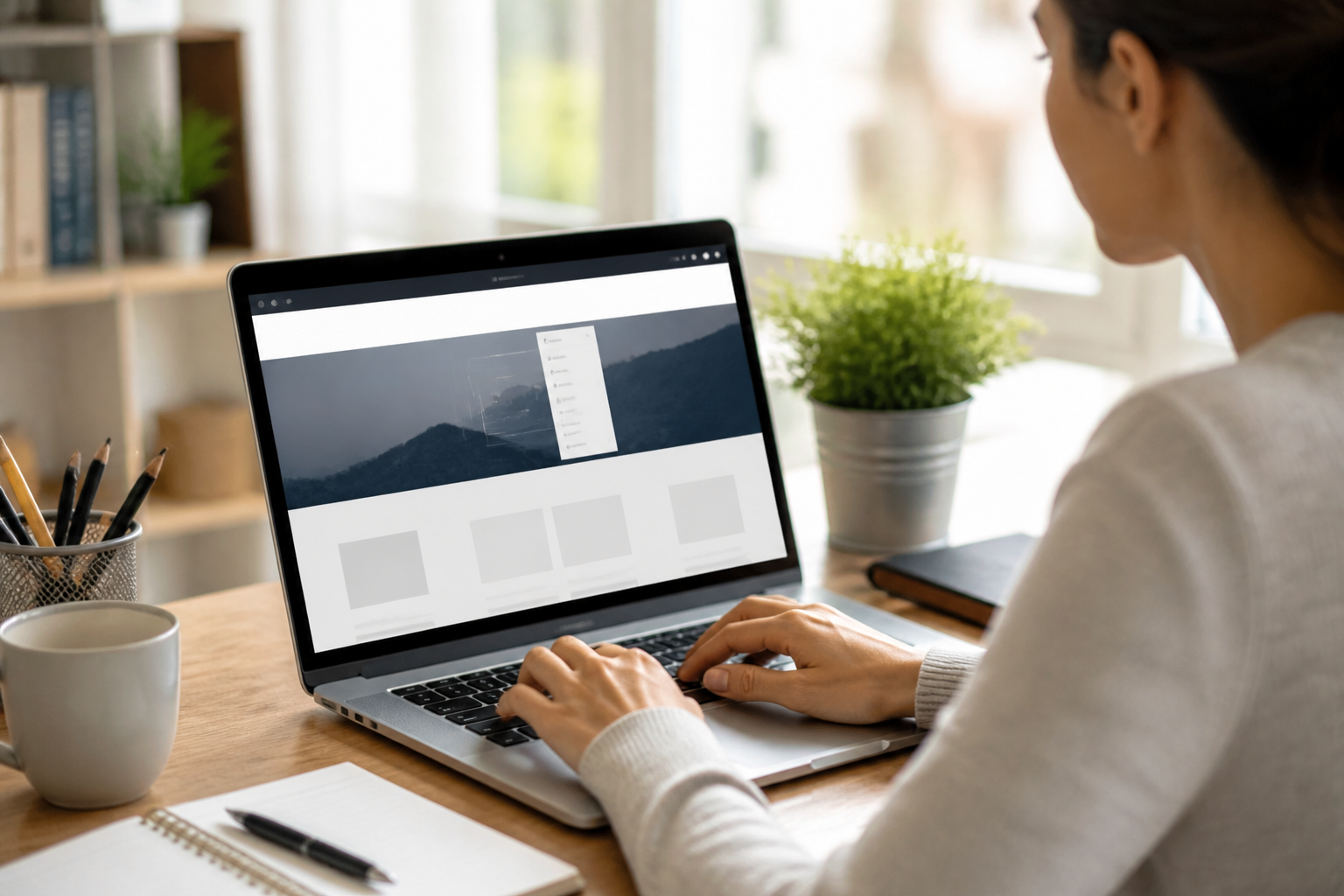
Select the Navigation block. If the header does not contain one, add a Navigation block in the appropriate location. WordPress may offer an existing navigation menu to edit or ask you to create a new one. Choose the option that matches your goal, then click the menu area so its individual links become editable.
Add a link by selecting the plus button inside the Navigation block. Search for an existing page, post, category, or custom link. Select the desired result and confirm it. Repeat this process for each primary destination. If the target does not exist in the search results, choose a custom link and enter its complete web address and link text. Check custom addresses carefully because a single missing character can produce a broken destination.
Arrange and Nest Links
Drag menu items into the order you planned, or use the block’s movement controls. Put the most important destination near the beginning, usually after the site identity or Home link. Many sites do not need Home in the menu because the logo already links there, but including Home can help visitors understand the structure, especially on unfamiliar brands.
To create a dropdown, move one item beneath another and indent it using the available nesting control. The indented link becomes a child of the item above it. Inspect the visual outline before saving. The parent should describe the group, while each child should represent a specific destination. Avoid making a parent label look clickable if it has no useful landing page unless your theme clearly supports that interaction.
A menu item can sometimes be changed from a page link to a custom link. This is useful when a parent should open a category overview, point to an external resource, or act as a non-destination label. If you use a placeholder link, test it on both desktop and mobile. Some visitors expect every visible item to open a page, so a real overview page is often the more predictable solution.
Create a Menu with the Classic Screen
Classic themes commonly provide a dedicated menu manager. Open Appearance and select Menus. If no menu exists, choose the option to create a new menu, enter a descriptive name such as “Primary Navigation,” and save it. The name is for administration; visitors normally will not see it.
Use the panels on the left to add pages, posts, custom links, or categories. Select the items you need, then click Add to Menu. The selected links appear in the menu structure on the right. Open an item to edit its navigation label, URL, or other available settings. Changing the navigation label does not rename the underlying page, which lets you use a shorter menu term without altering page content.
Drag items vertically to change their order. Drag an item slightly to the right beneath another item to create a submenu. The indentation is the important visual signal. Save the menu after arranging it. Then locate the display settings, often labeled Menu Settings or Menu Locations, and assign the menu to the theme’s primary, header, or main navigation location.
If your theme offers several locations, do not assume they are interchangeable. A primary location usually appears in the header, while a footer location may appear near the bottom of every page. Some themes include social or mobile-specific areas. Assign the menu to the location you intend, visit the public site, and confirm that it appears where expected.
Add Useful Link Types
WordPress menus can point to more than static pages. Categories can help readers browse related posts, while custom links can send visitors to a booking service, membership portal, external shop, or a specific section of a page. Use these options deliberately. An external destination should be recognizable from its label, and its address should use the correct secure protocol when available.
Anchor links can take visitors to a section on the same page. They require a matching HTML anchor or block identifier and should be tested after publishing. If the destination does not exist, the link may land at the top of the page or fail silently. For a primary menu, ordinary page links are generally more robust.
You can also include a call to action, such as “Book a Consultation” or “Get Started,” when it represents a valuable next step. Give it visual emphasis through theme settings or a suitable CSS class only if the design remains accessible. Do not make every link look urgent; emphasis loses meaning when applied everywhere.
Improve Labels and Accessibility
Clear labels are central to usable navigation. Prefer “Contact,” “Pricing,” or “Documentation” over vague wording such as “Learn More,” especially when several links use the same phrase. A visitor using a screen reader may hear a list of links without surrounding visual context, so each label should make sense on its own.
Use a logical keyboard order. Visitors should be able to reach the menu with the Tab key, open dropdowns using available keyboard controls, and identify the focused item visually. Your theme and plugins influence this behavior, but you should test it rather than assume it works. Never remove visible focus styling merely because it does not match the design.
Navigation needs sufficient contrast, readable text, and touch-friendly spacing. Avoid relying only on color to distinguish active links. The current-page indicator should use another cue, such as an underline, weight, border, or background change. If you edit styles, check hover, focus, active, and disabled states. A beautiful menu that becomes unreadable on a small screen is not a successful menu.
Configure Mobile Navigation
A responsive theme may automatically collapse the desktop menu behind a menu button. Resize your browser or use a real phone to inspect the result. Open and close the menu, tap every item, and verify that dropdowns do not disappear before a visitor can select a child link. Mobile behavior differs between themes, so direct testing is essential.
Keep the mobile menu’s opening control obvious. The button should have an accessible name, a visible state, and enough space for comfortable tapping. Check whether the menu covers the page, pushes content downward, or opens as a panel. Each pattern can work, but the close control and current location should remain clear.
If your menu is too long on mobile, do not simply shrink the text. Remove low-priority links, combine closely related destinations, or move secondary items to the footer. A short, well-prioritized mobile menu usually serves visitors better than a miniature copy of desktop navigation.
Test and Troubleshoot
After saving, open the public website in a private browser window or while logged out. Visit several pages and confirm that the header remains consistent. Click every menu link, including dropdown items and external destinations. Check for pages that return errors, redirect unexpectedly, or display an outdated menu.
If the menu does not appear, first confirm that it was saved and assigned to the correct location. A classic theme may have multiple menus with similar names, while a block theme may contain separate Navigation blocks in different template parts. If changes are not visible, clear any caching layer and refresh the browser. Caching can delay visible updates, but do not treat it as the explanation until you have verified the saved configuration.
If dropdowns fail, inspect the theme’s responsive behavior and any optimization or menu plugins. Conflicting scripts, aggressive minification, or custom CSS can interfere with opening controls. Temporarily disabling a recently added plugin may help identify the source, but make changes carefully and avoid disabling security or essential functionality on a live site without a plan.
When a link opens the wrong destination, edit the menu item rather than recreating the entire menu. Confirm the slug, domain, and protocol. For a page that was renamed or moved, WordPress may preserve a redirect, but the menu should still point directly to the current canonical address when practical.
Manage Menus as the Site Changes
Navigation is not a one-time task. Review it whenever you add a major service, remove a page, reorganize categories, or change your audience. A menu that matched a five-page site may become confusing after months of publishing. Check analytics or user feedback for evidence that visitors struggle, but do not add links automatically in response to every request. Prioritize destinations that support common tasks and important business or organizational goals.
Use descriptive menu names in the dashboard so future administrators can distinguish Primary Navigation, Footer Links, and Member Menu. Document unusual custom links, anchor identifiers, or plugin-dependent items. This prevents accidental breakage when someone else edits the site.
Avoid deleting a page merely because you removed it from the menu. Other pages, search results, bookmarks, or external websites may still link to it. If a page is genuinely retired, decide whether to redirect it, replace its content, or return an appropriate not-found response. Treat navigation changes as part of broader content maintenance.
When to Use a Plugin
Most websites can create effective navigation with WordPress and their theme alone. A plugin may be useful when you need mega menus, advanced icons, conditional links, role-based destinations, or specialized mobile behavior. However, additional tools can introduce scripts, settings, compatibility concerns, and maintenance work. Choose one only for a requirement your current theme cannot reasonably meet.
Before installing, check whether the plugin is maintained, compatible with your WordPress environment, and configurable without harming accessibility. Test it on a staging site when possible. A plugin should solve a real navigation problem, not add visual effects that make menus slower or harder to understand.
FAQ
How many items should a primary menu contain?
There is no universal maximum, because screen width, audience, and site purpose differ. Start with the smallest set that supports the main visitor tasks. If labels wrap, the bar becomes crowded, or users overlook important links, reduce top-level items and move related destinations into a clear dropdown or footer.
Should Home be included?
Home can be useful, particularly for visitors who do not recognize that the logo is clickable. It is not essential when the logo reliably links to the homepage and the design makes that behavior clear. Test both choices with your audience and keep the version that makes orientation easiest.
Can a menu link to an external website?
Yes. Use a custom link and enter the complete address. Label it clearly so visitors understand they are leaving your site. Test the link after saving, and review it periodically because external addresses can change or disappear.
Why are my menu changes not visible?
Confirm that you edited the menu used by the visible header and saved the changes. In a classic theme, check the assigned menu location. In a block theme, verify that you edited the Navigation block in the relevant template part. Then clear site, server, or browser caches if caching is active.
How do I make a dropdown menu?
Add the parent and child links, then indent each child beneath the parent using the editor’s nesting control or by dragging it to the right in the classic menu screen. Save, open the public site, and test the dropdown with a mouse, keyboard, and touch device.
Can I hide a page from navigation without deleting it?
Yes. Remove the page from the menu while leaving the page published. It may remain accessible through direct links, search, related content, or other menus. Review whether visitors still need a clear route to it before removing every link.
What should go in the footer menu?
Footer navigation commonly contains privacy information, terms, accessibility details, contact information, sitemap links, and secondary resources. The exact contents depend on your website and obligations. Keep the footer organized rather than using it as a dumping ground for every omitted primary link.
Conclusion
Creating a WordPress navigation menu involves selecting the right editing interface, adding purposeful links, arranging a predictable hierarchy, assigning the correct display location, and testing every experience. Begin with visitor tasks rather than dashboard settings. Keep labels specific, limit top-level choices, use dropdowns only for meaningful groups, and treat mobile and keyboard usability as essential.
After publishing, inspect the menu while logged out and on a phone. Fix broken links, unclear labels, poor contrast, and crowded layouts before they frustrate visitors. Revisit navigation as your content changes, and introduce a plugin only when the built-in tools cannot meet a genuine requirement. A focused, accessible menu helps people find answers faster and makes the rest of your WordPress website easier to use.