Build A WordPress Website: Install WordPress and Configure Essentials
Build A WordPress Website: Start With a Clear Website Plan
Building a WordPress website is manageable when you treat it as a sequence of decisions rather than a single technical task. WordPress supplies the publishing system, but you still need a purpose, an audience, suitable hosting, useful content, and a maintenance routine. The fastest route is usually to define what the site must accomplish before choosing themes, colors, or plugins.
Write one sentence describing the website’s primary goal. It might sell handmade products, generate consultation inquiries, publish articles, support a community, or present a portfolio. Then identify the action you want visitors to take, such as completing a purchase, booking a call, joining a mailing list, or reading a guide. This focus helps you select pages and prevents the site from becoming a collection of disconnected features.
Sketch a simple structure before opening the dashboard. A small business might need Home, About, Services, Blog, Contact, Privacy Policy, and Terms pages. An online store may also require product categories, a cart, checkout, shipping information, and returns guidance. Keep navigation understandable: visitors should know where they are and what to do next.
Decide whether you need WordPress.com or a self-hosted WordPress installation. WordPress.com provides managed infrastructure and packaged plans, while self-hosted WordPress uses software installed with a separate hosting provider. Neither choice is universally superior. Compare control, technical responsibility, available extensions, storage, support, and expected costs. Choose the arrangement that matches your confidence and the website’s needs.
Choose a Domain and Hosting
Your domain is the address people type to reach the website. Select a name that is easy to pronounce, spell, remember, and connect with your purpose. Avoid unnecessary hyphens, confusing abbreviations, and wording that may become restrictive if your business expands. Check availability through a reputable registrar, and consider whether related social handles or alternate extensions could cause confusion.
Hosting stores the website’s files and database and delivers them to visitors. Look for a provider that clearly explains server resources, backups, security controls, support, and renewal pricing. A very cheap introductory offer may become expensive later, so read the full terms. For a new site, managed WordPress hosting can simplify installation, updates, caching, and technical assistance. Shared hosting can be economical, but performance and support vary considerably.
Use HTTPS rather than plain HTTP. Many hosts provide a certificate through their control panel, but confirm that it is active before publishing. HTTPS protects connections and helps browsers treat the site as trustworthy. Also check whether the host performs automatic backups, how long backups remain available, and whether you can restore a specific version without waiting for support.

Install WordPress and Configure Essentials
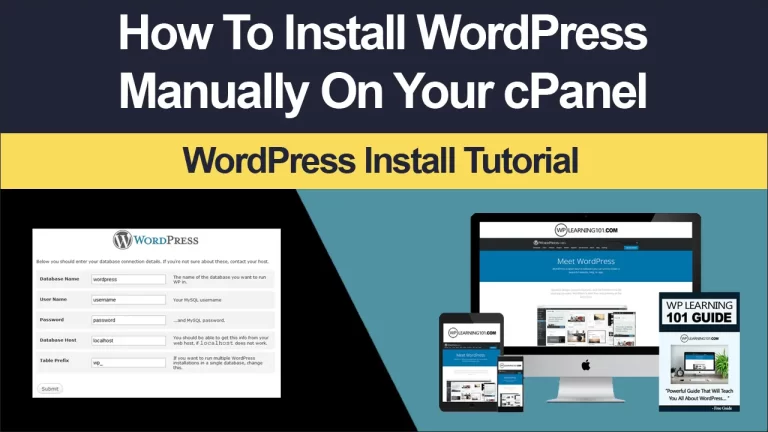
Most modern hosts offer a guided WordPress installer. You will typically enter the site name, administrator username, password, and email address. Do not use “admin” as the administrator username, and create a long, unique password stored in a reputable password manager. Limit administrator access to people who genuinely need it.
After signing in, open Settings and review the general information. Confirm the site title, tagline, language, timezone, and administration email. Under reading settings, decide whether the front page should display recent posts or a static page. Under permalinks, choose a clear structure that includes the post name. Change this early, because altering URLs after publication can create broken links.
Delete demonstration content, unused themes, and plugins you will not use. Every inactive extension adds clutter and may eventually require security updates. Keep one additional default theme available as a fallback, but remove obvious duplicates. Review user accounts and assign the least powerful role appropriate to each person. Administrator access should not be the default for writers, editors, or shop assistants.
Create a backup before making substantial changes. A backup is useful only if it can be restored, so learn where files and databases are stored and test the process when practical. Host-level backups are valuable, while an independent backup destination provides additional protection against account or server problems.
Select a Theme That Serves Visitors
A theme controls layout, typography, colors, templates, and some interactive behavior. Choose one that supports your content and remains readable on small screens. A visually impressive demo may depend on stock photographs, large animations, or complicated sections that do not suit your message. Judge the theme by its flexibility, documentation, update history, accessibility practices, and compatibility with the WordPress editor and important extensions.
Prefer a lightweight theme with sensible defaults. You can usually adjust branding without replacing the entire design. Establish a limited color palette, a readable body typeface, and a clear heading hierarchy. Contrast should be strong enough for comfortable reading, and links should look like links. Avoid using color alone to communicate meaning.
Use the Site Editor when your theme supports full site editing, or use the Customizer and theme settings provided by a classic theme. Build the header first: add a logo or text mark, primary navigation, and an obvious mobile menu. Design the footer with essential links, contact details, social profiles, and any required legal information. Keep both areas consistent across the site.

Create Essential Pages and Content
Begin with the pages that explain value quickly. The Home page should identify who you serve, what you provide, and the next action. The About page can establish context and credibility without becoming a biography. Service or product pages should describe outcomes, boundaries, pricing information when appropriate, and the easiest way to proceed. The Contact page should offer a practical method of reaching you and set expectations about response times.
Write for scanning. Use short paragraphs, descriptive subheadings, bullet lists, captions, and meaningful button labels. Replace vague calls to action such as “Click here” with phrases like “Request a consultation” or “View available courses.” Each page should have one principal purpose, even if it contains secondary links.
Prepare high-quality images, but resize them before uploading. Name files descriptively, write useful alternative text, and avoid stuffing keywords into captions or image fields. Alternative text should communicate the image’s relevant purpose; decorative images can generally use an empty alternative-text value. Compress images carefully so quality remains acceptable while page weight stays reasonable.
Publish a privacy policy and other notices that apply to your activities and location. If you collect email addresses, process payments, use analytics, or embed third-party media, explain those practices accurately. Legal requirements vary, so seek qualified advice when the website handles sensitive information or operates in regulated circumstances.
Add Plugins Carefully
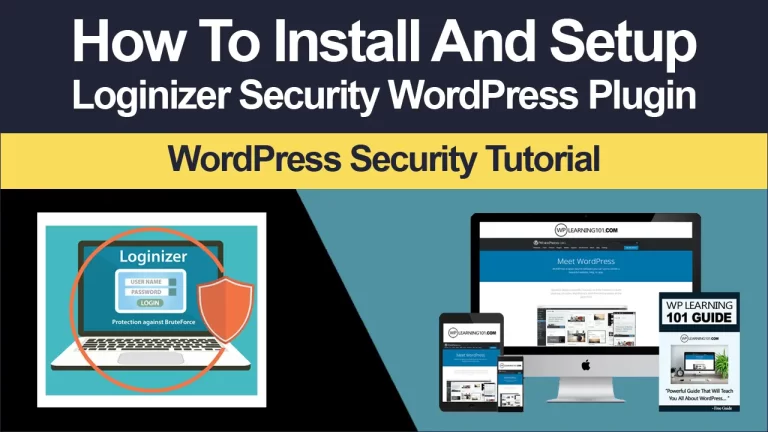
Plugins extend WordPress, but installing more is not automatically better. Begin with capabilities the site genuinely needs: contact forms, search optimization controls, caching, security monitoring, backups, analytics integration, or ecommerce. Research compatibility, maintenance activity, documentation, permissions, and support before installing anything.
Install plugins from reliable sources and review the settings immediately. Disable features you do not need, because unnecessary scripts can slow pages and increase complexity. Avoid overlapping plugins that perform the same job, especially caching, security, backup, or optimization functions. Conflicts can produce subtle errors, so add extensions one at a time and test afterward.

For an online store, an ecommerce plugin can provide products, cart behavior, checkout, order management, and payment integrations. Configure currency, tax treatment, shipping regions, inventory, customer notifications, and refund procedures carefully. Before launch, complete test orders using appropriate test modes or a controlled real transaction, then confirm emails, stock changes, payment records, and mobile checkout.
Keep a record of custom code and settings. If a developer adds snippets, place them in an appropriate child theme or code-management system rather than editing the parent theme directly. Direct edits can disappear during updates and make troubleshooting difficult.
Improve Performance, Accessibility, and Search Visibility
Performance begins with a simple design. Use appropriately sized images, limit decorative animations, remove unused plugins, and select fonts thoughtfully. A caching or optimization tool may help, but its settings should be tested rather than enabled blindly. Check important pages on a phone and a slower connection. Look for delayed menus, layout shifts, blocked buttons, and oversized media.
Accessibility is part of good design, not a final decoration. Use logical headings, keyboard-friendly controls, sufficient contrast, descriptive links, visible focus states, and labels for form fields. Do not rely on hover interactions alone. Test with keyboard navigation and, where possible, an assistive technology or an accessibility review. Automated tools can identify clues, but they do not replace human evaluation.
Search visibility comes from useful, understandable content and a technically reachable site. Give each important page a descriptive title, a concise summary, one clear main heading, and a readable URL. Link related pages naturally. Create an XML sitemap if your tools provide one, and submit it to relevant webmaster services when appropriate. Do not promise immediate rankings; discoverability and visibility develop through consistent quality, links, and accurate technical setup.
Test Before Launch
Create a launch checklist and test from a visitor’s perspective. Open the site in more than one browser and on both desktop and mobile screens. Confirm that navigation, logos, buttons, forms, search, social links, downloads, and embedded media work. Check spelling, dates, prices, contact details, and legal links. Remove placeholder text and demonstration images.
Submit every form and verify that messages reach the correct inbox. Confirm the reply address, success message, spam protection, and any stored submissions. For ecommerce sites, test product variations, coupons, shipping calculations, taxes, payment failures, refunds, receipts, and order notifications. Make sure customer-facing language matches the actual process.

Review privacy-sensitive tools before launch. Analytics, advertising pixels, newsletters, cookies, and embedded services may require notice or consent depending on your jurisdiction and configuration. Do not collect data simply because a plugin makes collection easy. Retain only what you need, protect access, and document why it is collected.
Ask someone unfamiliar with the project to complete the primary task. Watch where they hesitate, without immediately explaining the interface. Their questions reveal unclear labels, missing information, and unnecessary steps that the creator may overlook.
Launch and Maintain the Website
When the site is ready, remove any maintenance or password barrier, verify the correct domain, and make sure search visibility settings are not accidentally blocking indexing. Announce the website through channels appropriate for your audience, but avoid sending people to unfinished pages. Keep a copy of the launch checklist and record the date, theme, plugins, and major settings.
Maintenance is a continuing responsibility. Update WordPress core, themes, and plugins through a planned process, preferably after confirming backups. Read update notes when changes affect payment, forms, or custom functionality. Review administrator accounts, remove former collaborators, and rotate credentials when necessary. Monitor uptime, forms, checkout, and important links instead of assuming everything remains functional.
Schedule periodic content reviews. Replace outdated prices, services, screenshots, staff information, and policy language. Refresh articles when circumstances change, merge thin or repetitive pages, and redirect URLs when content moves. Review analytics as a decision aid, not as a scorecard. Look for pages visitors use, searches that produce no result, and points where people abandon forms. Interpret those signals alongside direct feedback.
Security depends on layered habits: strong unique credentials, limited permissions, timely updates, backups, HTTPS, and cautious plugin selection. A security plugin may assist with monitoring, but it cannot compensate for weak account practices or an untested recovery plan. If the website is business-critical, consider professional maintenance and documented incident procedures.
Frequently Asked Questions
Is WordPress suitable for beginners?
Yes, many beginners can build a capable site with managed hosting, a maintained theme, and a small set of well-supported plugins. The learning curve rises when you customize code, manage complex ecommerce, or troubleshoot hosting problems. Start with the simplest architecture that meets the goal, and expand only when a real need appears.
How much does a WordPress website cost?
The total depends on domain registration, hosting, premium themes or plugins, professional services, payment processing, email, and ongoing maintenance. Some software is free, but a free download does not mean a cost-free website. Compare recurring renewal prices and the value of time required to configure and maintain each component.
Can I change the theme later?
Usually, yes, but a theme change can alter menus, widgets, templates, spacing, and custom features. Content stored in standard WordPress fields is easier to preserve than content built into a theme’s proprietary modules. Test a redesign on a staging copy, document current settings, and inspect every important page before switching publicly.
Do I need coding skills?
No. The block editor and visual site tools can handle many business sites without code. Basic HTML, CSS, or PHP becomes useful for precise changes, but do not paste unfamiliar snippets into production. Back up first, use a child theme or appropriate code-management method, and obtain help when a change affects security or payments.
How many plugins should I install?
There is no universal safe number. A small, maintained set can perform well, while one poorly built extension can cause problems. Evaluate purpose, code quality, updates, permissions, and overlap. Remove plugins that no longer serve the site, and test after every significant installation or update.
Should I build the website myself?
Build it yourself when the website is straightforward and you have time to learn, write, test, and maintain it. Hire a professional when the project involves complex sales flows, custom integrations, accessibility obligations, sensitive data, or business-critical downtime. You can also combine approaches: provide strategy and content while contracting technical implementation.
Conclusion
A successful WordPress website is not defined by how many features it contains. It is defined by whether the right people can understand it, trust it, use it, and complete the intended task. Plan the structure, choose dependable hosting, configure WordPress securely, create focused content, and select only the extensions you can maintain. Then test the experience honestly across devices and keep the site current after launch.
Start with a small, useful version instead of waiting for perfection. A clear Home page, relevant information, reliable contact method, and sound technical foundation can serve visitors better than a crowded design. As goals become clearer, improve the site through evidence, feedback, and careful iteration. That disciplined approach makes WordPress flexible, persuasive, and sustainable.