WordPress Themes and Plugins: Understanding the Difference
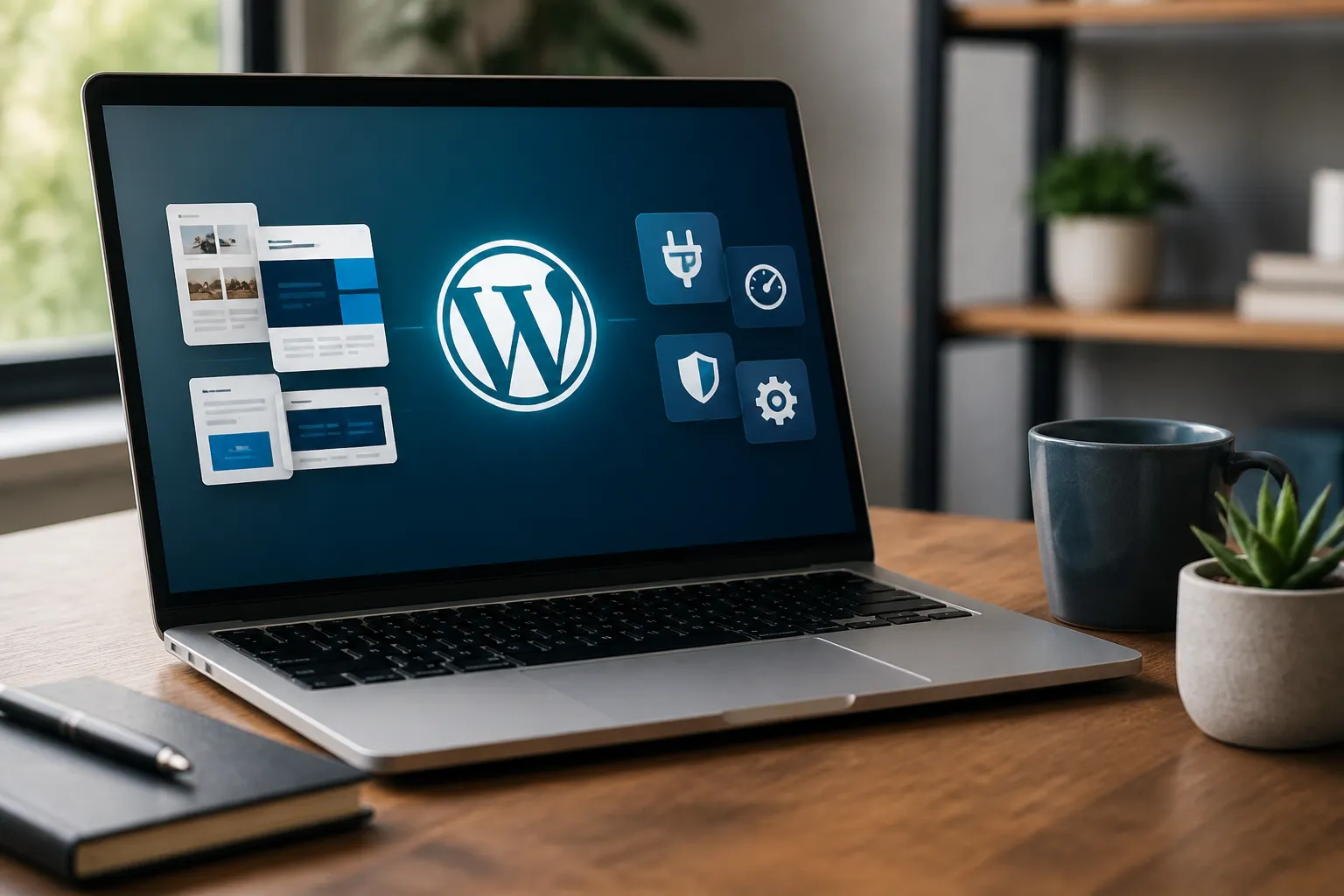
WordPress themes and plugins work together to shape how a website looks, behaves, and serves its visitors. A theme controls presentation, including layouts, typography, colors, navigation, templates, and responsive behavior. A plugin adds capabilities such as forms, online selling, search optimization, security, backups, memberships, analytics, or multilingual content. Choosing them thoughtfully is more important than collecting the largest possible library. The best setup is reliable, accessible, fast enough for its audience, easy to maintain, and closely aligned with the site’s purpose.
This guide explains how to evaluate both types of products, where they fit, what tradeoffs deserve attention, and how to build a practical WordPress stack for a blog, business, portfolio, store, nonprofit, publication, or community project.
WordPress Themes And Plugins: Understanding the Difference
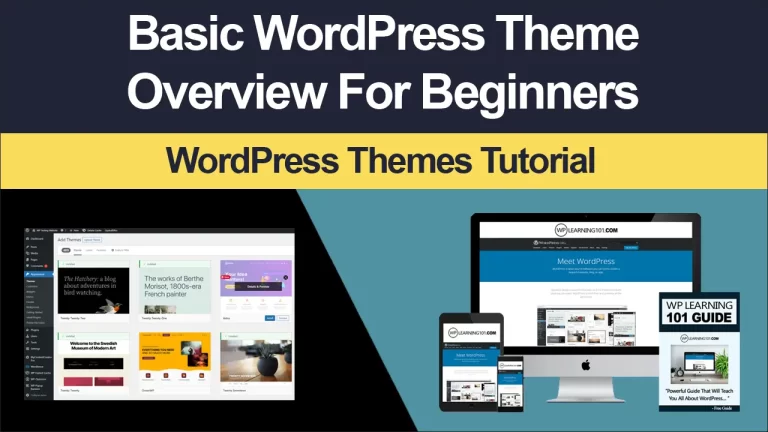
A WordPress theme establishes the visual and structural foundation. It may provide a site header, footer, menus, archive pages, single post templates, page layouts, block patterns, and customization controls. Modern themes often use the Site Editor, allowing owners to adjust templates and global styles with blocks rather than editing code. Classic themes may rely on the Customizer, widgets, theme options, or page builder integrations.
A plugin is an extension installed independently of the active theme. It can create new functions or modify existing ones. For example, an ecommerce plugin may add products, carts, checkout, orders, and payment integrations. A form plugin may offer fields, notifications, spam protection, and storage. A caching plugin may improve delivery by storing generated pages or optimizing files.
The distinction matters because design should usually remain with the theme, while functionality should remain with plugins. If a contact form disappears when changing themes, it was probably placed in the wrong layer. Separating appearance from essential features makes redesigns safer and reduces dependence on one vendor.

Choosing the Right Theme
Start With the Website’s Job
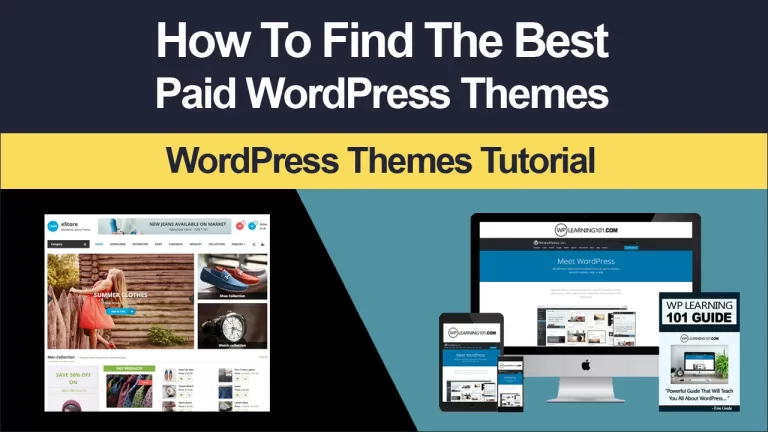
Define the primary task before browsing a theme directory. A restaurant needs menus, location details, opening information, reservations, and prominent mobile contact options. A consultant needs services, evidence of expertise, a biography, testimonials, and a clear inquiry path. A store needs product discovery, purchasing, customer accounts, and transactional clarity. A magazine needs readable archives, categories, search, and editorial hierarchy.
A theme should support that task without forcing unnecessary visual decoration. Examine its demo critically. Ask whether headings are easy to scan, buttons are obvious, menus behave sensibly, and important content remains understandable when images are removed. A beautiful demonstration can conceal a poor fit if it depends on stock photography or unusual content lengths.
Prioritize Performance and Accessibility
A lightweight theme generally gives the browser less work than a theme packed with sliders, animations, proprietary widgets, and multiple bundled libraries. This does not mean every minimal theme is excellent, or every feature-rich theme is unusable. Look for clean structure, sensible asset loading, responsive layouts, and the ability to disable features you do not need.

Accessibility should be considered from the beginning. Useful signals include keyboard-friendly navigation, visible focus states, adequate color contrast, meaningful heading structure, readable text sizes, and compatibility with screen readers. No theme can guarantee an accessible website because content, plugins, and customization also matter, but a careless foundation creates avoidable problems.
Check Editing and Compatibility
Choose an editing model your team can actually manage. A block theme may be ideal for owners who want flexible templates and global style controls. A classic theme may suit a site already organized around widgets and the Customizer. A builder-focused theme can provide visual control, but it may introduce extra markup, proprietary settings, or migration work later.
Review compatibility with the current WordPress version, the block editor, translation tools, ecommerce software, and major plugins you expect to use. Read documentation and changelogs rather than relying only on screenshots. A theme with clear setup instructions and regular maintenance is usually safer than one offering a spectacular demo but little technical information.
Selecting Useful Plugins
Build a Function List
Write down required functions before installing anything. Divide them into essential, useful, and optional categories. Essential features might include backups, security monitoring, contact forms, and ecommerce if the business depends on sales. Useful features might include advanced search, related content, or appointment scheduling. Optional features deserve scrutiny because every additional component can increase settings, maintenance, conflicts, and page weight.
One plugin can sometimes cover several related needs, but broad scope is not automatically better. A suite may simplify licensing and integration, while separate specialized plugins may offer cleaner control. Compare the actual feature set, not the length of the marketing page. Avoid installing multiple plugins that perform the same task, such as several caching systems or duplicate search optimization tools.
Evaluate Trust and Maintenance
Before installation, inspect the developer’s documentation, support process, update history, privacy explanation, and compatibility notes. An active plugin is not necessarily perfect, but abandoned software creates a growing risk. Check whether updates address WordPress changes and whether the developer explains important behavior clearly.
Assess permissions carefully. A plugin requiring access to orders, user profiles, or external services may be justified by its purpose, but unnecessary access deserves caution. For payment, email, analytics, or marketing integrations, understand what data leaves the website, where it is processed, and how visitors are informed. Consult appropriate privacy or legal professionals when requirements are significant.

Ratings can provide clues, not certainty. Read recent reviews for patterns involving support, compatibility, performance, and unexpected behavior. A complaint about a specific old version may be irrelevant; repeated reports of unresolved issues are more meaningful.
Core Plugin Categories
Search Optimization
Search optimization plugins can help manage titles, descriptions, XML sitemaps, canonical information, social previews, and structured content. They do not replace useful writing, accurate information, logical navigation, or technical quality. Choose one coherent system and learn its defaults. Overlapping optimization plugins can produce conflicting metadata or confusing controls.
Security and Backups
Security tools may offer login protection, malware scanning, firewall rules, activity records, or two-factor authentication. Their value depends on configuration and hosting context. Strong passwords, limited administrator access, timely updates, and secure hosting remain essential.
Backups should be treated as a recovery system, not a decorative checkbox. A useful plan includes regular copies, storage separate from the website, retention appropriate to the project, and periodic restoration tests. If a backup cannot be restored, its existence provides false confidence. Keep at least one recovery path available before making major updates.
Caching and Media Optimization
Caching can reduce repeated processing, while image optimization can reduce download size. Configure these tools carefully because aggressive settings may interfere with checkout sessions, personalized pages, forms, or scripts. Optimize image dimensions before uploading, use suitable formats, and avoid displaying a large file where a small image would suffice. Performance depends on hosting, theme structure, content, scripts, fonts, and visitor geography, so test representative pages rather than assuming a plugin solves everything.
Forms, Email, and Analytics
Forms should validate input, resist spam, protect stored submissions, and deliver notifications reliably. Test every form after installation and after major updates. Website email may fail when hosting is poorly configured; a reputable mail delivery service can improve reliability, but it introduces another account and privacy consideration.
Analytics tools can reveal traffic sources, popular content, and user journeys. Collect only information that serves a clear purpose, configure consent where required, and avoid tracking simply because a dashboard is available. Measurement should guide decisions, not become another maintenance burden.
Themes and Plugins for Different Websites
Blogs and Publications
A blog needs excellent reading conditions: comfortable line length, clear typography, dependable categories, author information, search, and mobile-friendly archives. Avoid themes that prioritize visual effects over sustained reading. Useful plugins may support editorial workflows, backups, spam control, related posts, and email subscriptions. If several writers contribute, consider roles, revisions, scheduled publishing, and image permissions.
Business Websites
A business site should explain the offer quickly and make contact straightforward. Select a flexible theme with strong page templates, then add only necessary functions such as forms, testimonials, maps, events, or lead management. Keep calls to action consistent. Do not let a page builder create dozens of nearly identical layouts; reusable patterns make future editing faster and improve visual consistency.
Online Stores
WooCommerce is a common foundation for WordPress stores, but the appropriate choice depends on products, payments, shipping, taxes, inventory, and customer support. Use a theme tested with the store system and examine product, cart, checkout, account, and email templates. Keep checkout uncluttered. Additional plugins may handle subscriptions, bookings, memberships, invoices, or shipping, but each introduces compatibility and operational responsibility.
Portfolios and Creative Sites
Creative professionals often need galleries, case studies, video, downloadable files, and inquiry forms. A visually expressive theme can help, but images must remain optimized and captions or context should not be sacrificed. Provide accessible alternatives, meaningful project descriptions, and a straightforward contact route. A portfolio should demonstrate outcomes and process, not merely display decoration.
Nonprofits and Communities
Nonprofit sites may require donations, events, volunteer forms, newsletters, directories, and multilingual content. Choose tools that support transparent payment processing and clear data handling. Community features can generate moderation duties, so plan reporting, user roles, spam controls, and content policies before enabling public submissions.
Builders, Blocks, and Customization
Page builders can accelerate design for teams that prefer visual editing. They may provide templates, sections, responsive controls, and advanced widgets. The tradeoff can include extra markup, vendor dependence, licensing costs, or complicated migration. The block editor and Site Editor offer a more integrated approach for many projects, especially when a theme is designed around them.
Custom CSS is useful for small adjustments, but repeated custom fixes can signal that the theme is wrong. A child theme can preserve custom code when a parent theme updates, although it requires disciplined documentation. Never edit a parent theme directly if updates may overwrite changes. Before modifying templates, create a backup and use a staging environment when available.
Managing Quality and Compatibility
Test Before Publishing
Build a checklist covering navigation, forms, search, responsive layouts, images, links, user registration, checkout, emails, and accessibility. Test with realistic content, not only the theme’s sample text. Review pages on a phone, tablet-sized viewport, and desktop. Try keyboard navigation and inspect focus order. Ask another person to complete the main task without instructions; confusion often reveals more than visual inspection.
Update Carefully
Updates can improve security and compatibility, but they can also change settings or presentation. Maintain current backups, read update notes, and test important workflows after updating. On a larger or revenue-producing site, stage updates before production. Update WordPress, themes, plugins, and hosting components with a coherent schedule rather than allowing a neglected collection to become difficult to change.
Keep the Stack Small
Every plugin creates a relationship that must be maintained. Remove inactive plugins rather than leaving them installed indefinitely, and delete unused themes except for a maintained fallback when appropriate. Document why each active component exists, who manages it, and what would break if it were removed. This simple inventory makes troubleshooting and handover far easier.
Common Mistakes to Avoid
Choosing a theme solely because its demo looks attractive is a common error. Content structure, accessibility, speed, and editing needs matter more than a fashionable hero section. Installing several plugins for the same purpose creates conflicts and makes support unclear. Ignoring updates increases exposure to defects and security problems. Editing without backups turns an ordinary mistake into an emergency.
Another mistake is treating performance as a single score. A website may score well on one test while delivering a poor experience on a slow connection or with a heavy third-party script. Measure important templates, compare changes, and prioritize real user tasks. Finally, do not assume premium means suitable or free means unsafe. Evaluate documentation, maintenance, compatibility, support, and total cost.
A Practical Selection Process
Begin by describing the audience, content types, business goals, and essential workflows. Next, choose a theme that supports the content and editing model without unnecessary complexity. Install only foundational plugins, then add one function at a time. After each addition, test speed, layout, forms, and administrative behavior.
Record settings and licenses in a secure document. Establish who receives update notifications, who can restore backups, and who approves new integrations. Revisit the stack when the website’s purpose changes. A small site may later need ecommerce, membership, multilingual publishing, or automation; planning for change is wiser than forcing an unsuitable foundation indefinitely.
Frequently Asked Questions
Should I choose a free or paid theme?
Either can work. Judge the theme by code quality, accessibility, documentation, update practices, compatibility, and support. A paid license may provide assistance or additional features, but it does not guarantee a better fit. A free theme from a reputable source may be entirely adequate for a straightforward website.
How many plugins should a website have?
There is no useful universal maximum. The important factors are what each plugin does, how well it is maintained, and how it affects performance, security, and complexity. Ten well-maintained plugins may be safer and faster than three poorly built ones. Install only functions that serve a clear requirement.
Can I change themes later?
Yes, but a change may affect menus, widgets, templates, styling, builder layouts, and custom code. Content created by independent plugins usually remains, while theme-specific elements may need rebuilding. Test the new theme on staging and preserve the existing site until the transition is confirmed.
Do I need a page builder?
Not necessarily. The block editor can handle many pages and layouts, especially with a compatible modern theme. A builder may be valuable for specialized design control or a team comfortable with its workflow. Consider long-term editing, performance, cost, and portability before choosing one.
What should I do when two plugins conflict?
Identify the symptoms and record recent changes. Create a backup, update compatible components, and reproduce the problem in a staging environment. Temporarily deactivate plugins one at a time to isolate the cause. Check developer documentation and support channels. Do not leave a broken payment, login, or form workflow unresolved on a live site.
Are security plugins enough?
No. They are one layer in a broader approach that includes updates, strong authentication, least-privilege accounts, secure hosting, backups, monitoring, and careful administration. Configure tools according to the site’s needs, and understand what they can and cannot detect.
How can I improve speed without changing everything?
Start with the largest practical causes: oversized images, unnecessary scripts, excessive fonts, poor hosting configuration, and redundant plugins. Enable suitable caching, optimize media, remove unused components, and test each change. Avoid applying aggressive settings blindly, especially on stores and membership sites.
Should I install plugins from anywhere?
Use trustworthy distribution channels and verify the developer, documentation, licensing, and update record. Avoid nulled or illegally modified software. Its source may be unknown, and support or security updates may be unavailable. When a plugin handles sensitive information, investigate data practices carefully.
Conclusion
A strong WordPress website does not come from choosing the most themes or plugins. It comes from matching a dependable theme to the site’s content and audience, then adding focused plugins for genuine requirements. Prioritize accessibility, performance, maintenance, compatibility, security, and recovery before decorative extras.
Define the website’s job, test candidates with realistic content, separate design from functionality, and keep a clear inventory of active components. Review updates, verify backups, and remove what no longer contributes. With this disciplined approach, WordPress themes and plugins become a practical foundation rather than a source of unnecessary complexity. The result is a site that looks credible, works predictably, and can grow without forcing every future improvement into a complete rebuild.