WordPress Themes And Plugins: Understanding the WordPress Foundation
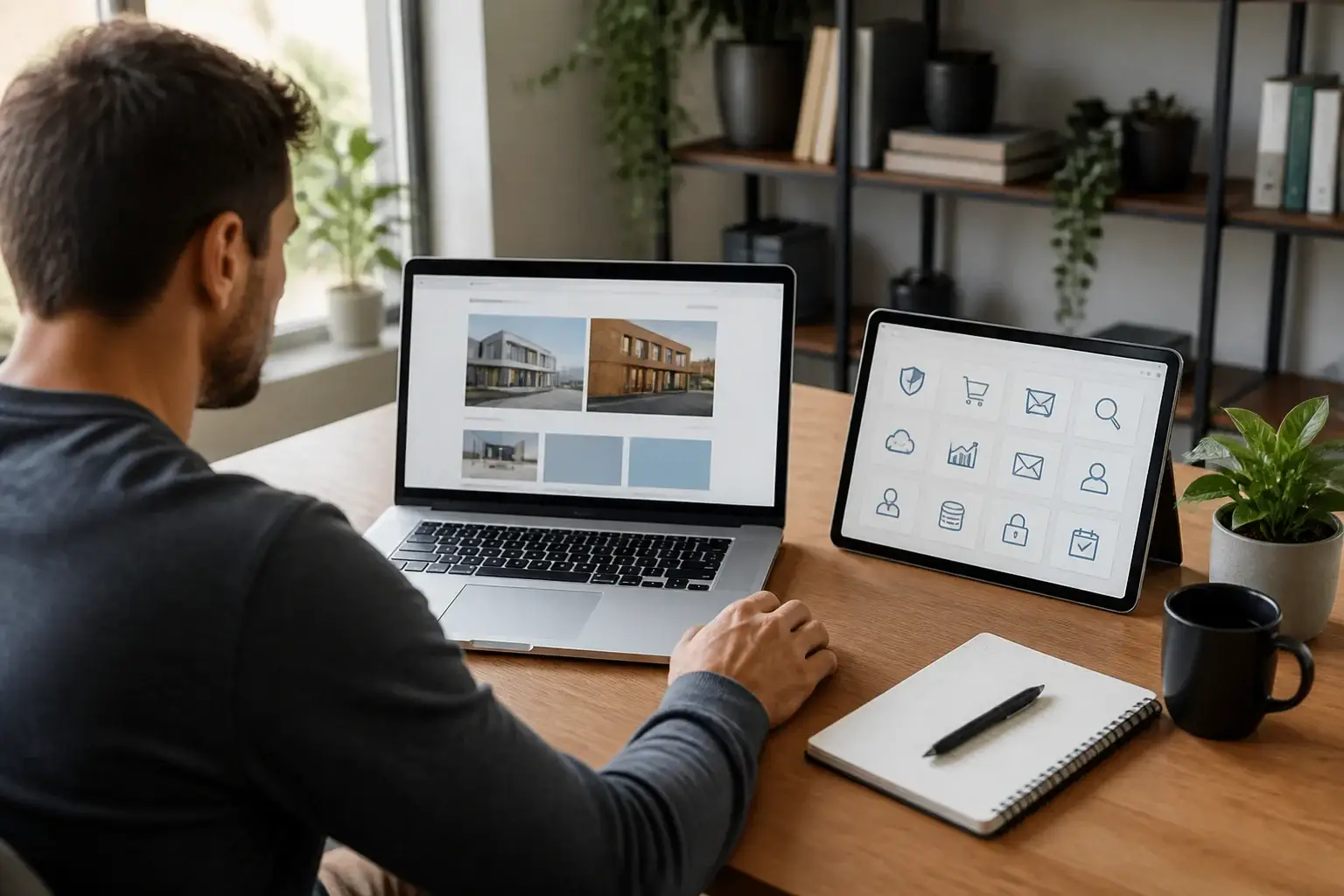
WordPress themes and plugins work together to shape how a website looks, functions, and serves its visitors. A theme controls the visual framework: layout, typography, colors, navigation, templates, and responsive behavior. Plugins add capabilities such as forms, search optimization, online selling, memberships, backups, analytics, and security. Choosing them carefully is more important than collecting as many features as possible. The strongest website usually combines a lightweight, well-supported theme with a small set of reliable plugins that solve clearly defined problems.
This guide explains how to evaluate both, how they interact, where common choices fail, and how to build a practical WordPress foundation for a blog, business site, portfolio, publication, or store.
WordPress Themes And Plugins: Understanding the WordPress Foundation
What a theme actually controls
A WordPress theme is a collection of files that determines presentation. It may provide page templates, header and footer designs, archive layouts, blog styles, color controls, block patterns, and customization settings. Modern themes may be built around the Site Editor, allowing users to adjust templates and global styles through blocks. Classic themes often rely on a Customizer, theme options, or a page builder.
A theme should support your content rather than compete with it. A restaurant may need prominent menus, location details, reservations, and gallery layouts. A consultant may prioritize readable case studies, services, calls to action, and contact information. A magazine may require category archives, author details, and flexible editorial templates. The right choice begins with the site’s purpose, not with a visually impressive demo.
What plugins actually add
Plugins extend WordPress without requiring you to rebuild the core platform. A form plugin can collect inquiries, while an ecommerce plugin can manage products, payments, shipping, and orders. Other plugins handle caching, image optimization, redirects, accessibility improvements, backups, spam reduction, and custom fields.

Plugins are valuable because they separate functionality from design. If you change themes, a properly chosen contact form or store plugin should continue working. This separation also creates responsibility: plugin quality, compatibility, configuration, and maintenance affect the entire site.
Choosing a Theme with Confidence
Start with structure and purpose
Before browsing themes, list the pages and content types the site needs. Include standard pages such as Home, About, Services, Contact, Privacy, and Terms where appropriate. Then identify special requirements: portfolios, testimonials, events, products, courses, directories, downloads, or member dashboards.
Compare themes by asking whether they make those requirements easy to present. A beautiful homepage is not enough if the blog archive is difficult to read or the mobile menu is confusing. Examine several templates, not only the demonstration front page. Check single posts, search results, category archives, error pages, and footer areas.
Prioritize performance and accessibility
A theme with excessive sliders, animations, bundled widgets, and decorative scripts can make pages harder to load and use. Performance depends on hosting, images, plugins, code, and configuration, but the theme remains a significant part of the foundation. Prefer clean markup, sensible asset loading, responsive layouts, and restrained visual effects.

Accessibility deserves equal attention. Look for readable contrast, visible keyboard focus, logical headings, usable navigation, descriptive link text, and controls that work on small screens. No theme alone guarantees accessibility, because your content and customizations matter too. However, a theme that begins with accessible patterns reduces later corrections.
Check support, updates, and documentation
A theme is not a one-time decoration. WordPress, browsers, PHP versions, and plugins change, so ongoing maintenance matters. Before installing, review the theme’s update history, documentation, support process, licensing terms, and compatibility information. An established theme with clear documentation may be safer than a more elaborate theme from an unknown source.
Do not assume that a high download count proves quality, or that a premium price guarantees suitability. Evaluate the product’s current support and code practices. A free theme can be excellent; a paid theme can still be bloated or restrictive. The useful question is whether the theme receives responsible maintenance and fits your workflow.
Selecting Plugins That Solve Real Problems
Define the job before installing
Write one sentence for every proposed plugin: “This plugin will help visitors…” or “This plugin will help administrators…” If you cannot complete that sentence clearly, installation may be premature. A plugin should address a genuine requirement, not merely offer an attractive dashboard of options.
For example, a service business may need a form, spam protection, backups, redirects, performance tools, and analytics. It may not need three page builders, several overlapping search optimization plugins, or multiple popup systems. Fewer components usually make troubleshooting, updates, and training easier.
Essential plugin categories
Most websites benefit from several functional categories, although the exact selection varies.
A backup solution should create recoverable copies and make restoration understandable. Storing every backup on the same server provides limited protection if that server fails, so consider an independent destination and test restoration periodically.
Security tools can reduce suspicious activity, strengthen authentication, monitor changes, or limit abusive requests. They do not replace updates, strong passwords, appropriate user roles, secure hosting, or a recovery plan.
Performance plugins may provide caching, asset optimization, database cleanup, and image handling. Configure them gradually. Aggressive combinations can break scripts, forms, checkout pages, or logged-in experiences.

Forms plugins simplify inquiries, registrations, surveys, and notifications. Confirm that submissions are handled responsibly, spam controls work, and email delivery is dependable. A form that appears successful but loses messages is worse than no form.
Search optimization plugins can help manage titles, descriptions, canonical settings, XML sitemaps, structured data, and redirects. They cannot make weak content valuable or guarantee visibility. Use them as organization tools, not as substitutes for clear information.
For shops, an ecommerce plugin must match product types, payment methods, shipping rules, tax obligations, inventory needs, and customer support capacity. Test the complete purchase path, including failed payments, refunds, confirmation messages, and mobile checkout.
Avoid overlapping functionality
Two plugins that perform the same job can create conflicts. Multiple caching systems may rewrite the same files. Several security plugins may block legitimate requests. More than one plugin may generate competing metadata or sitemaps. Before adding a replacement, disable and remove the old tool only after confirming that its settings, redirects, or stored data are no longer needed.
Keep a simple inventory containing each plugin’s purpose, provider, settings, renewal information, and dependency relationships. This record makes future maintenance far less mysterious.
Themes and Plugins Working Together
Compatibility involves more than whether an installation button appears. A theme may style buttons, forms, products, and account pages in ways that conflict with a plugin’s markup. A page builder may override templates supplied by the theme. Custom code may depend on a specific class or hook. Updates can expose these connections.
Test important workflows after major updates: navigation, search, forms, account registration, product browsing, checkout, subscriptions, media uploads, and contact notifications. Testing should include a phone-sized screen and at least one common desktop browser. Pay attention to layout shifts, missing styles, error messages, slow requests, and email delivery.
Use a staging site when your host provides one. Staging allows updates and configuration changes away from visitors and live transactions. If staging is unavailable, create a current backup, update during a quiet period, and change one component at a time. Record what changed, so you can reverse the correct decision if trouble appears.
Building a Practical WordPress Stack
A sensible installation sequence
Begin with reliable hosting, a current WordPress installation, and a secure administrator account. Install the theme and establish global styles, menus, logo treatment, templates, and basic page structure. Add essential content before fine decorative customization; real text reveals whether layouts work.
Next, install only the plugins required for launch. Configure each immediately, rather than installing a large collection and postponing decisions. Set up backups before experimentation, then configure forms, security, performance, analytics, and business-specific functions. Verify each tool independently.
Before launch, remove unused themes and plugins, update all active components, review user roles, test links, confirm privacy notices, inspect mobile layouts, and submit every important form. Ask someone unfamiliar with the project to complete common tasks. Fresh users often reveal unclear navigation that the creator no longer notices.
When to use a page builder
Page builders can help nontechnical teams create visually distinct layouts, but they introduce another design system, additional assets, and sometimes content lock-in. They are useful when the site needs complex landing pages and the team accepts the ongoing editing model. They may be unnecessary when the block editor and a flexible block theme already provide sufficient control.
Choose one primary editing approach. Mixing several builders usually increases complexity and makes future migration harder. If you use a builder, define reusable sections, document styles, and avoid designing every page as an isolated experiment.
Customization without future pain
Use a child theme when you need safe theme-level code changes and the parent theme’s architecture supports that approach. For small styling changes, the Additional CSS area may be enough. For functionality, a dedicated functionality plugin or site-specific plugin can be more appropriate than editing the parent theme.
Avoid editing plugin files or parent theme files directly. Updates can overwrite those changes, leaving you with lost functionality and no clear record. Keep custom code commented, versioned when possible, and limited to a clear purpose.
Common Mistakes to Avoid
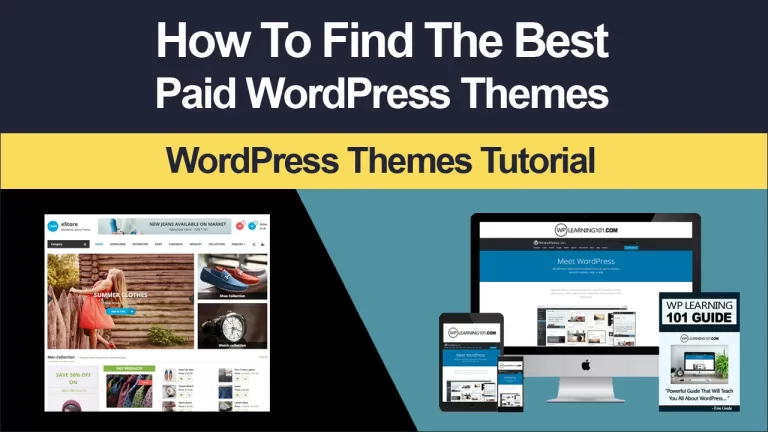
One mistake is selecting a theme entirely from its demo images. Demonstrations often use carefully prepared photography and short text. Substitute your own content early. A design that looked spacious may become crowded with real headlines, longer paragraphs, or translation needs.
Another mistake is treating plugin ratings as a complete evaluation. Reviews can be useful signals, but inspect recent support discussions, documentation, update patterns, and compatibility reports. A plugin may be excellent for one use case and unsuitable for another.
Installing tools before defining responsibilities creates duplicated settings and confusing administration. Likewise, changing themes without checking how theme-dependent shortcodes, widgets, templates, and custom post displays will behave can damage public pages. Plan a transition, test it privately, and preserve a rollback path.
Neglecting maintenance is equally risky. Updates can address defects and compatibility issues, but unattended updates can also introduce conflicts. Establish a schedule, maintain backups, review notices, and check essential workflows. For a business site, assign a specific person or service to own this responsibility.
Evaluating Cost and Long-Term Value
Free products can reduce initial expense, while premium products may include support, advanced templates, updates, or licensing for several sites. Compare total cost rather than purchase price. Include renewals, extensions, payment processing, hosting requirements, migration effort, and staff time.
A low-cost plugin that creates hours of troubleshooting may be expensive in practice. Conversely, an expensive bundle may contain features your site will never use. Pay for capabilities that reduce risk, save meaningful time, improve customer experience, or support revenue. Do not purchase features merely because a sales page lists them.
Licensing also matters. Understand whether a subscription is required for updates, whether support expires, and what happens if renewal stops. A site should not suddenly lose essential functionality because a decorative feature was tied to a license, unless that tradeoff was deliberately accepted.
A Decision Checklist
Before choosing a theme, confirm that it supports your content structure, works on mobile screens, provides readable typography, offers appropriate customization, and has credible maintenance. Inspect templates beyond the homepage and consider how much builder dependence you are accepting.
Before choosing a plugin, define its job, check its documentation, review compatibility, understand its data handling, and identify possible overlap. Ask whether the feature could be achieved simply with WordPress itself, a theme setting, or existing software. Every additional component increases the surface area for updates and troubleshooting.
Before publishing, create a backup, test essential user journeys, check forms and notifications, review accessibility basics, measure page behavior, and confirm that administrators understand routine tasks. A website is ready when visitors can accomplish their goals reliably, not when every customization option has been explored.
Frequently Asked Questions
Should I choose a free or premium WordPress theme?
Choose based on quality, fit, support, and maintainability rather than price alone. A free theme may provide everything a simple site needs. A premium theme may offer support or specialized templates that save time. Review current documentation, update activity, licensing, and the theme’s actual suitability for your pages.
How many plugins should a website have?
There is no universal ideal number. A small, well-maintained plugin can be safer than a single poorly coded one, while a large collection increases management demands. Install only tools with clear responsibilities, remove unused components, and monitor performance and compatibility after changes.
Can I change my theme later?
Yes, but a theme change can alter menus, widgets, templates, styling, and page-builder content. Back up first, test on staging, inspect every important page, and check whether theme-specific shortcodes or custom post layouts require replacement.
Do plugins slow down WordPress?
They can, depending on their code, configuration, database activity, external requests, and the task they perform. Avoid assuming that every plugin is harmful or that a plugin labeled “optimization” automatically improves speed. Test pages, configure carefully, and remove unnecessary tools.
Is a page builder necessary?
No. The block editor, a suitable theme, and reusable patterns may be enough for many sites. A builder can be worthwhile for complex visual layouts or teams that prefer its controls, but evaluate its performance, editing workflow, licensing, and migration consequences first.
What should I do when an update breaks the site?
Use your backup or staging comparison to identify the change, then contact the relevant provider with reproducible details. If possible, restore safely, disable the suspected component temporarily, and avoid making many additional changes at once. For revenue-generating or complex sites, professional assistance may be appropriate.
Conclusion
WordPress themes and plugins are most effective when chosen as parts of a coherent system. Select a theme that presents your real content clearly, supports accessible and responsive experiences, and receives dependable maintenance. Add plugins only when they solve defined problems, and prefer focused tools over overlapping feature bundles.
Build gradually, document your decisions, back up before significant changes, and test the journeys that matter to visitors. Review performance, security, compatibility, and licensing as the site grows. This approach produces more than an attractive website: it creates a maintainable platform that can adapt to new content, customers, and business goals without unnecessary technical burden.