Choosing WordPress Themes and Plugins
Choosing WordPress Themes and Plugins
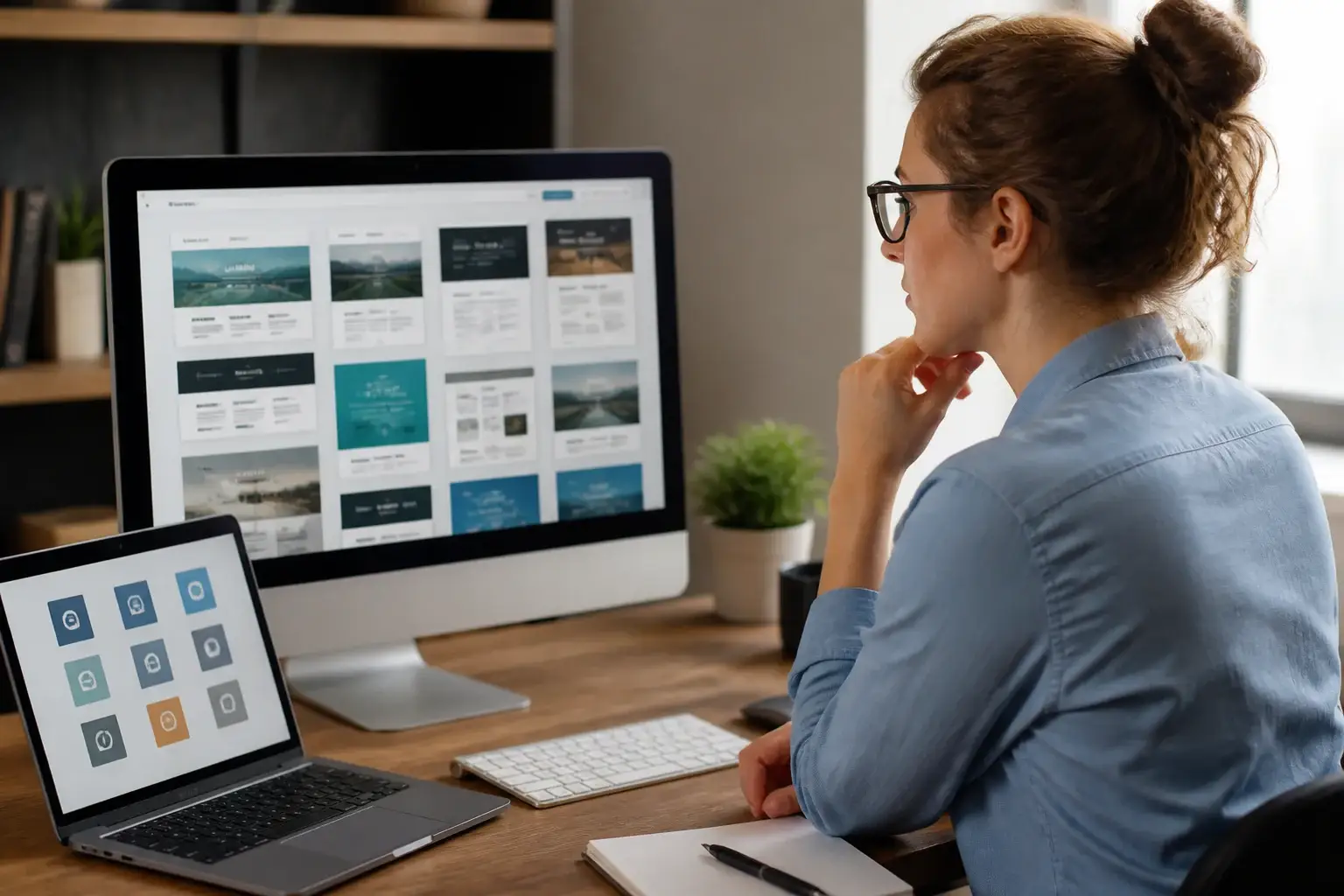
WordPress themes and plugins work together to shape a website’s appearance, capabilities, performance, and maintainability. A theme controls the visual framework: layouts, typography, colors, navigation, templates, and responsive behavior. Plugins add specialized functions, such as contact forms, search optimization, security monitoring, online stores, memberships, bookings, analytics, or backups. Choosing both thoughtfully gives a business, organization, creator, or individual a strong foundation without requiring extensive technical knowledge.
The best combination is not necessarily the one with the most features. It is the combination that supports your actual goals, remains easy to manage, loads efficiently, and can grow with your content. A beautiful theme cannot compensate for confusing navigation, while a powerful plugin can create problems if it is incompatible, poorly maintained, or unnecessary. Treat every installation as a long-term decision rather than a quick decoration.
Start by defining the website’s purpose. A portfolio needs attractive project presentation and simple inquiry options. A local service company needs clear contact information, location details, calls to action, and possibly appointment scheduling. A publication needs readable article templates, categories, search, and editorial tools. An online shop needs dependable product displays, checkout, payment integration, inventory management, and customer communication. The purpose determines the design priorities and the plugin requirements.
Understanding Themes
What a theme provides
A WordPress theme establishes the visible structure of a site. It may include headers, footers, page templates, blog layouts, menus, buttons, spacing systems, and style controls. Modern block themes allow users to edit many areas through the Site Editor, while classic themes often rely on a Customizer, theme settings panel, or page builder. Both approaches can work well when the theme is actively maintained and suited to the owner’s workflow.
Look for responsive design first. Visitors may arrive using phones, tablets, laptops, or large monitors, so menus, images, forms, and columns should adapt naturally. Examine demo pages at different widths instead of judging only a desktop screenshot. Text should remain comfortable to read, buttons should be easy to tap, and important information should not disappear on smaller screens.

Performance deserves equal attention. A theme overloaded with sliders, decorative effects, bundled widgets, and unnecessary scripts may slow pages and make editing harder. Favor clean code, efficient assets, sensible typography options, and limited reliance on external services. A lightweight theme with focused customization is often more valuable than a visually dramatic theme packed with features you will never use.
Accessibility is another essential criterion. A responsible theme should support keyboard navigation, readable contrast, visible focus states, logical heading structures, and properly labeled interactive elements. Accessibility improves usability for everyone, not only visitors using assistive technology. Review the theme’s documentation and test its demo, but remember that your own content, colors, and plugins also influence the final result.
Free, premium, and specialized themes
Free themes can be excellent choices for blogs, small projects, and new websites. They are often available through the official directory, making installation straightforward. Check the update history, support discussions, documentation, and compatibility information before activating one. A free theme is not automatically basic, and a paid theme is not automatically superior.
Premium themes may provide deeper support, starter designs, advanced templates, or bundled tools. Their value depends on whether those features match your needs. Read the license carefully. Some purchases cover one website, while others permit multiple installations or include updates for a limited period. Understand renewal terms before committing.
Specialized themes can accelerate setup for restaurants, magazines, courses, real estate, or shops. However, specialization can also create dependence. If a theme handles functions that should belong to plugins, changing themes later may remove important content or settings. Prefer themes that control presentation while leaving core data and business functions portable.
Selecting Useful Plugins
Plugins extend WordPress, but each addition introduces another update cycle, possible conflict, and performance consideration. Begin with a short requirements list. Separate essential functions from attractive extras. For example, a basic brochure site might need a form, backup system, security safeguards, and search optimization tools. It may not need a carousel, social feed, multiple analytics packages, or several page builders.
Essential plugin categories
A backup plugin helps protect content, settings, and media from accidental deletion, failed updates, hosting problems, or security incidents. Backups are useful only when they can be restored, so choose a solution that supports scheduled copies, secure storage, and clear restoration instructions. Store at least some backups separately from the website itself.

Security plugins can provide login protection, malware checks, activity monitoring, firewall features, or two-factor authentication. They are not substitutes for strong passwords, managed hosting, software updates, and limited administrator access. Configure only the protections you understand, because overly aggressive settings can block legitimate visitors or interfere with integrations.
Search optimization plugins can assist with titles, descriptions, sitemaps, structured information, and content analysis. They cannot replace useful writing, accurate information, logical site structure, or genuine expertise. Use one primary optimization system rather than stacking several tools that modify the same metadata.
Form plugins make it easier to collect inquiries, registrations, feedback, or applications. Examine spam controls, notification reliability, privacy features, field flexibility, and storage practices. Avoid collecting sensitive information unless the site has an appropriate security and compliance plan. Test every form after installation and after major updates.
Ecommerce plugins transform WordPress into a selling platform. Evaluate product management, taxes, shipping, payment gateways, refunds, customer accounts, invoices, and extensions. Calculate total operating cost, including hosting, payment charges, premium add-ons, maintenance, and support. Select a solution that fits the business model instead of choosing solely by popularity.
Caching and image optimization tools can improve loading performance, but they must be configured carefully. Two caching systems may conflict, and aggressive minification can break scripts or layouts. Optimize images before uploading, use suitable dimensions, and test pages after enabling performance features.
Analytics plugins can simplify traffic reporting, yet privacy obligations vary by location and audience. Decide what information you genuinely need. A restrained setup is usually easier to understand and maintain than a collection of overlapping tracking tools.
Compatibility and Maintenance
Compatibility should be evaluated before installation, not after something breaks. Confirm that a plugin supports your WordPress version and PHP environment. Review its latest update, support activity, documentation, and user feedback. One negative review proves little, but repeated reports of unresolved conflicts deserve attention. Also check whether the plugin works with your selected theme, editor, ecommerce system, and hosting configuration.
Create a staging site whenever possible. A staging copy lets you test updates without exposing visitors to errors. Update one major component at a time, review the result, and keep a recent backup before proceeding. After an update, inspect the homepage, menus, forms, checkout, login screen, search, mobile layout, and any high-value conversion path.
Remove unused themes and plugins rather than leaving them inactive indefinitely. Inactive software can still require updates and may expand the attack surface if vulnerabilities appear. Before deletion, confirm that no settings or content depend on it. Document important configurations, licenses, renewal dates, and custom code so another administrator can understand the system.
Avoid editing a parent theme directly, because future updates may overwrite your changes. Use a child theme, a custom plugin, or the site’s supported customization tools. Keep custom code limited, commented, and backed up. If a page builder is used, establish consistent spacing, headings, buttons, and reusable sections instead of designing every page independently.
Building a Practical Website Stack
A reliable stack begins with a suitable host and a current WordPress installation. Choose a theme that supplies the visual framework, then add only the plugins required for defined tasks. Build the navigation around visitor questions: What does this organization offer? Who is it for? Why should someone trust it? What should the visitor do next?
Use a consistent visual system. Select one or two typefaces, a restrained color palette, predictable button styles, and repeated spacing patterns. Keep headings hierarchical and paragraphs short enough for screen reading. Use high-quality images with descriptive alternative text. Design templates for ordinary content, not only impressive landing pages, because most maintenance happens in articles, products, staff profiles, and contact pages.
Measure success with meaningful outcomes. A service site might track qualified inquiries, completed bookings, and phone calls. A publisher might monitor engaged reading, newsletter subscriptions, and returning visitors. A shop might examine completed purchases, abandoned carts, and customer questions. Measurements should guide improvements, not encourage unnecessary plugins or distracting design changes.
Recommended Selection Checklist
Before choosing a theme, ask whether it is responsive, accessible, regularly updated, documented, compatible with your editor, and easy to customize. Confirm that its license suits your project and that switching away later will not remove essential content.
Before choosing a plugin, identify the exact problem it solves. Check its update record, support quality, privacy implications, performance impact, compatibility, pricing, and exit options. Read the setup documentation before installation. If two plugins offer similar functions, choose one rather than installing both.
Before launching, test the site on several screen sizes and common browsers. Submit every form, complete a purchase if relevant, test password recovery, inspect broken links, verify redirects, and confirm that backups exist. Review error messages for clarity. Ask someone unfamiliar with the site to complete a typical task and observe where they hesitate.
Frequently Asked Questions
Can I change my theme later?
Yes, but prepare carefully. Themes can alter layouts, menus, widgets, templates, and styling. Content normally remains in WordPress, yet theme-specific settings or shortcodes may not transfer cleanly. Create a backup, test the new theme on staging, record current settings, and review every important page before switching publicly.
How many plugins should a website have?
There is no universal ideal number. A small, well-maintained collection can be safer and faster than a larger collection, but a single poorly built plugin can cause serious problems. Judge plugins by quality, necessity, compatibility, and maintenance rather than counting them. Remove tools that no longer serve a clear purpose.
Are page builders necessary?
No. WordPress block editing and modern themes can create flexible layouts without a separate builder. A builder may be useful when a team needs particular design controls or existing templates, but it can add interface complexity, markup, and dependency. Choose the simplest editing method that your content team can use confidently.
Should I use a multipurpose theme?
A multipurpose theme can provide many starter layouts, but extra options may complicate maintenance and performance. It is appropriate when you expect varied page types and value a broad design system. For a focused project, a lightweight specialized or block theme may offer a cleaner experience.
What should I do when a plugin conflicts with my theme?
Do not repeatedly change live settings without a backup. Reproduce the issue on staging, temporarily disable plugins one at a time, switch briefly to a default theme for comparison, and record each result. Check documentation and support channels. If the conflict affects an essential function, choose a maintained alternative rather than tolerating instability.
How often should WordPress be updated?
Review updates regularly and apply security updates promptly when your backup and testing process permits. Major changes deserve more careful staging tests. Automatic updates can be convenient for some components, but a business-critical website still needs monitoring, backups, and post-update checks.
Can plugins improve search rankings automatically?
Plugins can help manage technical settings, but they cannot guarantee visibility. Search performance depends on useful content, clear structure, accessible pages, appropriate internal links, trustworthy information, and a good visitor experience. Use optimization suggestions as guidance, not as a replacement for editorial judgment.
What is the safest way to test a new plugin?
Back up the site first and use a staging environment whenever available. Read the documentation, check permissions, test the plugin with your theme and major integrations, and inspect page speed and functionality. If no staging system exists, schedule changes during a low-traffic period and prepare a tested rollback plan.
Conclusion
WordPress themes and plugins are most effective when selected as parts of one deliberate system. Choose a theme for responsive presentation, accessibility, performance, and maintainable customization. Choose plugins for clearly defined needs, then evaluate quality, compatibility, privacy, support, and long-term cost. Keep the stack lean, maintain backups, test updates, and remove software that no longer contributes value.
A persuasive website does not depend on the largest feature list. It depends on clarity, trust, speed, useful content, and a frictionless path toward the visitor’s next action. Begin with your audience and objectives, build only what those objectives require, and improve through observation. With disciplined choices, WordPress can support a polished personal site, dependable business presence, growing publication, or capable online store without becoming unnecessarily complicated.