WordPress Tutorials for Beginners: Choose the Right WordPress Setup

WordPress Tutorials for Beginners: Start Building Today
WordPress is a flexible publishing system that lets beginners create a website without starting with code. You can use it for a personal journal, service business, portfolio, online store, community, or nonprofit project. The most effective way to learn is not to memorize every setting. Instead, build a small site while understanding the purpose of each decision.
This guide explains the essential process from choosing a platform and domain to publishing pages, improving design, protecting your work, and maintaining the site. Follow the sections in order, but treat them as a practical foundation rather than a rigid course. You can return to any topic when your project grows.
WordPress Tutorials For Beginners: Choose the Right WordPress Setup
Before registering anything, understand the difference between WordPress.com and WordPress.org. WordPress.com is a hosted service. Hosting, technical infrastructure, and many routine maintenance tasks are handled for you, although available features depend on the plan you choose. WordPress.org refers to the WordPress software that you install on hosting you select. This route usually provides more control over themes, plugins, files, and monetization, but you become responsible for more administration.
Neither choice is automatically best. A learner who wants the simplest publishing experience may prefer managed hosting. Someone building a business site that needs specialized forms, integrations, or an online shop may value self-hosted flexibility. Compare storage, support, backups, customization, security tools, and renewal costs. Avoid selecting a provider solely because the initial price looks low.

Plan Your Website
Write down the site’s purpose, audience, and primary action. Do you want visitors to contact you, read articles, book an appointment, buy products, or view your work? This answer influences navigation, content, and design. List the essential pages before opening the editor. A small site may need Home, About, Services, Blog, and Contact. An online shop will also require product, cart, checkout, shipping, and policy information.
Choose a domain that is clear, easy to pronounce, and related to your organization. Avoid confusing punctuation, unnecessary numbers, and names that could restrict future growth. Confirm that you have permission to use any business name, logo, image, or written content you publish.
Set Up Hosting and WordPress
With self-hosted WordPress, purchase hosting and connect your domain according to the provider’s instructions. Many hosts offer an automated installer. During setup, create a strong administrator username and password. Do not use an obvious username such as “admin,” and never reuse a password from another service. Store credentials in a reputable password manager.
After installation, visit the administration area, commonly found by adding `/wp-admin` to your domain. The dashboard is your control center. Spend a few minutes locating Posts, Pages, Media, Appearance, Plugins, Users, Settings, and the update notices. Do not install every available tool immediately. A smaller, trusted setup is easier to understand and maintain.
Open Settings and review the site title, tagline, language, timezone, membership option, and date format. Keep the public site address consistent. If your host provides an SSL certificate, ensure the site uses HTTPS. A secure connection protects data in transit and reassures visitors, but it does not replace strong passwords, backups, or careful plugin management.
Select a Theme
A theme controls the site’s visual structure, including layouts, typography, colors, templates, and sometimes editing tools. In the WordPress theme directory or your provider’s marketplace, inspect documentation, update history, accessibility information, and compatibility with your version of WordPress. Choose a theme that supports the content you actually plan to publish, not one selected only for a dramatic demonstration image.
Modern block themes can allow you to edit headers, footers, templates, and page layouts through the Site Editor. Other themes use the Customizer or a theme-specific panel. Learn which system your theme uses before following a tutorial, because instructions can differ considerably.
Activate a theme, then change one design element at a time. Establish a readable font pairing, a restrained color palette, and consistent button styling. Preview the site on a phone before publishing. Attractive design is useful only when visitors can find information and read it comfortably.
Build Pages and Navigation
Pages contain relatively permanent information, while posts normally represent dated articles or news entries. Create your core pages first. The Home page should quickly explain what you offer and who it serves. The About page can establish context and credibility. A Services or Products page should describe benefits, inclusions, limitations, and the next step. The Contact page should provide a dependable method of communication.
Use the block editor to assemble content from paragraphs, headings, images, lists, buttons, galleries, columns, and embedded media. Each block has settings in the sidebar. Save regularly, and use Preview to inspect desktop and mobile views. Keep paragraphs short, place descriptive headings throughout longer pages, and write button labels that explain the destination, such as “Request a quote” rather than “Click here.”
Create a Useful Homepage
Your homepage does not need to explain everything. Start with a clear headline that states the audience and value. Follow it with supporting information, a relevant image, and one primary call to action. Add evidence that helps visitors decide, such as a process explanation, portfolio examples, qualifications, service boundaries, or genuine testimonials that you are authorized to publish.
Do not hide essential information inside sliders, crowded animations, or decorative sections. Ensure the first screen communicates what the organization does. Include a footer with contact details, important links, and relevant policy pages. Check every link manually after publishing.
Organize Menus
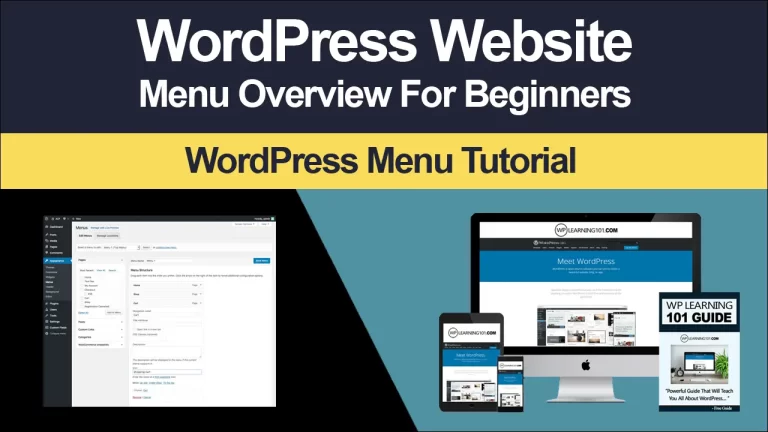
Open the navigation editor and add only the links visitors need most. A menu with too many choices increases decision effort. Group related pages logically, and use familiar labels. If the site has several service categories, consider a parent item with a clear overview rather than placing every detail at the top level.
Test menus with a visitor who knows nothing about the project. Ask them to find a service, contact method, or recent article. Their confusion is valuable evidence. Rearrange labels and order until common tasks feel obvious.
Publish Better Content
WordPress makes publishing easy, but useful content requires planning. Before writing, identify the reader’s question and the action you want them to take afterward. Answer the main question early. Use examples, comparisons, instructions, and cautions where they genuinely clarify the subject.
Write an informative title and a concise introduction. Break long explanations into sections with descriptive H2 and H3 headings. Use lists for steps or related items, but do not turn every paragraph into a list. Add internal links to relevant pages so readers can continue learning. Review facts, dates, names, and claims before publication.
Images should support understanding, not merely fill space. Use an appropriate file format, resize large originals, and write alternative text that describes the image’s purpose. If an image is decorative, mark it as decorative when the editor allows. Never copy photographs, illustrations, logos, or videos without permission. A caption can provide useful context, especially for diagrams or evidence.
Categories, Tags, and Search Visibility
Categories are broad content groups. Tags can describe narrower details, but they are optional. A small site usually needs only a few meaningful categories. Creating dozens of nearly empty archives makes navigation harder. Before assigning a label, ask whether it helps a visitor find related content.
Search visibility begins with usefulness, clarity, and accessible structure. Write a unique page title, explain the topic naturally, and use headings that reflect the content. Make URLs short and understandable. Add descriptive image text, link related pages, and correct broken links. A search plugin may provide editing fields and suggestions, but it cannot compensate for thin, confusing, or inaccurate material.
Do not promise immediate rankings or rely on repeated keywords. Search systems and visitor expectations change. Concentrate on answering real questions better than a generic page does, then update important content when circumstances change.
Add Features Carefully
Plugins extend WordPress with forms, backups, ecommerce, analytics, membership tools, performance features, and more. Every plugin adds another component that may require updates, configuration, support, and compatibility checks. Install a plugin only when you can state the problem it solves.
Review its developer, documentation, update activity, user feedback, permissions, and compatibility notes. Use one established solution rather than several overlapping plugins. Remove inactive plugins rather than leaving them installed. Before a major change, create a backup and confirm that you know how to restore it.
A contact form should send messages to an address you monitor, display a useful confirmation, and provide an alternative contact method if delivery fails. An ecommerce setup needs accurate product details, payment configuration, tax and shipping decisions, inventory processes, and customer support procedures. Test transactions in the manner recommended by the provider before accepting real orders.
Protect, Test, and Maintain the Site
Security is a continuing practice, not a button. Keep WordPress, themes, and plugins updated through a controlled routine. Use unique administrator credentials, limit user permissions, and remove accounts that no longer need access. Avoid downloading premium-looking extensions from unknown sources. Review login activity when your hosting or security tools provide that information.
Backups should be stored separately from the live site and should include both files and the database. A backup is useful only if restoration is possible, so learn the recovery procedure and test it periodically. Your hosting provider’s backup offering may be helpful, but understand its retention period and restoration limits.
Test the site after updates. Open the homepage, menus, forms, important pages, and checkout if applicable. Check on a phone and a computer. Look for missing images, layout shifts, error messages, slow-loading resources, and inaccessible text. Ask another person to complete a key task. Fresh eyes often reveal problems the owner overlooks.
Improve Accessibility
Accessibility helps people with different abilities use the site. Maintain sufficient contrast between text and background. Use headings in a logical order, descriptive link text, keyboard-friendly controls, visible focus indicators, and labels for form fields. Do not communicate essential meaning through color alone. Provide captions or transcripts when appropriate, and avoid autoplaying audio.
Write alternative text for meaningful images, but keep it concise. A product image might identify the product and its relevant feature; it does not need a lengthy artistic description. If an image contains text, repeat the important information in nearby HTML text. Accessibility is not only a compliance concern. It makes content clearer for everyone, including people using small screens, slow connections, or noisy environments.
Manage Performance
Performance depends on hosting, theme design, plugins, media, scripts, and network conditions. Compress and resize images before uploading. Avoid unnecessary video backgrounds and excessive animation. Limit third-party tracking and widgets to tools with a clear purpose. Caching and content delivery services may help, but configure them carefully and measure changes rather than assuming every feature improves speed.
Learn a Practical Workflow
A dependable beginner workflow is simple. Plan the site, install WordPress, configure essential settings, choose a theme, create core pages, build navigation, publish useful content, add only necessary features, test thoroughly, and establish maintenance reminders. Keep a written record of providers, renewal dates, plugin purposes, backup locations, and administrator access. Documentation reduces stress when you later work with a designer or developer.
Learn one concept by applying it immediately. For example, after reading about reusable blocks, create a call-to-action section and use it on two pages. After learning about categories, organize several related posts and test the archive. Small experiments turn abstract dashboard options into understandable decisions.
When something breaks, avoid changing many settings at once. Note what changed, consult the theme or plugin documentation, restore a recent backup if necessary, and contact the relevant provider. A calm, reversible process is safer than random troubleshooting.
Frequently Asked Questions
Is WordPress difficult for a complete beginner?
The basic editor is approachable, but a complete website involves several connected skills: content planning, design, domains, hosting, security, accessibility, and maintenance. You do not need to master them all before publishing. Start with a small site, learn the vocabulary, and improve through deliberate practice.
Do I need to learn HTML or CSS?
No, you can create many sites without writing code. Basic HTML and CSS knowledge becomes useful when you need precise formatting, custom layouts, or troubleshooting. Learn gradually and avoid pasting code you do not understand into critical files.
How many plugins should I install?
There is no universally safe number. Need, quality, compatibility, maintenance, and performance matter more than the count. Choose reputable plugins that solve distinct problems, keep them updated, and remove those you no longer use.
Can I change themes later?
Usually, yes, but a theme may control templates, menus, widgets, colors, and custom content. Before switching, create a backup and test the new theme on a staging copy if available. Review every page afterward, especially the homepage, navigation, forms, and ecommerce templates.
How often should I update WordPress?
Check regularly rather than waiting for a crisis. Apply updates according to a routine, beginning with a backup and followed by functional testing. For important or revenue-generating sites, consider staging, monitoring, and professional support.
What should I do if I forget my password?
Use the official password-reset process connected to your administrator email. If that fails, contact your hosting provider or the person responsible for site administration. Do not share passwords through public messages, and change credentials after suspicious access.
Is WordPress suitable for an online store?
It can support ecommerce when paired with an appropriate, maintained store solution and a suitable hosting environment. Selling requires more than product pages: plan payments, customer data, taxes, shipping, refunds, inventory, security, legal information, and support. Seek qualified advice for obligations specific to your location and business.
Conclusion
WordPress rewards a steady, practical approach. Choose the setup that matches your control and maintenance preferences, define the site’s purpose, publish clear pages, and keep the design focused on visitors’ tasks. Add extensions cautiously, protect administrator access, maintain separate backups, and test the experience on real devices.
Do not wait until every setting feels familiar. Build a modest first version, ask someone to use it, correct the confusing parts, and document what you learn. Each page, update, and troubleshooting decision develops a reusable skill. With consistent care, WordPress can grow from a beginner project into a reliable platform for your ideas, services, or organization.