WordPress Tutorials for Beginners: Start Building with WordPress

WordPress Tutorials For Beginners: Start Building with WordPress
WordPress is a flexible publishing platform that lets beginners create a blog, portfolio, business website, online store, membership community, or learning hub without writing code. Its apparent complexity comes from having many choices, not from requiring advanced technical knowledge. A clear learning path turns those choices into manageable decisions.
These tutorials guide you from planning and installation through design, publishing, security, and growth. You will learn what each major setting does, which tasks deserve attention first, and how to avoid common mistakes that waste time. The goal is not merely to launch a website, but to build one you can confidently maintain.
Before touching the dashboard, define your website’s purpose. Write one sentence describing whom you want to help and what visitors should do. For example, a local baker might want visitors to view a menu and request a custom order. This statement influences your navigation, content, design, and tools.
You also need a domain name and hosting. A domain is your website’s address, while hosting stores its files and database. Choose a provider that supports current WordPress requirements, offers dependable support, includes backups, and explains renewal pricing clearly. Avoid selecting solely because of a low introductory price.
WordPress.com and WordPress.org are related but different. A hosted WordPress.com plan simplifies technical management, while self-hosted WordPress.org gives you greater control over hosting, plugins, themes, and customization. Neither is universally best. Choose hosted service for convenience, or self-hosting when ownership and flexibility are priorities.

Planning Your Website
Choose a clear structure
Start with a small sitemap. Most beginner websites need Home, About, Services or Products, Blog, and Contact. Add pages only when they serve a real visitor need. A crowded menu makes important information harder to find and increases maintenance.
Separate pages from posts. Pages usually contain lasting information, such as an About section or service description. Posts are dated entries, commonly used for articles, announcements, or news. You can create a site without a blog, but regular posts may help demonstrate expertise and answer customer questions.
Sketch the visitor journey. Decide where someone arriving on the homepage should go next. A prominent button might lead to a consultation form, product category, booking page, or newsletter signup. Every page should have a logical next action, even when that action is simply reading related information.
Prepare content before design
Create a basic content inventory. List the text, photographs, logos, prices, policies, and contact details you need. Writing rough drafts before choosing colors or layouts keeps design from becoming a distraction. It also reveals missing information early.
Use original, properly licensed images. Rename files descriptively, crop them consistently, and compress them before uploading. A photograph named “blue ceramic mug” is more useful than a camera-generated sequence. Add alternative text that explains meaningful images to visitors using screen readers; decorative images can usually use empty alternative text.
Write for scanning. Use short paragraphs, descriptive headings, bullet lists, and specific calls to action. Put the most important information near the beginning. Instead of claiming that a service is “excellent,” explain what it includes, who it suits, and how a visitor starts.
Installing and Understanding WordPress
Many hosting providers offer a guided installation. Follow the provider’s setup instructions, choose a strong administrator username that is not obvious, and create a unique password. If manual installation is necessary, you generally create a database, upload WordPress files, configure connection details, and complete the browser-based installer.
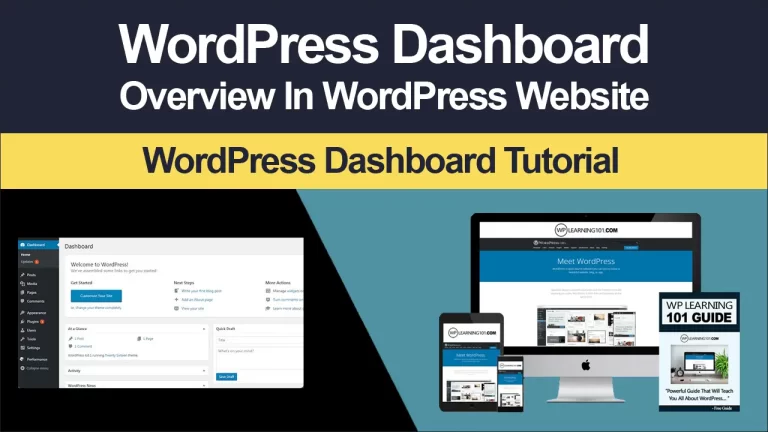
After signing in, the dashboard provides access to posts, media, pages, comments, appearance, plugins, users, tools, and settings. Names can vary slightly by version or hosting arrangement. Do not change every setting immediately. First learn where things are and record any changes you make.
Open Settings and review the site title, tagline, language, timezone, and permalink structure. A readable permalink structure often makes addresses easier for humans to understand. Save changes carefully, then visit the public site to confirm that the result matches your intention.
Create an administrator account only for trusted management. Give writers or editors the least access they need. User roles help separate responsibilities: administrators manage the entire installation, editors manage content, authors publish their own work, and contributors can prepare drafts depending on configuration. Restricting access reduces accidental changes.
Learn the editor
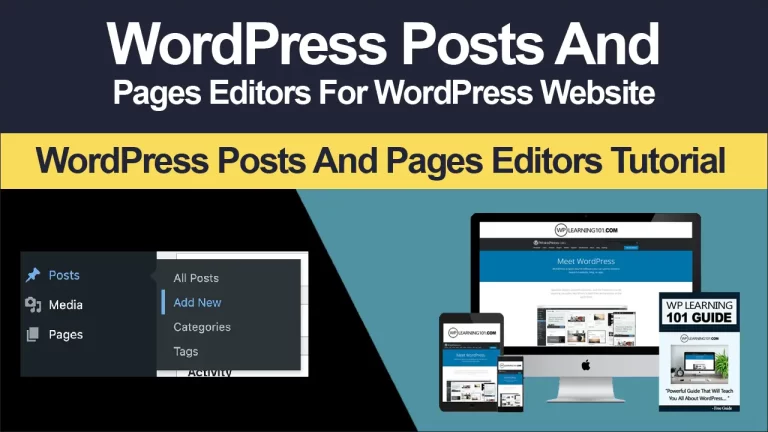
The block editor builds pages from individual content blocks. Paragraphs, headings, images, buttons, columns, lists, videos, and embeds are common examples. Select a block to adjust its settings, move it, duplicate it, or transform it into another compatible type.
Use headings in a meaningful order. The page title usually functions as the main heading, so begin body sections with the next appropriate level. Headings should describe content, not merely provide visual decoration. Preview the page on narrow and wide screens before publishing.
Save a draft frequently. Use preview to inspect spacing, links, images, and forms. When a page is ready, check its URL, featured image if relevant, categories, tags, discussion settings, and visibility. Publishing is not the end; review the live result as a visitor.
Designing a Useful Website
Select a theme thoughtfully
A theme controls much of the site’s visual presentation. Choose one that suits your content, remains readable, receives maintenance, and provides the layout controls you genuinely need. Avoid choosing solely because of a dramatic demonstration site that depends on unfamiliar plugins or unavailable images.
Check typography, contrast, mobile behavior, navigation, and template options. Limit the number of fonts and accent colors. Consistency builds trust more effectively than decoration. Ensure buttons look interactive and body text remains comfortable to read.
Modern block themes may let you edit headers, footers, templates, and global styles from the site editor. Classic themes may use a customizer and widget areas instead. Learn the interface your theme provides, and avoid changing theme files directly unless you understand how updates affect those changes.
Build essential pages
Your homepage should quickly communicate what you offer, whom you serve, and what visitors can do next. A useful structure often includes a clear opening statement, supporting benefits, evidence or examples, an explanation of the process, and a direct call to action.
An About page should explain your relevance rather than provide an exhaustive biography. Describe your experience, approach, values, or team in ways that help visitors decide whether to trust you. A Contact page should include a practical method of reaching you and realistic expectations about responses.
Add privacy, terms, shipping, returns, or accessibility information when your activities require them. Legal obligations vary by location and business model, so seek qualified advice for specific requirements. Never copy policies blindly from another website.
Extending WordPress with Plugins
Plugins add functions such as contact forms, backups, spam protection, ecommerce, analytics connections, accessibility improvements, and search optimization. Install only what you need. Each additional plugin can introduce settings, conflicts, maintenance, or security considerations.
Before installing, read its description, compatibility information, support activity, documentation, and update history. Confirm that it solves a real problem. Prefer established plugins with clear configuration and remove inactive tools rather than leaving them forgotten.
Install from a reputable source, then configure one plugin at a time. Test the homepage, navigation, forms, checkout, and editor after significant changes. If something breaks, identify the most recent change, consult a staging copy or backup, and disable the suspected tool carefully.
A plugin cannot replace a sound process. For example, a form plugin may collect messages, but you still need to test delivery, protect personal information, publish an appropriate privacy notice, and provide an alternative contact method when necessary.
Managing media and performance
Upload appropriately sized images rather than massive originals. Use modern formats when your tools and audience support them, but test compatibility. Avoid autoplay video and excessive animation. A fast site improves usability, especially for visitors on slower connections or mobile devices.
Performance depends on hosting, theme code, plugins, images, caching, and external services. Make one change at a time and measure practical results with a reputable testing tool. Do not chase a perfect score while sacrificing readable content or useful features.
Publishing and Growing
Create a sustainable content routine
Choose a publishing schedule you can maintain. One helpful article each month is better than several rushed posts followed by silence. Build topics around real questions your audience asks. A tutorial should explain a task completely, mention prerequisites, identify likely errors, and show how to verify success.
Use categories as broad subjects and tags only when they add meaningful connections. Do not create dozens of nearly empty archives. Link related pages naturally so readers can continue learning. Review older articles periodically for broken links, outdated screenshots, changed prices, or obsolete instructions.
Search visibility begins with usefulness. Write a specific title, answer the main question early, use descriptive headings, and provide accurate information. Create a concise page description when your SEO tool supports it, but do not write for algorithms at the expense of readers. Never promise outcomes your content cannot deliver.
Connect with visitors
A contact form can be convenient, but it should request only necessary information. Explain how submissions are used and protect access to messages. Test delivery from a real visitor perspective, including confirmation messages and error states.
If you offer a newsletter, use a recognized email service and obtain appropriate consent. Make unsubscribing straightforward. Avoid adding people without permission. A small, interested audience is more valuable than a large list that does not expect your messages.
Measure actions that reflect your purpose. Depending on the site, useful signals may include completed inquiries, downloads, bookings, purchases, or engaged reading. Analytics can reveal patterns, but numbers require context. A visit is not automatically a valuable outcome.
Security, Backups, and Maintenance
Security is a continuing habit. Keep WordPress, themes, plugins, and server software updated through reliable processes. Remove unused themes and plugins. Use strong, unique passwords and enable additional login protection when available. Do not share administrator credentials casually.
Backups should be stored separately from the website and checked periodically. A backup that has never been restored is an assumption, not a proven recovery plan. Understand what your backup includes, how often it runs, where it is stored, and how to restore it.
Use a staging environment when your host provides one, especially before major updates or design changes. On a small site, you can at least create a backup and test critical functions immediately after updating. Check forms, menus, ecommerce features, embedded media, and mobile layouts.
Monitor comments and user accounts. Use spam controls, moderation settings, and clear community rules. Review unfamiliar login activity or unexpected changes promptly. If you suspect compromise, avoid repeatedly guessing solutions; contact your host or a qualified security professional and preserve relevant evidence.
Troubleshooting Common Problems
When a page looks wrong, reproduce the problem and note what changed. Check whether it occurs on another device or browser. Clear relevant caches only after recording the visible issue, because caching can hide the effect of a fix.
If a plugin causes an error, deactivate the likely recent addition if you can access the dashboard. If the dashboard is unavailable, your host may provide a file manager or recovery tool, but follow provider instructions carefully. Restore a clean backup when appropriate, then investigate before reactivating components.
A broken link may result from changing a page address. Update internal links and create redirects when an old address has already been shared. Missing images may reflect moved files, incorrect permissions, or a changed URL. Check the media library and the page’s image settings.
Do not make many unrelated changes at once. A small change log, including date, purpose, and result, makes diagnosis much easier. If an issue involves payment data, malware, data loss, or repeated server errors, obtain professional help rather than risking further damage.
Frequently Asked Questions
Is WordPress suitable for a complete beginner?
Yes. Beginners can start with visual tools, guided hosting, and a limited set of features. The learning curve becomes easier when you focus on one task at a time. You do not need to understand every advanced setting before publishing a simple site.
How much does a WordPress website cost?
Costs vary according to hosting, domain registration, premium themes, plugins, professional services, and optional business tools. Some installations can begin inexpensively, while ecommerce or specialized requirements increase expenses. Review recurring renewal prices, not only promotional offers.
Do I need to learn code?
No, not for ordinary publishing and design. Basic HTML, CSS, or PHP can help with advanced customization and troubleshooting, but visual tools cover many common needs. Learn code gradually when a specific project justifies it.
What should I publish first?
Publish the pages necessary for a visitor to understand your offer and act: usually Home, About, a service or product page, and Contact. Add policies and supporting articles as your site develops. Quality and clarity matter more than launching with many pages.
How often should I update WordPress?
Update on a regular basis according to available releases and your maintenance process. Before significant updates, confirm that a recent backup exists. After updating, test important features rather than assuming everything works.
Can I change my theme later?
Usually, yes, but themes may structure content differently. Before switching, back up the site, document current settings, and test the new theme privately when possible. Content generally remains, while layouts, menus, widgets, and styling may require adjustment.
How do I make my site accessible?
Use sufficient color contrast, descriptive headings, meaningful link text, keyboard-friendly controls, captions where appropriate, and alternative text for informative images. Test with a keyboard and accessibility tools. Accessibility is an ongoing practice, not a single checkbox.
Conclusion
WordPress becomes approachable when you replace random experimentation with a deliberate sequence: define the purpose, plan the structure, install carefully, learn the editor, choose a restrained design, add only necessary plugins, publish useful content, and maintain the site consistently.
Begin with a small, complete website rather than an ambitious unfinished one. Set up reliable backups before experimenting, test every important visitor journey, and record changes that might matter later. As your confidence grows, improve one area at a time based on real audience needs.
The platform offers extensive flexibility, but your strongest advantage is clarity. A fast, readable website with accurate information and an obvious next step will often serve visitors better than an elaborate site filled with distracting features. Start today, follow these tutorials, and build an online presence you can confidently own, improve, and share.