WordPress Dashboard Navigation: A Beginner’s Step-by-Step Guide
Start with the Dashboard
The WordPress dashboard is the administration area where you manage your website. From one screen, you can create pages, publish posts, adjust appearance, install plugins, review comments, and control many site settings. Learning its structure first makes every later task easier, because you will know where to look instead of clicking randomly.
To open it, visit your site’s login address, commonly yourdomain.com/wp-admin or yourdomain.com/wp-login.php. Enter your username or email and password, then select Log In. If your site uses a different login path, ask your administrator or hosting provider. After signing in, WordPress normally opens the Dashboard home screen.
The dashboard is organized around a left navigation menu, a top toolbar, a central workspace, and sometimes a right sidebar inside editing screens. Menu labels can vary because your user role, WordPress version, theme, plugins, and hosting setup affect what appears. Therefore, do not worry if your screen differs slightly from an example.
Your first objective is not to change settings. It is to recognize the main areas, understand what each controls, and make one safe change at a time. This approach prevents accidental layout changes and helps you recover when a screen looks unfamiliar.
Understand the Main Navigation
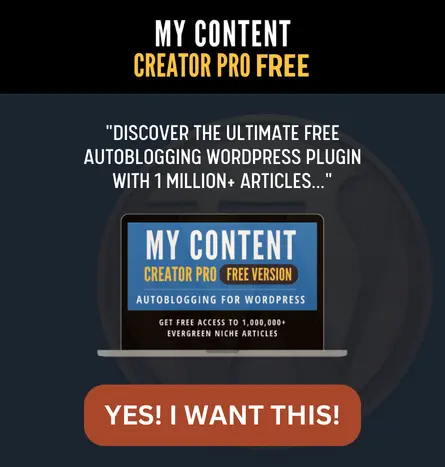
The left menu is your primary map. Each item opens a management area, and some items expand to reveal related commands. Hover over or select a menu item to inspect its submenu. If a submenu seems missing, your account may lack the required permission.
Dashboard
Dashboard contains Home and Updates on many installations. Home provides an overview with widgets such as site health, quick draft, activity, and WordPress events. These panels are informational shortcuts, not mandatory tasks. Updates shows available WordPress core, theme, and plugin updates. Before updating, confirm that you have a recent backup and that your hosting environment is suitable.
Posts
Posts are usually time-based articles displayed in a blog feed. All Posts lists existing articles and provides search, filtering, editing, and bulk actions. Add New opens the block editor. Categories group posts into broad topics, while Tags describe specific details. A post can have categories and tags, but use them consistently rather than creating many nearly identical labels.
Media
The Media Library stores uploaded images, documents, audio, and video. Add New uploads files, while Library lets you search, filter, edit metadata, and copy file URLs. Before uploading, use descriptive filenames and appropriate dimensions. Large files can slow a site, so resize and compress images when practical. Alternative text should explain an image’s purpose for visitors using screen readers, not merely repeat its filename.
Pages
Pages hold relatively permanent information such as About, Contact, Privacy Policy, and services. All Pages displays published, draft, private, and trashed pages. Pages can have parent and child relationships, creating a hierarchy for navigation. Do not use a new page for every blog entry; choose Posts when the content belongs in a chronological stream.
Comments
Comments lets you review visitor responses. Depending on your discussion settings, comments may be approved, pending, marked as spam, or moved to trash. Read links and text before approving anything. Comment moderation is both a quality and security task, because suspicious links can harm visitors or make your site appear untrustworthy.
Appearance
Appearance controls the site’s presentation. Classic themes may provide Menus, Widgets, and Customize. Block themes commonly use Editor, where you modify templates, styles, headers, footers, and navigation. Theme options differ substantially, so avoid following instructions written for another theme without checking your own interface.
Plugins
Plugins extend WordPress with functions such as forms, backups, caching, analytics, or ecommerce. Plugins > Installed Plugins shows active and inactive extensions. Add New opens the plugin directory or permits an upload, depending on your setup. Install only tools you genuinely need, check compatibility information, and remove unused plugins rather than leaving them inactive indefinitely.
Users
Users manages accounts, profiles, passwords, and roles. Administrator has the broadest control on a typical single-site installation. Editor can manage content, Author can publish and manage personal posts, Contributor can write but usually cannot publish, and Subscriber has limited access. Assign the least powerful role that allows a person to do their work.
Tools
Tools contains utilities such as import, export, site health, and personal data tools. Available options depend on installed components. Site Health can identify configuration concerns, outdated software, or recommended improvements. Treat its suggestions as useful clues, then investigate before changing technical settings.
Settings
Settings controls site-wide behavior. General includes site title, tagline, URLs, language, timezone, and date formats. Writing affects default post behavior. Reading determines the homepage and blog display. Discussion controls comments and notifications. Media sets image size defaults. Permalinks define URL structures. Privacy helps identify or select a privacy policy page. Save settings only after reviewing each field carefully.
Edit Your First Page Safely
Before making a public change, create or open a page that you understand. Select Pages, then All Pages. Find a draft, or create a temporary page if your site permits it. Select its title to open the editor.
The block editor treats each paragraph, heading, image, list, button, or other element as a block. Select the plus button to add one. Click inside text to edit it. The toolbar above a selected block offers context-sensitive controls, while the Settings button usually opens document and block panels on the right.
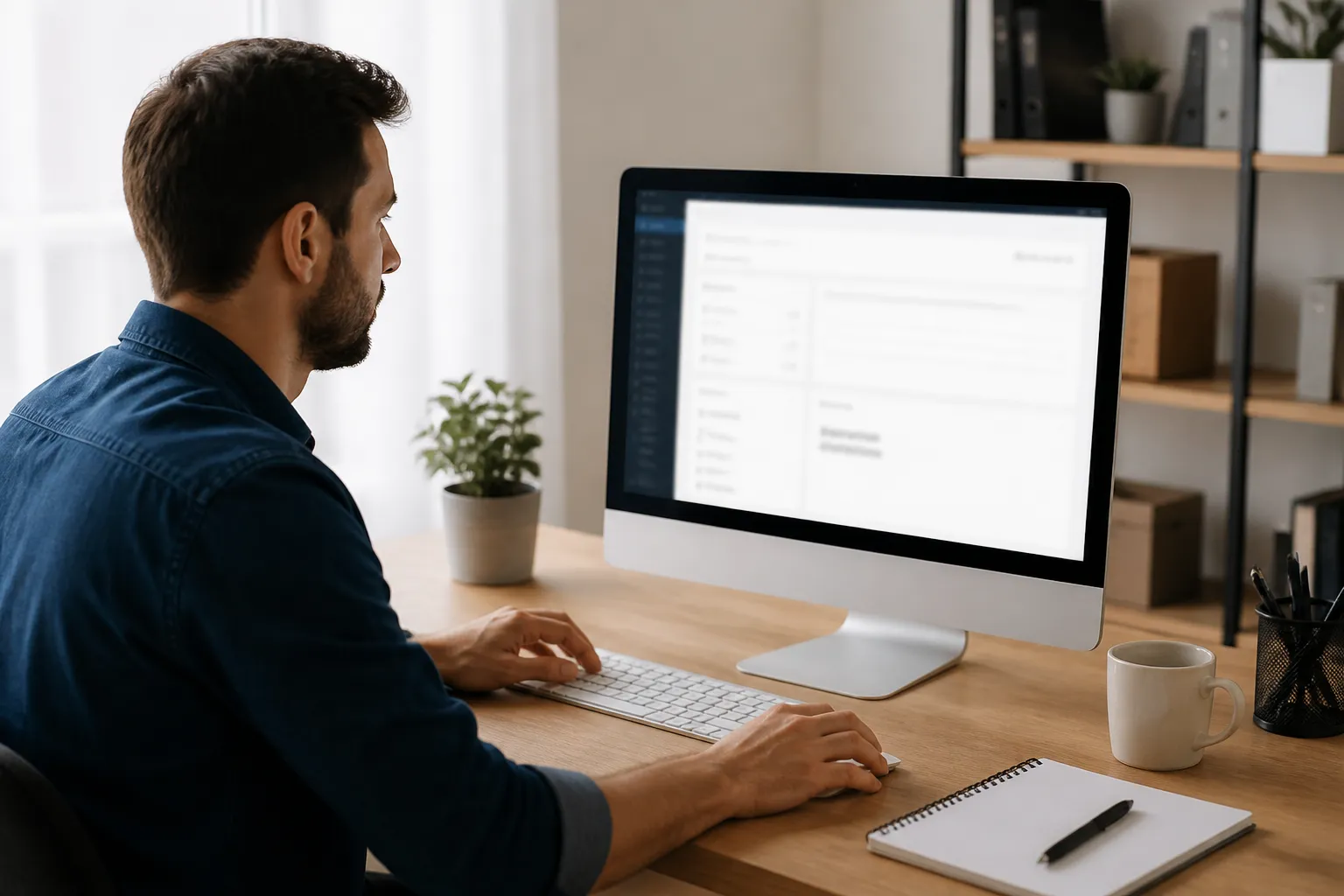
Start with a heading that clearly states the page’s purpose. Add short paragraphs and use additional headings to organize sections. Select Preview to inspect the result before publication. Preview is an observable checkpoint: confirm spacing, links, images, and mobile appearance rather than assuming the editor view is identical to the live page.
To save without publishing, select Save Draft. To make the page public, select Publish, review the visibility and publication settings, then confirm. If a page already exists, use Update to save revisions. WordPress may create revisions, allowing you to compare or restore earlier versions, although retention and access can vary.
If a change looks wrong, first use Undo in the editor toolbar. If you already saved, open the revisions panel when available. As an adjustment, simplify the page: remove extra blocks, check block settings, and inspect the theme’s template before changing custom code. Many apparent editor problems are caused by inherited styles or template settings rather than damaged content.
Add a Link and Image
To link text, select it and choose the link icon. Enter a destination, review the URL, and apply it. Test the link in Preview. For an image, add an Image block, upload or select a library item, then provide meaningful alternative text. Select alignment and size conservatively. After publishing, view the page as a visitor and test the image on a narrow screen.
Publish a Post Correctly
Choose Posts > Add New when you are creating timely content. Enter a specific title, then write the article in organized blocks. Use headings in logical order, beginning with the page title and descending through sections. Add a featured image only if your theme uses one, and check its crop in Preview.
In the Post settings panel, assign a category and add tags only when they serve a clear organizational purpose. Set the author, excerpt, discussion options, and publication status as appropriate. If your site uses a custom permalink structure, inspect the URL slug before publishing. Short, readable slugs are easier to share and maintain.
The practical checkpoint is the pre-publish panel. Confirm title, author, category, visibility, date, featured image, and URL. Open Preview in a new tab if possible. Test every link, proofread headings, and check whether images have alternative text. If the preview differs from the editor, compare desktop and mobile views, then adjust block spacing, image size, or theme settings before publishing.
After publication, select View Post to see the live result. Do not assume a successful editor message means the page is visually correct. If the post appears in the wrong place, inspect its category, date, homepage settings, and theme template. If visitors cannot see it, check visibility and whether a caching layer requires clearing.
Customize Appearance Without Losing Control
Appearance changes should begin with the theme’s own documentation or visible controls. In a block theme, open Appearance > Editor. The Editor may include Navigation, Styles, Pages, Templates, and Patterns. Styles can change typography, colors, spacing, and layout globally. Templates affect structures such as single posts or page layouts. A global change can affect many screens, so preview carefully.
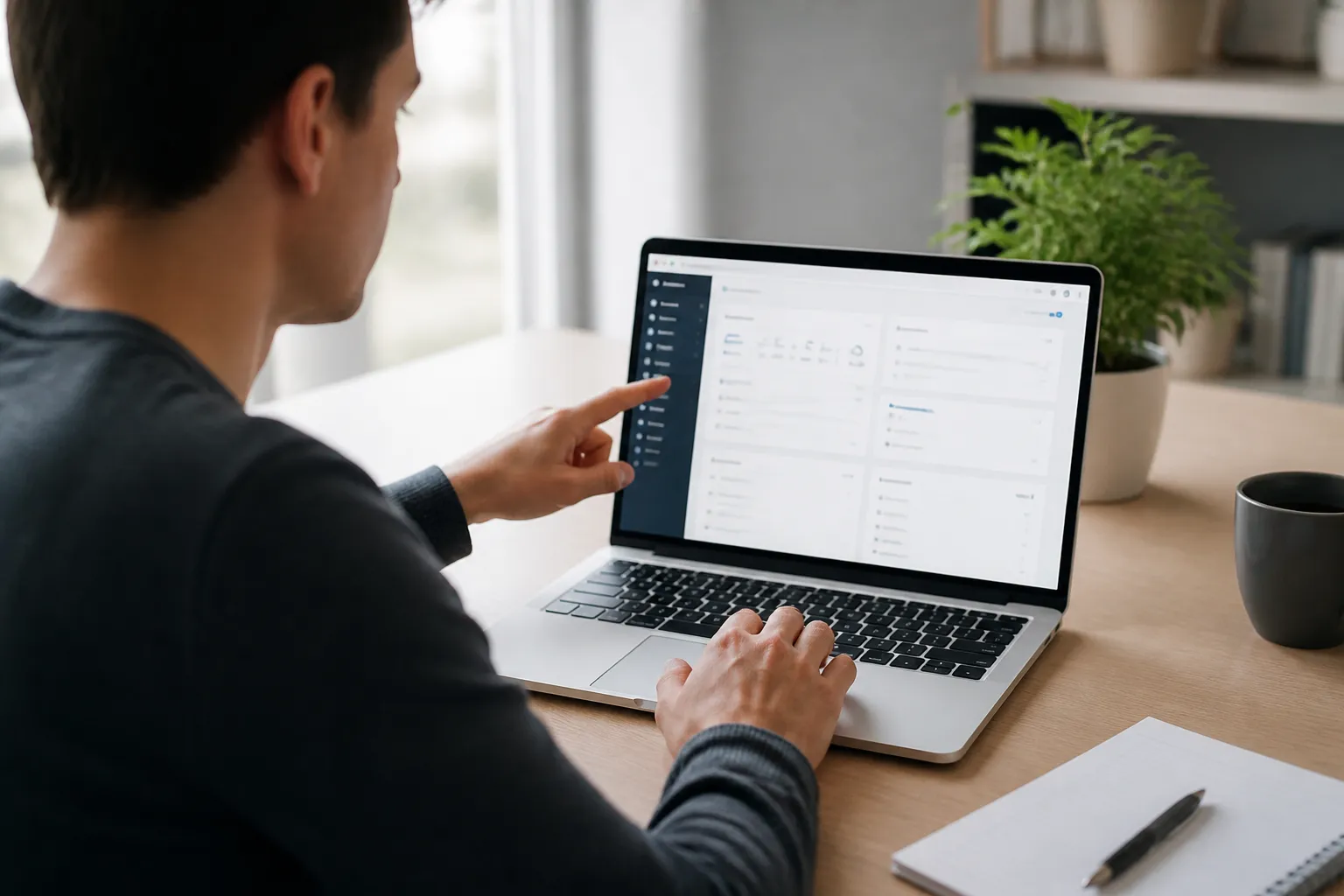
In a classic theme, Appearance > Customize may offer a live preview for identity, colors, menus, widgets, and homepage settings. Appearance > Menus may provide separate menu management. If these choices are absent, the theme may expect you to use the Site Editor instead.
When changing navigation, create a clear primary menu with essential destinations. Use descriptive labels, avoid excessive dropdown levels, and place the most important path where visitors can find it quickly. After saving, test the menu on desktop and mobile. If a menu item leads to a blank or unexpected page, verify its URL and page visibility.
Do not edit theme files casually. Direct changes can disappear when the theme updates and may introduce errors. If custom code is necessary, use a child theme or a suitable code-management method, and retain a backup. For simple design changes, built-in style controls are usually safer.
Manage Plugins and Updates
Plugins are powerful because they add capabilities without requiring you to build them yourself, but each extension increases maintenance responsibility. Before installing one, define the problem it should solve. Review its stated compatibility, update activity, support information, permissions, and overlap with existing tools. Avoid installing several plugins that perform the same job.
To install a plugin, open Plugins > Add New, search for the needed function, inspect the available listing, and select Install Now. Installation is not activation. Select Activate only after reviewing the plugin’s purpose and any setup requirements. A new menu item may appear in the dashboard afterward.
To update, open the relevant update screen, confirm a backup exists, and update one component at a time when practical. Check the site after each change. Visit the homepage, a representative post, a form, and the dashboard. If something breaks, deactivate the recently changed plugin if you can safely access the dashboard, restore a backup when appropriate, and contact the plugin developer or hosting support.
Delete unused plugins rather than merely deactivating them when they are no longer required. An inactive plugin may still contain files that need maintenance. However, check whether another component depends on it before deletion.
Use Users, Tools, and Settings Wisely
User management deserves special care. Open Users > All Users to review accounts and roles. Remove accounts that should no longer access the site, or lower their role when their responsibilities change. Never share one administrator login among several people if individual accounts are available. Unique accounts improve accountability and make access removal straightforward.
Use Tools > Site Health to inspect recommendations. The screen may identify inactive plugins, outdated software, missing HTTPS, or server limitations. Not every recommendation can be fixed from WordPress, and some changes require a host or developer. Record the issue, understand its effect, and obtain help before modifying server configuration.
In Settings, change one group at a time. For example, Reading settings can determine whether the homepage shows latest posts or a selected page. Permalink changes can affect existing links, so avoid changing them casually on an established site. If a change is necessary, plan redirects and test important URLs afterward.
Recover from Common Dashboard Problems
A missing menu item usually indicates a role restriction, a plugin feature, or a theme-specific interface. Ask an administrator to confirm your role, then check whether the feature moved under another menu. Do not install another plugin simply because a familiar option is absent.
If the editor will not load, refresh once, try a private browser window, and temporarily disable browser extensions. If the issue remains, conflicts may involve a plugin, theme, browser, or server. An administrator can use troubleshooting tools or deactivate plugins systematically, preferably on a staging site. Re-enable components one at a time to identify the conflict.
If the site displays an error after an update, avoid repeated random changes. Record the message, note what changed, and contact hosting support or the responsible developer. A backup can provide a recovery path, but restoring it may remove newer content, so understand what will be lost before proceeding.
If you cannot log in, verify the address, password, keyboard layout, and account email. Use the password reset link when available. If reset mail does not arrive, check spam and contact the site administrator or host. Never send a password through ordinary email.
Build a Safe Routine
A simple routine reduces mistakes. First, log in through a trusted address and confirm the browser uses HTTPS. Second, review pending updates and backup status. Third, make the smallest necessary change. Fourth, preview or test it as a visitor. Fifth, record what you changed, especially when editing settings, navigation, or plugins.
Keep WordPress, themes, and plugins maintained, but schedule updates when you can test afterward. Use strong, unique passwords and enable multifactor authentication if your site supports it. Limit administrator access. Remove abandoned extensions and review users periodically. These habits protect both content and the people who rely on the website.
[IMAGE_?]
Frequently Asked Questions
What is the WordPress dashboard?
It is the private administration area for managing a WordPress site. It contains tools for content, media, design, users, plugins, and settings. Visitors normally see the public site, not the dashboard.
Why do I see fewer menu items?
Your role may have limited permissions, or a theme or plugin may provide a different interface. Administrators can confirm access. Avoid changing roles merely to reveal options unless the responsibility genuinely requires it.
Should I use Posts or Pages?
Use Posts for dated, regularly published content that may appear in a blog or archive. Use Pages for stable information such as contact details, policies, and service descriptions. Some sites use custom content types, so follow the site’s existing structure.
What happens when I deactivate a plugin?
Its functions generally stop, but its settings and files may remain. Deactivation can help diagnose conflicts, yet it is not the same as deletion. Check dependencies before removing anything.
How can I preview changes safely?
Use Preview in the editor, inspect desktop and mobile layouts, and test links. For significant work, use staging or a duplicate environment if your host provides one. Preview cannot always reproduce every cache, integration, or logged-out condition.
How often should I back up?
There is no universal schedule. Base it on how often content changes and how damaging data loss would be. A frequently updated store needs more frequent protection than a rarely changed brochure site. Confirm that backups can actually be restored.
Can I undo a published change?
Often, revisions or editor undo controls can restore earlier content. They may not reverse every theme, plugin, database, or setting change. Backups and staging are more dependable for broad changes.
Why does my page look different from the editor?
Themes, templates, responsive rules, cached files, and block styles can alter the public result. Clear relevant caches, preview while logged out, and compare the template and global styles. Contact support if the difference persists.
Conclusion
WordPress dashboard navigation becomes manageable when you treat it as a set of focused workspaces rather than a confusing collection of menus. Dashboard provides orientation, Posts and Pages manage content, Media stores files, Appearance shapes presentation, Plugins extend functions, Users controls access, and Settings governs site-wide behavior.
Begin with low-risk actions: open existing screens, inspect settings, save drafts, preview changes, and test the public result. Before updates or structural changes, secure a backup and record your plan. When something goes wrong, pause, identify the last change, and use an orderly adjustment instead of guessing.
With that habit, you can move confidently from basic editing to responsible site maintenance. The goal is not to memorize every option. It is to understand where each task belongs, recognize the consequences of a change, and verify the result before visitors depend on it.