Build A WordPress Website: Choose a Domain, Hosting, and WordPress Setup

Build A WordPress Website: Start With a Clear Website Plan
Building a WordPress website is manageable when you treat it as a sequence of decisions rather than a single technical task. WordPress supplies the content management system, but you still need a purpose, suitable hosting, a domain name, a design direction, useful content, and a maintenance routine. The most persuasive website is not necessarily the most elaborate one. It is the site that makes its audience understand what you offer and what to do next.
Begin by defining the website’s primary goal. You might want to sell products, publish articles, present a portfolio, collect inquiries, promote a service, or support an organization. One primary goal keeps navigation and page layouts focused. Identify your audience, the questions they ask, and the action you want them to take. Write a brief statement such as, “This website helps local homeowners request reliable garden maintenance.” That statement can guide every later choice.
Create a simple content outline before installing anything. Most small websites need a home page, an about page, a services or products page, a contact page, and a privacy page. A blog may be useful, but it should support the main purpose rather than exist merely because WordPress makes publishing easy. Sketch a menu that visitors can understand without explanation.
Choose a Domain, Hosting, and WordPress Setup
Your domain is the memorable address people type into a browser. Choose a name that is easy to pronounce, spell, and associate with your organization. Avoid unnecessary hyphens, confusing abbreviations, and names that could restrict future growth. Check availability through a reputable domain registrar, and confirm that you have control of the registration account.
Web hosting stores your website’s files and database and delivers them to visitors. When comparing providers, look for dependable support, current PHP and database software, automatic backups, a free or manageable SSL certificate, staging facilities, and clear renewal pricing. Shared hosting can suit a modest site, while a virtual server or managed WordPress plan may be appropriate when traffic, technical requirements, or support needs increase. The cheapest introductory offer is not always the cheapest long-term choice.

There are two commonly discussed WordPress options. WordPress.org refers to the self-hosted software, which gives you broad control over hosting, themes, plugins, and files. WordPress.com is a hosted service with different plans and built-in management. Neither is automatically right for everyone. Self-hosting offers flexibility but makes you responsible for more maintenance; a hosted plan can reduce administration but may impose plan-specific limitations. Confirm the features you need before committing.
Connect your domain to hosting by changing the registrar’s nameservers or DNS records according to your host’s instructions. DNS changes can take time to appear everywhere. Once the domain points correctly, install WordPress through the host’s installer or upload the software manually. Create a strong administrator password, use a unique username, and store recovery information securely. Never use “admin” as the only administrator identity if you can avoid it.
Configure Essential WordPress Settings
After signing in to the dashboard, open Settings and review the site title, tagline, language, timezone, administration email, and membership settings. Replace default sample content and remove unused themes or plugins. Under Permalinks, select a readable structure that includes the post name. Clear, stable addresses help visitors understand links and make content easier to manage.
Check the site address carefully, including whether it uses HTTPS. An SSL certificate encrypts connections between the visitor and website. If your host provides one, activate it and ensure WordPress uses the secure address consistently. Mixed content, where some resources still load through HTTP, can create warnings or display problems. If you are unsure, ask your host for guidance rather than repeatedly changing URL settings.
Set a backup plan before making major changes. A backup should cover both the database and uploaded files, because each contains different parts of the site. Store copies somewhere separate from the hosting account, and learn how restoration works. A backup that has never been tested is only an assumption. Keep at least one recent backup before updating WordPress, themes, or plugins.
Select a Theme and Shape the Design
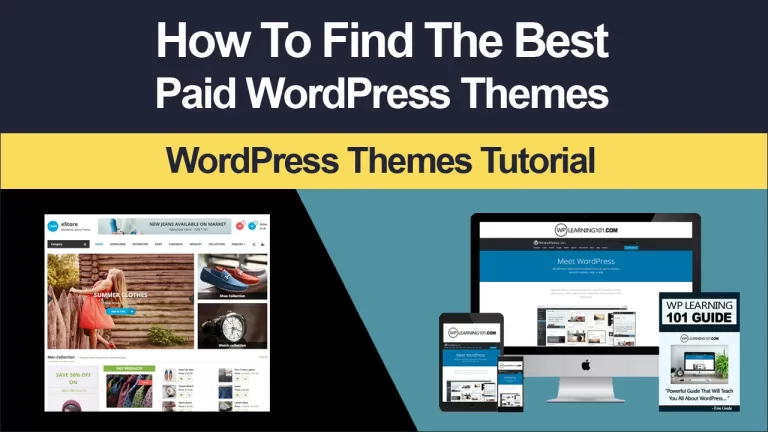
A WordPress theme controls the visual framework of your pages. Choose one that is actively maintained, compatible with your version of WordPress, accessible, responsive, and flexible enough for your content. Avoid choosing solely from attractive screenshots. Demonstrations may contain carefully prepared images and text that do not resemble your real material.
A block theme can let you edit templates, headers, footers, and page layouts using the Site Editor. Other themes provide a customizer or their own settings panel. Learn which editing system a theme uses before importing a starter design. Switching themes later can alter menus, widgets, spacing, and content presentation, so make the initial choice thoughtfully.
Define a small visual system. Select one body font and a complementary heading style, then use consistent sizes and line spacing. Choose a restrained color palette with sufficient contrast. Keep buttons visually recognizable and reserve strong accent colors for important actions. Use images that reinforce your subject; compress them before uploading, choose appropriate dimensions, and add meaningful alternative text when an image conveys information.
Design for small screens first. Visitors may use phones with limited space, so check navigation, headings, forms, buttons, tables, and embedded media at different widths. Do not hide essential information behind a complicated menu. A design can be attractive while still failing if text is difficult to read or controls are hard to tap.

Build Pages and Organize Content
Create pages from your content plan, then give each page one clear purpose. The home page should quickly explain who you serve, what you provide, and where visitors should go next. A useful opening section often includes a specific headline, a short supporting explanation, and one primary call to action. Follow it with evidence, benefits, process details, and answers to common concerns.
An about page should explain relevant experience, principles, or the people behind the organization without becoming a personal biography unrelated to the visitor. A service page should describe outcomes, inclusions, limitations, and the next step. A contact page should provide practical options, such as a form, email address, telephone number, location, or opening hours. Only publish information you can keep accurate.
Use headings to create a logical structure. A page title is normally the main heading, followed by sections that use lower-level headings in order. Keep paragraphs short enough for screen reading, but do not reduce substantial explanations to disconnected fragments. Prefer specific language over slogans. Instead of claiming “the best solution,” explain what is included and why it helps.
WordPress’s block editor supports paragraphs, headings, lists, images, galleries, columns, buttons, quotes, and other elements. Add blocks deliberately. Excessive decorative effects can slow pages, distract readers, and complicate future edits. Reusable patterns can save time for repeated sections, but review each instance so that examples, links, and wording remain relevant.
Create a blog only when you have a realistic publishing purpose. Categories should describe broad subjects, while tags can identify narrower themes when they genuinely help discovery. Do not create dozens of near-empty categories. Write titles that accurately describe the article, establish useful internal links, and update older posts when details change.
Add Navigation and Calls to Action
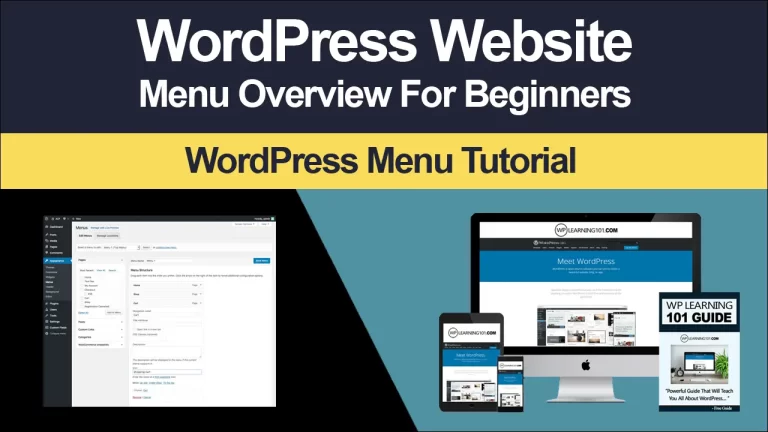
Build a primary menu containing the most important destinations, not every available page. Use familiar labels such as Services, About, Resources, and Contact. A footer can include secondary links, contact details, social profiles, and legal information. Test every menu item, logo link, button, and form on both desktop and mobile views.

A call to action should match the visitor’s stage of decision-making. “Request a consultation” may suit a qualified prospect, while “View the process” may help someone still researching. Repeat a primary action where it is useful, but avoid placing competing buttons beside it without a clear reason.
Add Functionality Carefully
Plugins extend WordPress with features such as contact forms, ecommerce, search optimization controls, caching, analytics connections, security tools, and backups. Install only what solves a defined problem. Every plugin can introduce settings, performance overhead, compatibility concerns, or another maintenance responsibility.
Review the plugin’s update history, support activity, compatibility information, developer reputation, and data practices. Read what the plugin collects and where information is sent, especially for forms, newsletters, analytics, payment processing, and embedded services. Choose established solutions when a feature affects security, privacy, or transactions.
For online selling, an ecommerce plugin can manage products, carts, orders, taxes, shipping, and payments, but configuration requires careful testing. Confirm currency, stock behavior, email notifications, refund procedures, payment gateway requirements, and customer data handling. Perform test transactions in the appropriate mode before accepting real orders. Display clear terms, delivery information, returns guidance, and contact details.
A contact form should ask only for information needed to respond. Include a clear confirmation message and check that messages reach the intended inbox. Protect forms from spam, but ensure the protection does not prevent legitimate visitors from submitting them. Provide an alternative contact method when practical.
Improve Performance, Accessibility, and Discoverability
Performance begins with a sensible design. Resize images, use modern formats when your workflow supports them, remove unnecessary animations, and avoid loading multiple font families. A caching or optimization tool may help, but settings should be introduced gradually and tested after each major change. Measure real pages rather than assuming a plugin has improved them.
Accessibility is part of quality, not an optional decoration. Use adequate color contrast, descriptive link text, keyboard-operable controls, visible focus states, meaningful image alternatives, and headings that follow a logical order. Captions may be needed for video. Do not put essential text inside images, and do not rely on color alone to communicate meaning. Automated checkers can reveal issues, but human review remains important.

Search discoverability follows from useful, understandable content. Write a distinctive title and description for each important page, use the language your audience naturally uses, and answer genuine questions thoroughly. Create descriptive URLs and link related pages together. Submit a sitemap through the relevant webmaster tools if appropriate. Do not promise rankings; visibility depends on competition, quality, technical accessibility, and many factors beyond a single setting.
Make the website trustworthy. Show who operates it, provide a reachable contact method, explain relevant policies, and avoid exaggerated claims. If visitors submit personal information, publish a privacy notice that accurately describes collection, use, sharing, retention, and choices. Requirements differ by location and situation, so obtain qualified legal advice for material compliance questions.
Test, Launch, and Maintain the Website
Before launch, review the website as a visitor. Check every page on common browsers and screen sizes. Test menus, forms, downloads, search, social links, buttons, checkout steps, error messages, and confirmation emails. Read the copy aloud or ask another person to proofread it. Correct placeholder text, broken links, inconsistent capitalization, missing image alternatives, and outdated contact details.
Confirm that indexing and privacy settings match your intention. A development site should not accidentally remain open to the public, while a finished site should not carry a setting that blocks search discovery when visibility is wanted. Check HTTPS, backups, administrator accounts, and analytics configuration before announcing the launch.
Launch does not end the project. WordPress core, themes, and plugins require updates for new capabilities, compatibility, and security. Update carefully, keep a recent backup, and test key functions afterward. Remove inactive extensions you no longer need. Limit administrator access, use strong unique credentials, and consider multi-factor authentication where available.
Monitor uptime, performance, form delivery, storage use, broken links, and unusual login activity. Review analytics for patterns rather than chasing every fluctuation. If visitors leave a page quickly, investigate whether the content answers their question, the page loads slowly, or the next action is unclear. Update services, prices, staff information, policies, and articles whenever circumstances change.
Frequently Asked Questions
Is WordPress suitable for a beginner?
Yes, many beginners can build a useful site with WordPress, especially when starting with a modest scope and a well-supported theme. The learning curve grows with custom code, complex integrations, ecommerce, and advanced performance work. Build the essential version first, document important settings, and seek professional help for problems involving security, payment data, migrations, or custom development.
How much does building a WordPress website cost?
There is no universal price. Costs may include a domain, hosting, premium themes or plugins, professional writing, design, development, maintenance, email, payment processing, and legal or accessibility work. A simple self-managed site may require fewer paid services than a custom business platform. Compare renewal costs and ongoing labor, not only introductory prices.
Should I use a page builder?
A page builder can speed up visual design and offer components not available in your chosen theme. However, it may add complexity, affect performance, and make switching tools difficult. The block editor may be enough for many sites. Choose based on the layouts you genuinely need, the team’s editing skills, and the long-term maintenance plan.
How many plugins should a website have?
There is no useful universal maximum. A small number of well-maintained plugins can be safer and faster than many poorly chosen ones, but even one badly configured extension can create risk. Install for a defined requirement, remove unused tools, review permissions, and test updates. Avoid overlapping plugins that perform the same optimization or security task.
Do I need coding knowledge?
You can create pages, menus, forms, and basic layouts without coding. HTML, CSS, JavaScript, and PHP become valuable when you need precise design changes, custom functionality, troubleshooting, or integrations. Learning basic concepts can improve communication with developers, but do not edit theme files casually on a live site. Use a child theme or a controlled customization method when appropriate.
How often should I back up and update WordPress?
The appropriate schedule depends on how often content and transactions change. Sites with frequent publishing or orders need more frequent backups than rarely updated brochure sites. Updates should be reviewed regularly rather than ignored, with a current backup and a test of important functions afterward. A maintenance calendar makes this responsibility easier to remember.
Can I change my domain or theme later?
Both changes are possible, but each requires planning. A domain change can affect email, redirects, search references, analytics, and links. A theme change can alter templates, menus, widgets, and styling. Create a tested backup, record existing settings, use a staging environment when available, and inspect every important page after the change.
Conclusion
A successful WordPress website begins with a clear purpose and develops through disciplined choices. Select reliable hosting, configure secure basics, choose a maintainable theme, publish genuinely useful content, and add only the functionality your visitors need. Then test the experience, protect the data, monitor performance, and keep information current. Building the first version is an important milestone, but thoughtful maintenance is what preserves trust. By working systematically, you can create a site that is easier to manage, clearer to navigate, and more capable of supporting your goals without unnecessary complexity.