WordPress Tutorials for Beginners: Start Building Today

WordPress Tutorials For Beginners: Start Building With Confidence
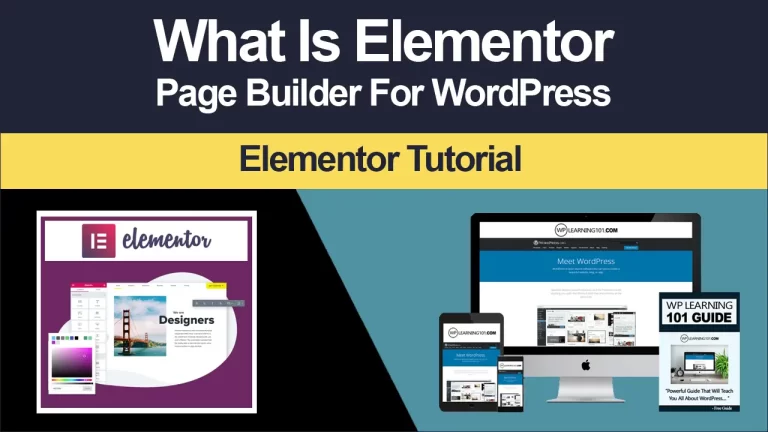
WordPress Tutorials for Beginners is a practical learning guide for anyone who wants to create, manage, and improve a website without feeling overwhelmed by technical language. It turns a blank installation into a clear sequence of achievable steps. Instead of asking you to memorize complicated code, the tutorials explain what each setting does, why it matters, and when to use it. You learn by completing useful tasks, so every lesson produces visible progress.
Whether you want a personal blog, portfolio, community site, online store, or business website, the guide provides a dependable foundation. It is designed for complete beginners, including readers who have never purchased hosting, registered a domain, edited a page, or changed a website design. Clear instructions, explanations, and practical examples help you make informed choices rather than blindly copying settings.
WordPress is powerful because it combines flexibility with an approachable interface. However, its many themes, plugins, menus, and configuration choices can initially seem confusing. This guide reduces that uncertainty. It shows you how to begin safely, build logically, avoid common mistakes, and maintain your site as it grows. By following the tutorials in order, you can replace hesitation with a repeatable process and gain skills that remain useful for years.
What You Will Learn
The tutorials begin with the essential vocabulary of WordPress. You will understand the difference between a domain name and hosting, recognize the purpose of an administrator account, and learn how the dashboard organizes your work. These fundamentals may appear simple, but mastering them prevents costly confusion later.
You will then learn how to install WordPress and complete the first important settings. The guide explains site titles, taglines, language, time zones, permalinks, user profiles, and reading preferences. Each topic includes practical reasoning, helping you understand how a choice affects visitors, search engines, security, or future editing.

The next lessons focus on creating content. You will discover how posts differ from pages, how categories and tags improve organization, and how the block editor helps you build attractive layouts. Tutorials cover headings, paragraphs, lists, buttons, columns, images, galleries, videos, and reusable patterns. You will also learn how to preview, schedule, revise, and publish content responsibly.
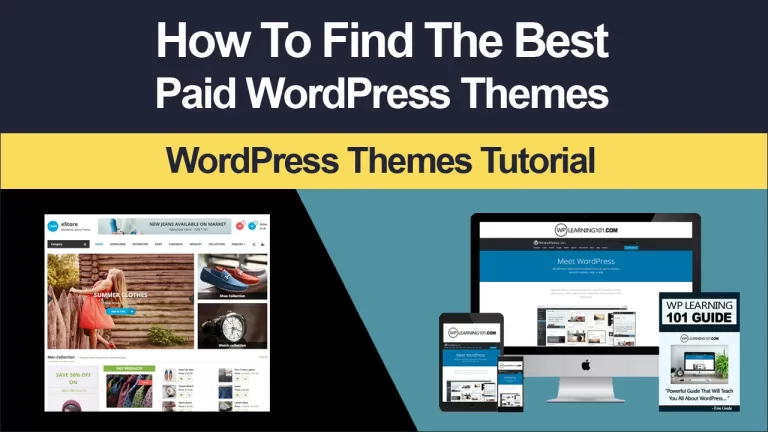
Design lessons explain how to select a suitable theme without chasing every fashionable feature. You will explore colors, typography, navigation, headers, footers, widgets, templates, and responsive behavior. The aim is not merely to make a site attractive, but to make it readable, accessible, consistent, and easy to navigate on phones and computers.
Additional tutorials introduce plugins, backups, updates, security, performance, search engine optimization, analytics, and troubleshooting. You learn how to evaluate a plugin, recognize unnecessary tools, protect accounts, reduce loading delays, and diagnose common errors. These skills make your website more reliable and help you respond calmly when something unexpected happens.
Preparing Your WordPress Website
Choosing a Domain and Hosting
Your domain is the address people type to find your site, while hosting is the service that stores its files and makes them available online. Choose a domain that is short, memorable, easy to spell, and relevant to your purpose. Avoid excessive hyphens, confusing abbreviations, or names that limit future growth.
Hosting deserves equal attention. Look for dependable uptime, responsive support, automatic backups, security features, and a plan that can expand with your traffic. The cheapest option is not always the best value. A slow server or unhelpful support team can consume time and discourage you before your project gains momentum.
Installing WordPress
Many hosts provide a guided installer. During setup, create a strong administrator username and password, use an email address you regularly monitor, and select secure HTTPS whenever available. Never use “admin” as your username, because predictable credentials make attacks easier. Store login details in a reputable password manager rather than in an unprotected document.
After installation, visit the dashboard and remove any sample content you do not need. Update WordPress, themes, and plugins before serious customization. Then adjust the site title, description, timezone, and permalink structure. A readable structure, such as a post name format, usually produces cleaner links than a numerical address.
Creating a Safe Workflow
Before making major changes, create a backup. A backup is useful only if it can be restored, so choose a service that supports both scheduled copies and restoration instructions. Keep at least one copy separate from your hosting account. Test the process occasionally, particularly before updating a theme, installing a major plugin, or changing important settings.
Use a staging site when your host provides one. Staging creates a private copy where you can test updates without risking the public website. If staging is unavailable, make a complete backup and perform changes during a quiet period. Record what you changed, because a simple note can make troubleshooting much faster.
Creating Content That Helps Visitors
Posts, Pages, Categories, and Tags
Pages usually contain stable information, such as an About, Contact, Services, or Privacy page. Posts are generally dated entries suited to articles, announcements, news, and ongoing discussions. Categories describe broad subject areas, while tags identify narrower details. Use a small, consistent structure. Too many categories or random tags make navigation harder rather than more useful.
Before writing, identify the reader and the action you want that reader to take. A tutorial might promise to solve one specific problem. A business page might explain an offer and invite a consultation. A personal article might share an experience and encourage discussion. A clear purpose improves focus, structure, and persuasion.

Using the Block Editor
The block editor treats each content element as an individual block. This makes it easy to move, duplicate, or transform paragraphs, headings, images, quotations, buttons, and other components. Begin with a descriptive title, then use headings to divide the explanation into logical sections. Readers should be able to scan the page and understand its organization quickly.
Write short paragraphs and vary sentence length. Add lists when presenting steps or features. Use bold text sparingly to emphasize important terms, not entire sections. Images should support the explanation rather than fill empty space. Give every meaningful image descriptive alternative text so visitors using screen readers can understand its purpose.
Preview content on desktop and mobile before publishing. Check links, spelling, button destinations, spacing, image crops, and headings. Read the page as a visitor would. If an instruction feels ambiguous to you, it may be even more confusing to someone unfamiliar with the subject.
Developing a Publishing Routine
Consistency is more valuable than occasional bursts of activity. Create an editorial calendar that matches your available time. You might publish weekly, twice monthly, or according to a campaign schedule. Plan topics, gather sources, draft content, edit carefully, create images, and review the final page before publication.
After publishing, monitor comments, update outdated facts, repair broken links, and improve pages that receive traffic but few conversions. Content is not finished forever. Regular refinement strengthens credibility and gives search engines clearer signals about your site’s value.
Designing a Professional Site
Selecting a Theme
A theme controls the visual framework of your website. Choose one that is actively maintained, compatible with your WordPress version, responsive, accessible, and supported by clear documentation. Avoid selecting a theme solely because its demonstration site contains impressive animations. Visitors value readable text, intuitive navigation, and quick loading more than decoration.
Start with a simple design system. Choose one primary color, one accent color, and a limited set of fonts. Maintain consistent button styles, heading sizes, margins, and image treatments. Consistency creates professionalism even when the site uses a modest theme.
Building Navigation
Navigation should answer three questions immediately: where am I, what can I do here, and where should I go next? Keep the main menu concise. Put the most important destinations first, and use descriptive labels instead of vague terms such as “Stuff” or “More.” Include a search function when the site contains substantial content.
Create a footer with useful secondary links, contact information, social profiles, and legal pages where appropriate. Test every menu item on mobile devices. Small screens require clear spacing and touch-friendly controls, so do not crowd links into a tiny area.
Extending Functionality With Plugins
Plugins add features such as forms, stores, caching, backups, analytics, memberships, and search optimization. Install only what you need. Before choosing one, examine its update history, compatibility information, reviews, documentation, support activity, and active installations. A popular plugin is not automatically suitable, but transparency and maintenance are encouraging signs.
Avoid overlapping plugins that perform the same task. Multiple caching, security, or optimization tools can conflict and create slower performance. After activating a plugin, test key pages, forms, checkout processes, and login functions. If a problem appears, deactivate the newest plugin first and consult the relevant documentation.
Keep plugins updated, but do not update blindly on a critical site. Back up first, review release notes, and test important functionality afterward. Delete inactive plugins rather than leaving them installed. Unused software increases maintenance responsibilities and can create additional security exposure.
Security, Speed, and Search Visibility
Protecting Your Website
Security begins with disciplined habits. Use unique passwords, enable two-factor authentication, limit administrator accounts, and assign contributors only the permissions they require. Keep software current, use HTTPS, and review unfamiliar users regularly. Never install themes or plugins from suspicious sources, even when they promise premium features for free.
Security tools can help monitor login attempts, malware, and suspicious changes, but no plugin replaces good administration. Maintain reliable backups and know how to restore them. If you suspect a breach, avoid repeatedly guessing solutions. Change credentials, isolate the problem, consult hosting support, and document evidence carefully.
Improving Performance
Fast pages create better experiences and can support search visibility. Resize images before uploading, select efficient formats, remove unnecessary animations, and limit heavy scripts. Use caching if configured correctly, and choose a host capable of serving your expected audience. Test performance on real mobile connections, not only on a powerful office computer.
Performance improvements should be measured. Change one important factor, test again, and compare results. A tool may report a technical score, but human experience matters too. A page that loads quickly, communicates immediately, and responds smoothly is more valuable than a perfect score achieved through confusing design.
Applying Basic SEO
Search engine optimization begins with useful content. Research the language your audience uses, answer questions directly, and organize each page around a clear topic. Write a compelling title and description, use descriptive headings, link related pages, and ensure your site can be crawled. Do not stuff keywords or create thin pages merely to attract clicks.
Add descriptive alternative text, maintain clean URLs, and submit a sitemap when appropriate. Track impressions, visits, and engagement using a privacy-conscious analytics solution. Treat data as guidance rather than a judgment. If a page receives impressions but few visits, improve its title or description. If visitors leave quickly, examine relevance, clarity, speed, and navigation.
Common Beginner Mistakes
One frequent mistake is changing several settings at once. When multiple variables change, identifying the cause of a problem becomes difficult. Make one adjustment, test it, and record the result. Another mistake is choosing a complicated theme before understanding basic content structure. Start small, then add features when a genuine need appears.
Beginners also often ignore accessibility. Do not rely on color alone to communicate meaning. Maintain adequate contrast, label forms, use logical headings, provide alternative text, and ensure keyboard users can navigate important controls. Accessibility improves usability for everyone, including people viewing a site in bright sunlight or on a small screen.
Skipping updates is risky, but updating without backups is equally careless. Build a maintenance routine: check updates, back up the site, test essential functions, remove unused tools, review users, and inspect performance. A short monthly review can prevent larger problems.
Finally, avoid comparing your early website with a polished enterprise platform. Every successful site began with an imperfect first version. Focus on clarity, usefulness, and steady improvement. Progress comes from publishing, observing, learning, and refining.
FAQ
Do I need coding experience?
No. WordPress lets beginners create pages through visual tools. Basic HTML, CSS, or PHP can become useful later, especially for customization, but they are not prerequisites. The tutorials explain when code is unnecessary and when professional help may be safer.
Is WordPress free?
The WordPress software is free, but you normally pay for a domain and hosting. Premium themes, plugins, email services, maintenance, and professional assistance may add costs. Begin with a realistic budget and purchase tools because they solve specific problems, not because they appear popular.
Should I use WordPress.com or self hosted WordPress?
They serve different needs. WordPress.com offers managed services and simpler administration, while self hosted WordPress provides broader control over hosting, themes, plugins, and configuration. Consider your technical comfort, budget, business goals, and desired flexibility before deciding.
How many plugins should I install?
There is no universal maximum. A small number of well maintained plugins can be safer and faster than a crowded collection of poorly maintained tools. Install only necessary plugins, research them, test compatibility, and remove anything you no longer use.
How often should I back up?
Use automatic backups appropriate to your publishing frequency. A site that changes daily may need daily copies, while a rarely updated site might use a weekly schedule. Keep multiple restore points and store at least one copy away from your hosting account.
Can I change my theme later?
Yes, but a theme change can affect menus, templates, widgets, spacing, and custom content. Back up first and test the new theme on staging when possible. Review every important page on desktop and mobile before making the change public.
How can I get visitors?
Publish genuinely useful content, share it where your audience participates, build relationships, improve search visibility, and make pages easy to recommend. Traffic usually grows gradually. Avoid guarantees from services promising instant rankings or huge numbers without explaining sustainable methods.
What should I do when a plugin breaks my site?
Remain calm. Check whether a recent update caused the issue, restore a backup if appropriate, and deactivate the suspected plugin through the dashboard or hosting tools. Consult documentation and support. Do not repeatedly change unrelated settings, because that can hide the original cause.
Conclusion
WordPress Tutorials for Beginners provides more than button by button instructions. It teaches a practical way to think about website creation: define a purpose, choose a stable foundation, organize information clearly, protect your work, measure results, and improve consistently. That approach is persuasive because it produces dependable progress instead of temporary excitement.
You do not need a perfect logo, advanced code, or a large budget to begin. You need a clear audience, a useful idea, and the willingness to complete one manageable task at a time. Install WordPress, configure the essentials, publish a focused page, and learn from the result. Each action builds confidence and reveals the next sensible step.
Use the tutorials as a reference whenever you face a new decision. Return to the security lessons before installing software, revisit the content lessons before publishing, and review performance and accessibility as your site develops. With patient practice, WordPress becomes less mysterious and far more powerful.
Your first website may not be flawless, but it can be valuable. Start today, follow a thoughtful process, and give your ideas a professional home online.