WordPress Themes and Plugins: Choosing a Theme for Every Website
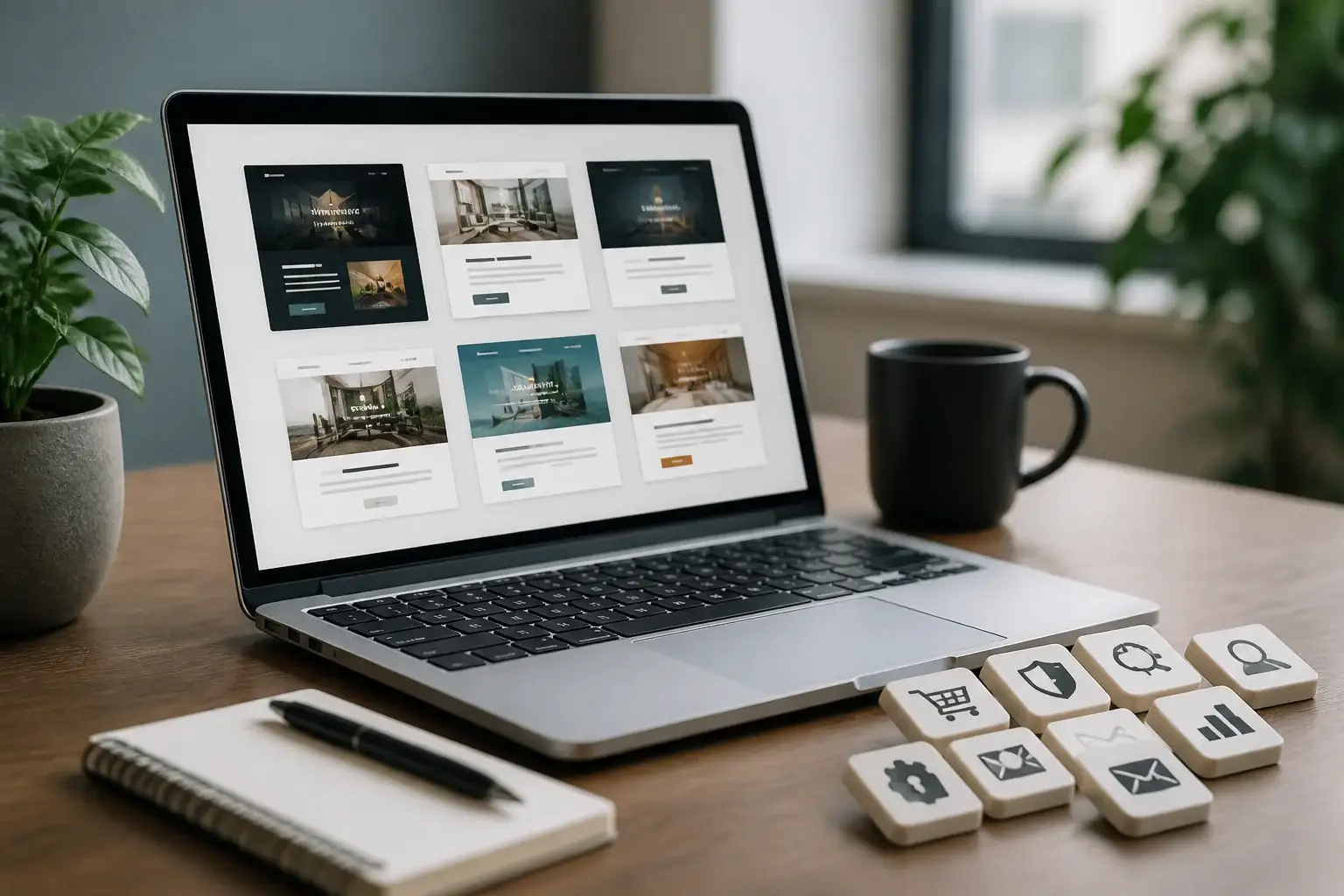
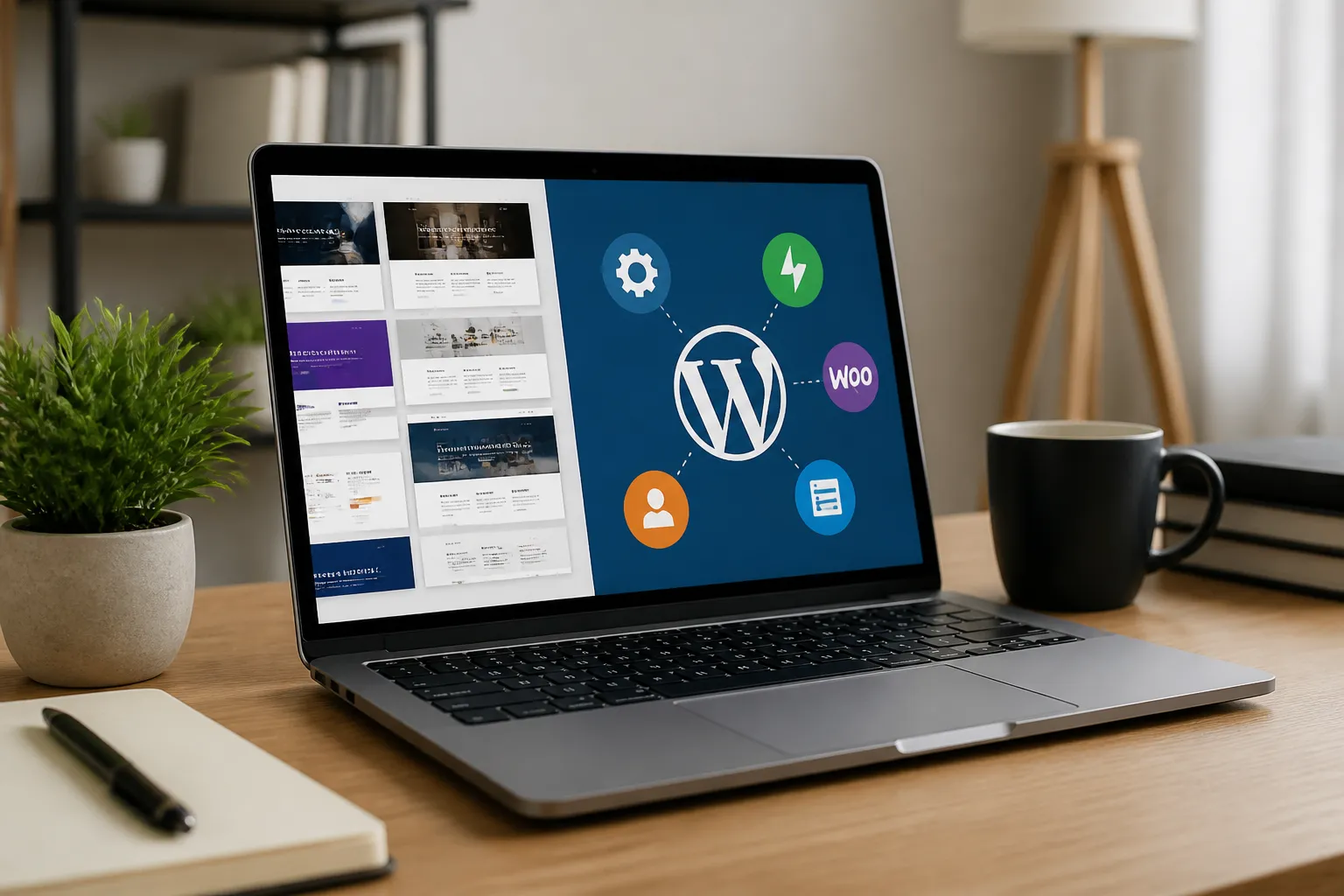
WordPress themes and plugins work together to shape a website’s appearance, functionality, performance, and ability to grow. A theme controls the visual framework: layouts, typography, colors, templates, navigation, and responsive behavior. Plugins add capabilities such as contact forms, search engine optimization tools, online stores, backups, security controls, memberships, analytics, and multilingual content. Choosing them carefully matters because a beautiful design cannot compensate for unreliable features, while a powerful plugin cannot rescue a confusing interface.
The strongest WordPress setup begins with the website’s purpose, audience, content, and maintenance capacity. A blog, portfolio, service company, charity, magazine, course platform, and shop have different requirements. Instead of selecting the most popular option blindly, evaluate compatibility, accessibility, update practices, support, documentation, performance, and the quality of the user experience. This approach reduces future rebuilding and helps every extension serve a clear purpose.
WordPress Themes And Plugins: Understanding the Difference
A WordPress theme is the presentation layer of a site. It determines how visitors encounter pages, posts, archives, headers, footers, menus, sidebars, and reusable design elements. Modern block themes allow users to edit many areas through the Site Editor, while classic themes often rely on Customizer settings, widgets, theme options, or a page builder. Both approaches can work well; the best choice depends on the editor you prefer and the level of control you need.
A plugin is an extension that changes what WordPress can do. It may provide one focused feature, such as a form, or a broad system, such as ecommerce. Good plugins integrate with WordPress without forcing unnecessary design decisions. Separating design from functionality is generally wise. If a contact form disappears when changing themes, it was probably tied too closely to the original theme. Keeping essential features in plugins makes redesigns safer.
Themes and plugins can overlap. Some themes include sliders, portfolio systems, custom shortcodes, or ecommerce styling. These extras may feel convenient, but they can create dependency. Before choosing a bundled feature, ask whether the content would remain usable after switching themes. Portable content is valuable because business needs, branding, and technology change.

Choosing a Theme for Every Website
Start With the Site’s Job
Write a short project brief before browsing themes. Identify the main action visitors should take, such as reading an article, requesting a quotation, booking an appointment, purchasing a product, donating, or contacting an organization. Then list required page types, including a homepage, service pages, landing pages, blog, product catalog, account area, or event listings.
A business site usually benefits from clear navigation, prominent contact paths, testimonials, service sections, and flexible landing pages. A magazine needs readable archives, category navigation, related content, and strong mobile presentation. A portfolio should prioritize visual work, captions, filtering, and fast loading. An online store needs product grids, product detail templates, cart styling, checkout compatibility, and account screens. The theme should support these journeys without burying them beneath decorative effects.
Assess Design Flexibility
A theme should provide a coherent foundation, not merely an attractive demonstration site. Examine its templates, global styles, spacing controls, responsive options, header variations, footer layouts, and typography settings. Confirm whether you can create the design you need without adding several visual editors.
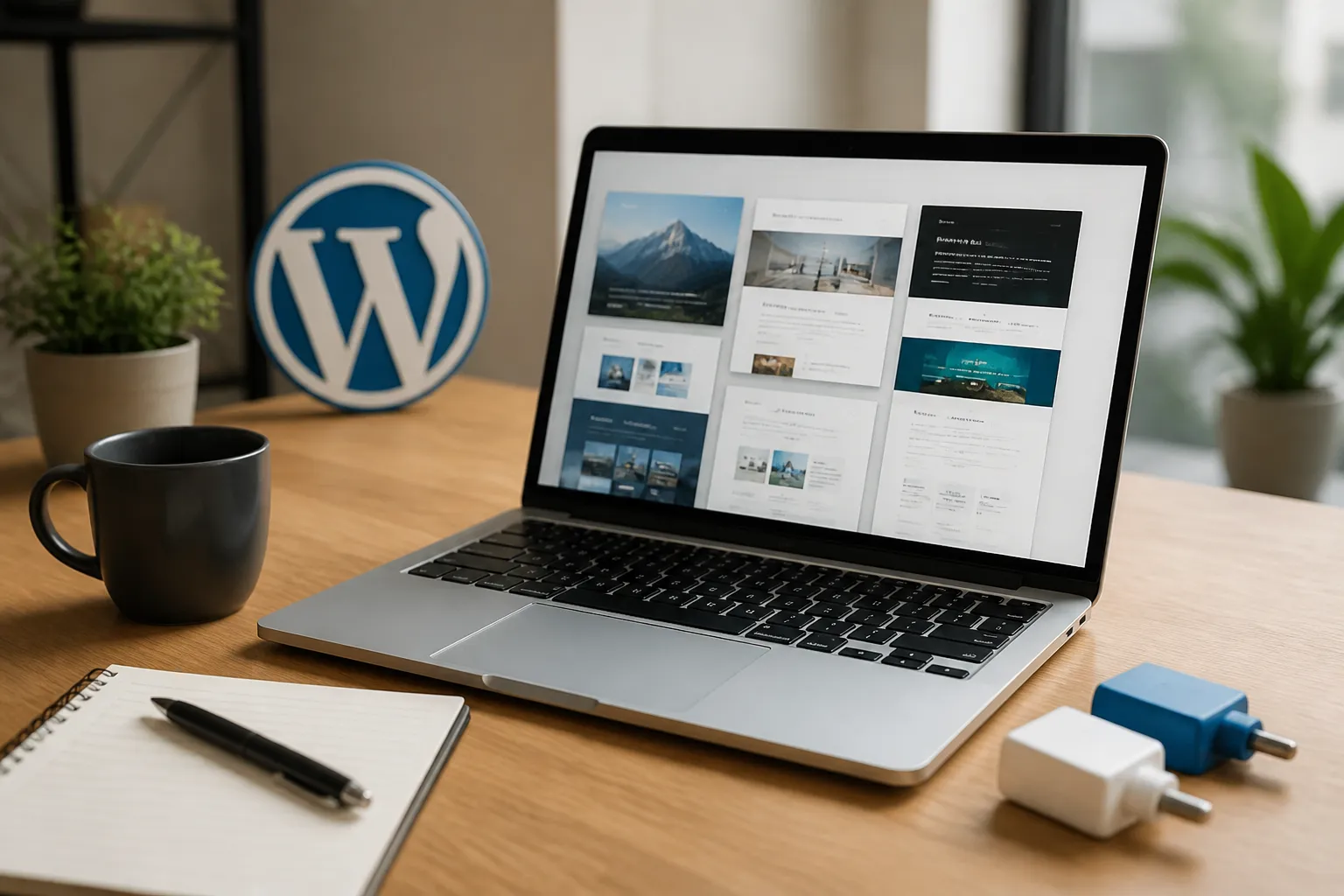
Demo content can be misleading. Images, copy, and carefully arranged sections often make a theme appear more capable than it is. Replace the demonstration images mentally with your own material. Consider long titles, short excerpts, uneven image dimensions, translated text, and accessibility needs. A practical theme remains orderly when real content replaces the showcase.
Prioritize Performance
A theme affects the markup, stylesheets, scripts, image handling, and number of requests delivered to visitors. Excessive animation, bundled sliders, large icon libraries, and complicated page builders may slow a site or make maintenance harder. Performance depends on hosting, media, plugins, caching, and configuration too, so no theme alone guarantees fast pages. Still, a lean theme gives the whole system a better starting point.
Look for restrained features and efficient assets. Test representative pages on a phone and a desktop, not only the homepage. Check whether menus work with touch, text remains readable, buttons are easy to identify, and content appears without awkward jumps. Accessibility and performance often reinforce each other: simple structures, meaningful headings, sufficient contrast, and keyboard-friendly controls benefit everyone.
Check Compatibility and Maintenance
Before installing a theme, review its compatibility with the current WordPress version, the block editor, your required ecommerce system, translation tools, and essential plugins. Read recent support discussions for recurring problems rather than judging only by ratings. Ratings can indicate satisfaction, but they do not replace inspection of update history and documentation.
A theme needs maintenance as WordPress, browsers, PHP versions, and related plugins evolve. Prefer developers who explain changes, publish updates responsibly, and provide usable support channels. Check whether the license permits the use you require and whether premium support is included, optional, or limited. Keep a record of customization decisions, especially if you modify theme files.
Selecting Plugins Responsibly
Use Fewer, Better Extensions
Plugins are not automatically harmful, but every additional extension introduces code, settings, updates, and possible conflicts. Choose plugins because they solve defined problems, not because their feature lists are impressive. If two plugins provide overlapping systems, selecting both may create duplicate scripts, confusing settings, or competing outputs.
Before installation, describe the desired result in plain language. For example, “Visitors can submit a service enquiry, and staff receive a notification” is more useful than “Install a forms plugin.” The description helps you compare solutions and avoid features you will never use.
Match the Plugin to the Requirement
For search visibility, use one primary SEO system and configure titles, descriptions, indexing controls, structured data, and sitemaps deliberately. An SEO plugin cannot replace accurate information, useful writing, logical navigation, or reliable performance.
For security, combine strong administrator passwords, limited user permissions, timely updates, secure hosting, backups, and sensible monitoring. A security plugin can assist with hardening and alerts, but it is not a complete guarantee. Avoid enabling aggressive settings without understanding their effect on legitimate visitors and administrators.
For backups, confirm what is copied, where backups are stored, how frequently they run, and whether restoration is practical. A backup that cannot be recovered when needed has limited value. Keep an independent copy when possible, and test restoration on a controlled environment.
For forms, examine spam protection, notification reliability, data storage, confirmation messages, accessibility, and privacy implications. Do not collect sensitive information casually. Provide only the fields necessary for the stated purpose and review applicable obligations with an appropriate professional when the data is regulated.
For analytics, choose a method consistent with your privacy responsibilities and audience expectations. Understand what data is collected, where it goes, how consent is handled, and who can access reports. Measurement should answer decisions, not merely create an impressive dashboard.
Evaluate Quality Signals
Inspect the plugin’s changelog, documentation, support activity, compatibility notes, and developer identity. Recent activity alone is not proof of quality, but abandoned extensions deserve caution. Look for clear settings, sensible defaults, migration guidance, and explanations of known limitations.
Install new plugins first on a staging copy when possible. After activation, test the homepage, navigation, forms, search, user accounts, checkout, email delivery, and important integrations. Review browser console errors and server logs if you have access to them. Conflicts can appear only on particular templates or user roles, so realistic testing is more reliable than checking one page.
Recommended Categories for Common Sites
A basic content site commonly needs a suitable theme, forms, backups, security assistance, caching or performance controls, and an SEO workflow. It may also benefit from redirection management, image optimization, accessibility checks, or editorial tools. Add each only when its purpose is clear.
A service business may require appointment scheduling, testimonials, maps, invoicing, customer relationship integration, or multilingual publishing. Confirm that the chosen tools share compatible account, notification, and data expectations. A booking plugin should handle availability rules, time zones, cancellations, reminders, and staff permissions if those functions matter to the business.
An online shop generally needs an ecommerce platform plus payment, shipping, tax, inventory, email, and analytics integrations. Choose a theme designed for the commerce system, then test variable products, coupons, failed payments, refunds, customer accounts, stock changes, and mobile checkout. A visually attractive catalog is not enough; the complete purchase path must be clear and dependable.
A membership or course website may need protected content, registration, recurring payments, progress tracking, quizzes, email automation, and role management. Map the student or member journey before selecting tools. Complex combinations can work, but each connection increases testing and support requirements.
Installation and Configuration
Create a backup before changing a functioning website. If the site generates meaningful traffic or sales, use staging for theme changes, plugin upgrades, and major configuration work. Record the active theme, plugin versions, custom code, integrations, and special settings. This documentation makes troubleshooting faster and protects institutional knowledge.
Install extensions from trustworthy sources and verify the publisher before uploading files. Activate one major component at a time, then test the site. Avoid importing complete demo content into a live website without understanding what pages, menus, media, users, and settings it may add.
Configure global settings before polishing individual pages. Establish site identity, permalinks, time zone, user roles, navigation, image sizes, privacy choices, and email delivery. Consistent foundations prevent small configuration differences from creating confusing behavior later.
Use child themes or approved customization methods when modifying a theme. Direct edits to a parent theme can disappear during updates. Custom CSS is suitable for some visual adjustments, while templates, hooks, or a small custom plugin may be more appropriate for structural behavior. If you are uncertain, document the change and seek qualified help rather than making irreversible edits on production.
Design and Content Practices
A theme cannot create clarity by itself. Use descriptive headings, concise navigation labels, meaningful link text, and a consistent visual hierarchy. Keep important actions visible without making every element compete for attention. On mobile screens, prioritize the information visitors need first.
Prepare images before uploading them. Crop them intentionally, use suitable dimensions, write useful alternative text when the image conveys meaning, and avoid describing decorative images as though they contain essential information. Review captions, transcripts, and downloadable documents for accessibility where relevant.
Use a limited type scale and color palette. Contrast should support reading, while color should not be the only way to communicate status or meaning. Test forms with keyboard navigation and check error messages, labels, focus indicators, and confirmation states. Inclusive design is not merely a compliance exercise; it reduces friction for many audiences.
Troubleshooting Common Problems
A blank page, broken layout, or error after activation may result from a conflict, insufficient resources, incompatible code, or a failed update. First preserve the evidence: note what changed, when it changed, and which pages are affected. If possible, disable the newest extension through the dashboard or a safe administrative method, then restore from a known-good backup when necessary.
If styles look wrong, clear caching layers and confirm that generated files were rebuilt. Check whether a page builder, theme, or optimization tool is serving stale assets. If only one template fails, compare its content and settings with a working template rather than changing the entire site.
If emails do not arrive, test the site’s sending configuration, recipient address, spam folders, and mail provider limits. Form submissions should also be stored or logged safely where appropriate, so a notification failure does not silently lose an enquiry.
Updates, Backups, and Long-Term Care
Updates deliver fixes, security improvements, compatibility changes, and new capabilities, but they can also alter behavior. Read release notes when available, back up first, and update in a sensible order. Test critical journeys afterward, especially forms, logins, purchases, bookings, and email notifications.
Remove unused plugins and themes rather than leaving them dormant. Deactivation is not always equivalent to removal, and abandoned files can complicate maintenance. Keep administrator access limited, use individual accounts, and review permissions periodically.
Plan a maintenance routine that fits the site’s importance. A small brochure site may need occasional checks, while a store or membership platform deserves more frequent monitoring. Review uptime, backups, updates, performance, broken links, accessibility, analytics, and content accuracy. Maintenance is cheaper and less disruptive when treated as regular work instead of emergency repair.
Frequently Asked Questions
Should I choose a free or premium theme?
Either can be appropriate. Compare the actual features, update practice, documentation, support, licensing, and compatibility. A free theme from a reliable source may be sufficient for a straightforward site, while a premium product may offer more templates or support. Price alone does not establish quality.
Can I change themes later?
Yes, but the difficulty depends on how much content and functionality the original theme controlled. Before switching, create a backup, use staging, inventory theme-specific features, and test every important template. Content stored independently through WordPress or plugins is usually easier to preserve.
How many plugins should a website have?
There is no universally correct number. Ten well-maintained plugins may be safer than three poorly built ones. Judge the site by code quality, overlap, performance, compatibility, and maintenance rather than counting extensions. Every plugin should have a current reason to remain installed.
Do plugins slow down WordPress?
Some do, some do not, and impact depends on what each plugin loads and when. A plugin may add database queries, scripts, external requests, or background tasks. Test real pages, remove unnecessary features, and optimize hosting and caching alongside plugin choices.
Is a page builder necessary?
No. WordPress blocks and modern themes can support many sites without a separate builder. A builder may be useful when teams need specialized layouts or familiar controls, but it can add complexity and create dependency. Choose the editing workflow your maintainers can confidently support.
How can I avoid plugin conflicts?
Use staging, update regularly, install one major extension at a time, and test realistic workflows. Check documentation for known compatibility issues. Avoid duplicate systems, keep a change log, and maintain a reliable restoration plan.
What should I do before hiring a developer?
Prepare goals, examples, required integrations, content ownership expectations, access arrangements, maintenance responsibilities, and acceptance criteria. Ask how the developer handles backups, staging, accessibility, updates, security, and handover. Clear ownership prevents future dependence on undocumented work.
Conclusion
The best WordPress themes and plugins are not necessarily the ones with the longest feature lists or most dramatic demos. They are the tools that support a specific audience, remain maintainable, integrate cleanly, and help visitors complete important tasks. Begin with requirements, select a flexible and efficient theme, add only necessary plugins, and test the complete experience before launch.
Treat the website as an ongoing system rather than a one-time design project. Keep software updated, maintain dependable backups, review performance and accessibility, and remove tools that no longer earn their place. With disciplined choices and practical testing, WordPress can provide a persuasive, adaptable foundation for almost any website while keeping future changes manageable.