How to Build a WordPress Website: Start With a Clear Website Plan
Build A WordPress Website: Start With a Clear Website Plan
Building a WordPress website is manageable when you treat it as a sequence of decisions rather than one technical leap. WordPress supplies the publishing system, but you still need a purpose, audience, structure, visual direction, and maintenance plan. A business site, portfolio, blog, membership community, and online store may all use WordPress, yet each requires different tools and priorities.
Begin by writing one sentence that explains what the website should help visitors do. For example, a consultant might want visitors to book an introductory call, while a local shop might want them to find opening hours and request directions. This statement will guide your page choices, navigation, calls to action, and content.
Next, identify your primary audience and their questions. Consider what information they need before taking action, what objections they may have, and what evidence will build confidence. Avoid designing for everyone. A focused website generally communicates more clearly than one attempting to serve unrelated audiences.
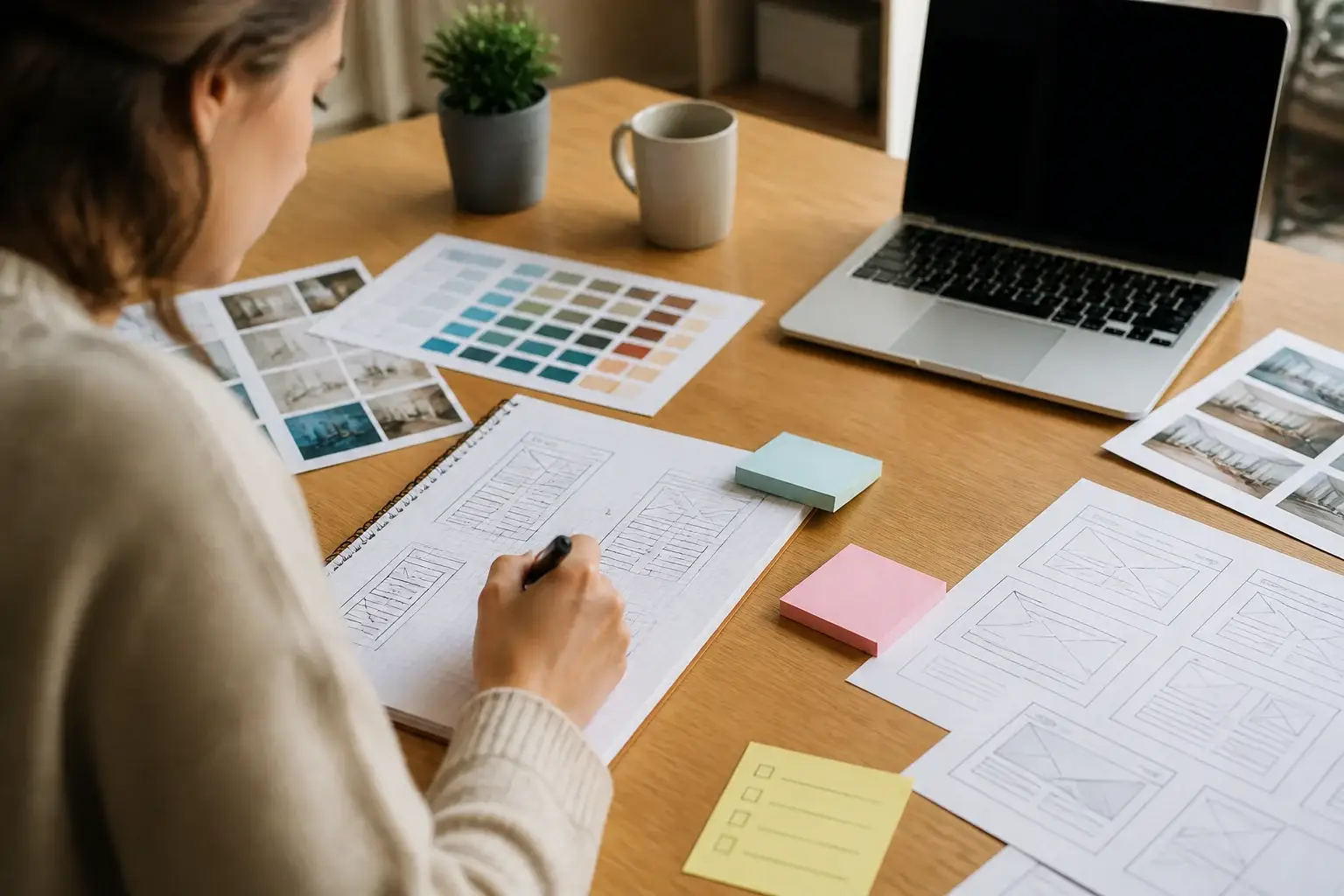
Create a simple content map before installing anything. Most websites need a homepage, About page, Services or Products page, Contact page, and privacy information. Add a blog only if you can maintain useful articles. Sketch the navigation in a notebook or document, placing the most important pages within one or two clicks.
Choose a Domain, Host, and WordPress Setup
Your domain is the address people type to reach your website. Choose a name that is easy to pronounce, spell, remember, and connect with your organization. Avoid unnecessary hyphens, confusing abbreviations, or a name so narrow that it prevents future growth. Check that the name does not conflict with an existing brand or trademark before committing.

Web hosting stores your website files and database on a server. Compare hosts by checking WordPress compatibility, backups, security support, performance features, customer assistance, and renewal pricing. A cheap introductory offer may become less attractive later, so read the full pricing terms. You do not necessarily need the most expensive plan; you need resources appropriate for expected traffic and your chosen features.
Many hosts offer one-click WordPress installation. During setup, create an administrator username that is not simply “admin,” use a unique strong password, and save recovery information securely. If your host offers an automatic Secure Sockets Layer certificate, enable it so the site uses HTTPS. A secure connection protects data in transit and avoids browser warnings, although HTTPS alone does not make a website completely secure.
After installation, visit your WordPress dashboard and review Settings. Set the correct site title, tagline, language, timezone, and preferred date format. Choose a sensible permalink structure, usually based on the post name, before publishing substantial content. Clear, stable URLs help visitors understand pages and make links easier to share.
Keep your hosting account, domain registrar, and WordPress administrator details separate when practical. This separation can make it easier to recover the website if one account is compromised. Turn on multi-factor authentication wherever it is available.
Select a Theme and Establish a Visual System
A WordPress theme controls the site’s layout, typography, colors, templates, and responsive behavior. Choose a maintained theme that supports your required features and works well on phones, tablets, and desktop screens. Do not select a theme solely because its demonstration site looks impressive. Demonstrations often rely on carefully prepared photography, extensive content, and optional plugins that you may not need.
Review the theme’s documentation, update history, accessibility practices, customization controls, and compatibility with the current WordPress version. A lightweight theme with fewer decorative effects can be a better foundation than a visually elaborate theme that loads unnecessary assets.
Install the theme through Appearance and then customize it carefully. Establish a small design system: one primary color, one accent color, a readable body typeface, a distinct heading style, consistent button treatment, and predictable spacing. Strong contrast and generous line spacing improve readability. Avoid placing text over busy images unless the contrast remains clear.
Build the header around the visitor’s main task. Include a recognizable logo or text mark, concise navigation, and an obvious action such as “Request a quote,” “Book a call,” or “Shop now.” On smaller screens, verify that the menu is easy to open and that important actions remain visible.
Use real content while designing. Placeholder text can hide problems with line length, headings, and page rhythm. Resize the browser and test several screen widths. Check menus, buttons, forms, images, and tables rather than assuming the theme handles every situation automatically.
Create Essential Pages and Useful Content
Build the homepage to answer four questions quickly: What is this website, who is it for, what problem does it address, and what should the visitor do next? A practical homepage may include a clear opening statement, supporting explanation, primary call to action, evidence such as testimonials or qualifications, a summary of services, and contact details.
The About page should explain relevant experience, values, process, or people without becoming an autobiography. Visitors usually need context that helps them decide whether they can trust and work with you. Use specific language and authentic photographs when appropriate.

Service and product pages should describe outcomes, scope, limitations, next steps, and useful details. Do not list features without explaining why they matter. Organize long pages with descriptive subheadings, short paragraphs, bullets, comparison tables, or expandable sections. Make the next action unmistakable.
The Contact page should provide a practical method of communication. A form may be useful, but also include an email address, location, business hours, or expected response process when relevant. Ask only for information you genuinely need. Test every form submission and confirm that messages reach the correct destination.
Create privacy information appropriate to your operation and location. Explain what information forms collect, why it is used, how long it is retained when relevant, and whom visitors can contact with questions. If your website uses analytics, advertising, payments, accounts, or newsletters, review the obligations that apply to you and seek qualified advice for complex cases.
Add Functions With Plugins Carefully
Plugins extend WordPress with forms, search optimization controls, backups, security features, performance tools, analytics connections, galleries, stores, and many other functions. Install only plugins that solve a defined problem. Each additional plugin can introduce maintenance work, conflicts, settings, or security exposure.
Before installing a plugin, check whether it is actively maintained, compatible with your WordPress version, documented clearly, and supported by a trustworthy developer. Read the feature list carefully because several plugins may overlap. Installing multiple plugins that perform the same task can create confusing or conflicting behavior.
Install a plugin from the WordPress dashboard or a source you can verify. Review its settings rather than accepting every default. Remove inactive plugins you do not need, not merely deactivate them. Keep the remaining plugins updated, but create a current backup before major changes. Test updates on a staging site when your host provides one, especially for an online store or busy business website.
For forms, configure spam protection without making legitimate visitors solve an unreasonable puzzle. For email, use a dependable delivery method and test messages from several addresses. For ecommerce, define products, taxes, shipping, payment methods, refunds, inventory, customer emails, and order security before accepting real purchases.
Improve Search Visibility, Speed, and Accessibility
Search visibility begins with useful content, logical organization, and pages that match genuine visitor questions. Write a unique, descriptive page title and a concise description for each important page. Use one clear main heading, meaningful subheadings, natural phrases, and internal links that explain where they lead.
Do not copy text from other websites or repeat keywords unnaturally. Search tools can help generate metadata and identify technical problems, but they cannot replace accurate, helpful writing. Add descriptive alternative text to informative images. Decorative images should not create unnecessary reading for screen-reader users.
Performance affects usability. Compress images before uploading, select suitable dimensions, avoid uploading enormous files, and limit animations that add little value. Use caching or other performance features carefully, then test the result on a normal mobile connection. Remove unused scripts and plugins. A fast page is not merely a ranking ambition; it reduces frustration and helps visitors complete tasks.
Accessibility should be part of the build, not an afterthought. Use sufficient color contrast, keyboard-accessible controls, descriptive link text, properly labeled form fields, logical heading order, and captions or transcripts where needed. Do not communicate important information through color alone. Test with keyboard navigation and, when possible, accessibility tools. Automated checks identify some issues but cannot judge every real experience.
Secure, Back Up, and Maintain the Website
Security depends on layered habits. Use unique credentials, administrator-level access sparingly, multi-factor authentication, reputable themes and plugins, and timely updates. Avoid editing files or installing software from unverified sources. Review user accounts periodically and remove people who no longer need access.
Backups are essential because updates, human errors, hosting failures, and attacks can damage a site. A useful backup plan includes copies of the database and files, a schedule suited to how often content changes, and storage separate from the live server. Most importantly, test restoration. A backup that cannot be restored is only an assumption.
Record important operational details, including the domain registrar, host, renewal dates, administrator contacts, backup location, plugin purposes, and custom code. This documentation makes future changes safer and reduces dependence on one person.
Create a maintenance routine. Weekly or monthly, check updates, forms, checkout processes, links, search functionality, backups, security alerts, and performance. Review analytics for patterns rather than chasing every fluctuation. Look for pages visitors use, pages they abandon, and questions they repeatedly submit. Improve content based on those signals.

Launch the Website Methodically
Before launch, ask someone unfamiliar with the project to complete common tasks. Can they understand the offer, find the right page, submit a form, locate contact information, and return to the homepage? Fresh users notice confusing labels and missing information that creators often overlook.
Check every page on a phone and desktop. Proofread headings, buttons, prices, addresses, legal text, and names. Confirm that HTTPS works consistently and that old or temporary pages are not publicly visible. Test redirects if you are replacing an existing website. Ensure social sharing images and page previews appear as intended.
Confirm that search engines can access the pages you want discovered and that private or unfinished areas are not accidentally exposed. Submit the site to relevant analytics or webmaster tools only after reviewing privacy implications and configuring them appropriately.
A launch is a controlled transition, not the final moment of work. Monitor forms, sales, page errors, loading behavior, and visitor questions during the first days. Keep a written list of changes so you can identify what caused a problem if one appears.
Common Mistakes to Avoid
A frequent mistake is choosing design before clarifying purpose. Attractive colors cannot compensate for vague messaging or a missing call to action. Another is adding too many features before proving that basic pages, navigation, forms, and performance work reliably.
Do not publish thin pages simply to fill a menu. A smaller, well-written website can serve visitors better than a large collection of unfinished material. Avoid hiding contact details, forcing visitors through intrusive pop-ups, or making every page compete for attention.
Ignoring mobile users is especially costly because many visitors may first encounter the site on a phone. Never assume a form works because it appeared correctly during setup; send a real test and verify delivery. Finally, do not postpone backups and security until after a problem. Prevention is easier than recovery.
Frequently Asked Questions
Is WordPress free to use?
The WordPress software is available without a license fee, but a working website usually requires a domain, hosting, optional premium themes or plugins, and possibly professional services. Costs depend on the site’s needs. Budget for renewals and maintenance, not only initial setup.
Should I use WordPress.com or self-hosted WordPress?
They are related but offer different management models. WordPress.com provides hosted plans and handles much of the server environment. Self-hosted WordPress, often called WordPress.org software, requires you to choose hosting and manage more of the site, while offering broad control. Compare plans, customization, technical responsibility, and support before deciding.
Do I need coding knowledge?
No. You can build many websites using the dashboard, block editor, and a suitable theme. Basic HTML, CSS, or PHP knowledge becomes useful for custom layouts and troubleshooting, but it is not a requirement for a standard site. Hire a professional when a change affects security, payments, or complex integrations.
How many plugins should I install?
There is no universal ideal number. Quality, compatibility, maintenance, and necessity matter more than the count. Use the fewest dependable plugins that meet your requirements, and remove anything redundant or abandoned.
How long does building a website take?
A simple website may be assembled quickly, while thoughtful content, approvals, photography, product setup, accessibility checks, and revisions take longer. The timetable depends more on preparation and scope than on the installation itself. Define a realistic minimum launch version, then improve it iteratively.
Can I change the theme later?
Usually, yes, but changing themes can alter layouts, menus, widgets, templates, and styling. Back up first, test the replacement on staging, inspect every important page, and keep the old theme available until you are confident. Theme-independent content is generally easier to preserve than theme-specific design elements.
What should I do if the website breaks?
Do not make several unrecorded changes at once. Note what changed, restore a recent backup if appropriate, and disable the suspected plugin or theme through a safe method. Check hosting logs and seek qualified support when the issue involves code, security, databases, or payments. Preserve evidence before deleting files.
Conclusion
A successful WordPress website is not defined by the number of features it contains. It succeeds when visitors can understand its purpose, trust its information, navigate comfortably, and complete the intended action. Plan the audience and structure first, choose dependable hosting and a maintained theme, publish genuinely useful content, and add plugins only when they solve clear problems.
Then treat launch as the beginning of stewardship. Test the experience, protect accounts, maintain backups, monitor important functions, and improve pages based on real questions and behavior. This disciplined approach keeps the site clearer, safer, and easier to grow. Whether you are creating a personal portfolio, professional service site, publication, or store, WordPress gives you a flexible foundation; your planning and ongoing care determine how valuable that foundation becomes.