How to Build a WordPress Website: Complete Guide

Build A WordPress Website: Start With a Clear Website Plan
Building a WordPress website is easier when you decide what the site must accomplish before choosing colors, themes, or plugins. A business site may need to generate inquiries, while a portfolio should display work clearly, and a store must guide visitors from product discovery to secure checkout. Write one primary goal, identify your audience, and list the actions you want visitors to take.
Choose a simple structure before opening the dashboard. Most sites need a homepage, About page, Services or Products page, Contact page, and a privacy page. A blog, testimonials page, FAQ section, or booking page can be added when useful. Sketch the navigation so important information is reachable in a few clicks.
Prepare your brand materials early. Collect a logo, preferred colors, typefaces, photographs, service descriptions, contact details, and legal information. If you do not have polished assets, begin with clean text and properly licensed images rather than delaying the project indefinitely. Clear content matters more than decoration.
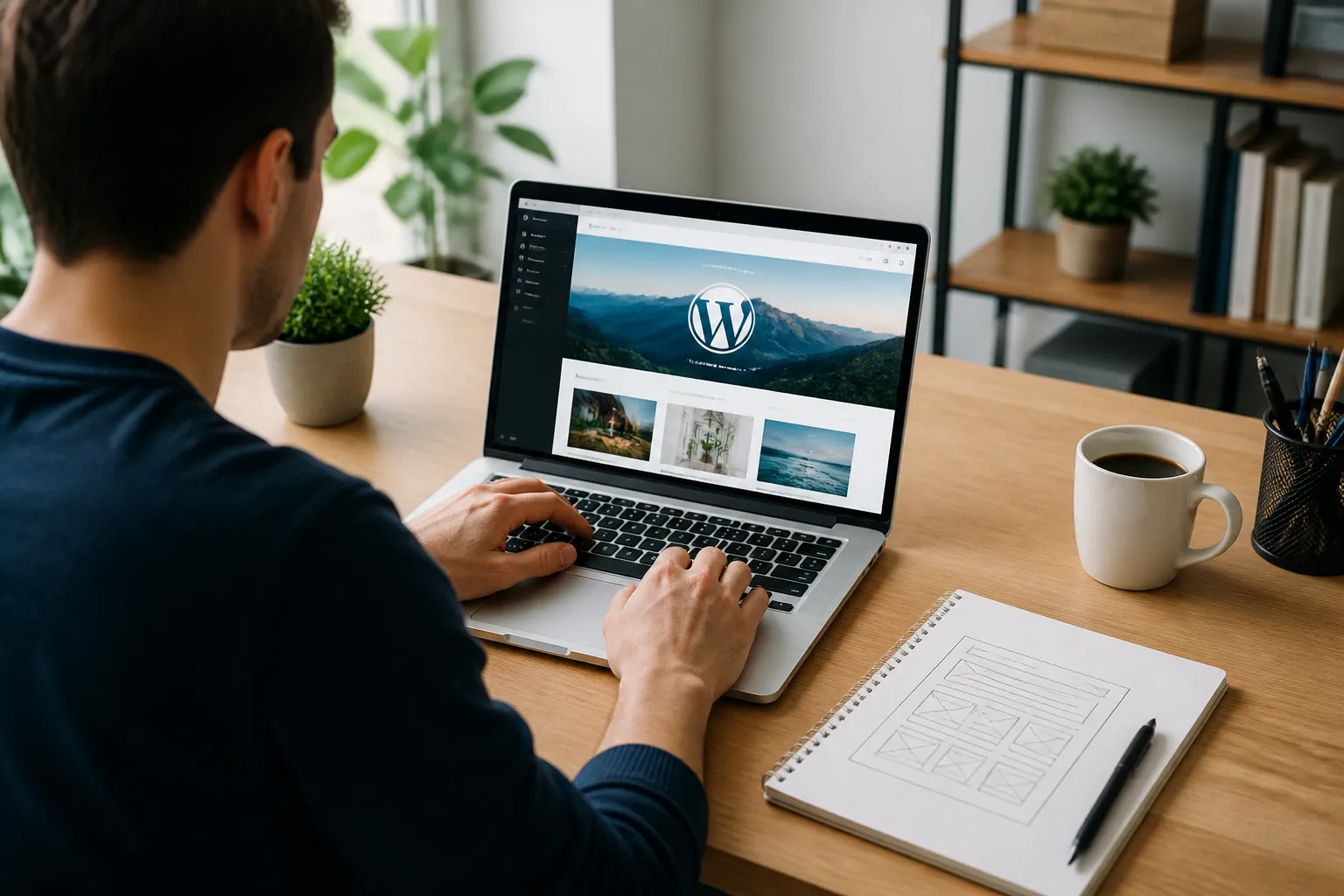
WordPress is a flexible content management system, not a single fixed design package. You can change themes, expand functionality, and update pages without rebuilding the entire site. That flexibility makes it suitable for beginners, organizations, creators, and growing companies, provided you keep the initial setup focused.
Choose Hosting, Domain, and WordPress Setup
Your domain is the address people type to reach your website. Select a name that is easy to say, spell, and remember. It should reflect your organization or subject without unnecessary hyphens, numbers, or obscure abbreviations. Check availability and relevant naming rights before registering it.

Hosting stores your website files and delivers them to visitors. Compare providers by support quality, WordPress compatibility, backup options, security features, performance, renewal pricing, and cancellation terms. The cheapest introductory plan is not always the least expensive choice after renewal. A modest plan is usually enough for a new site, but confirm that upgrading will be straightforward if traffic grows.
Many hosts offer automatic WordPress installation. During setup, use a strong administrator username that is not simply “admin,” create a unique password, and record credentials in a password manager. Enable two factor authentication when available. Select the correct site language, time zone, and search visibility setting. If the website is not ready, discourage search engines temporarily, but remember to remove that setting before launch.
Connect the domain to hosting by following the provider’s nameserver or DNS instructions. DNS changes may take time to appear everywhere. Activate an SSL certificate and verify that the site loads with HTTPS. Secure connections protect information in transit and prevent browsers from displaying avoidable warnings.
Configure Essential WordPress Settings
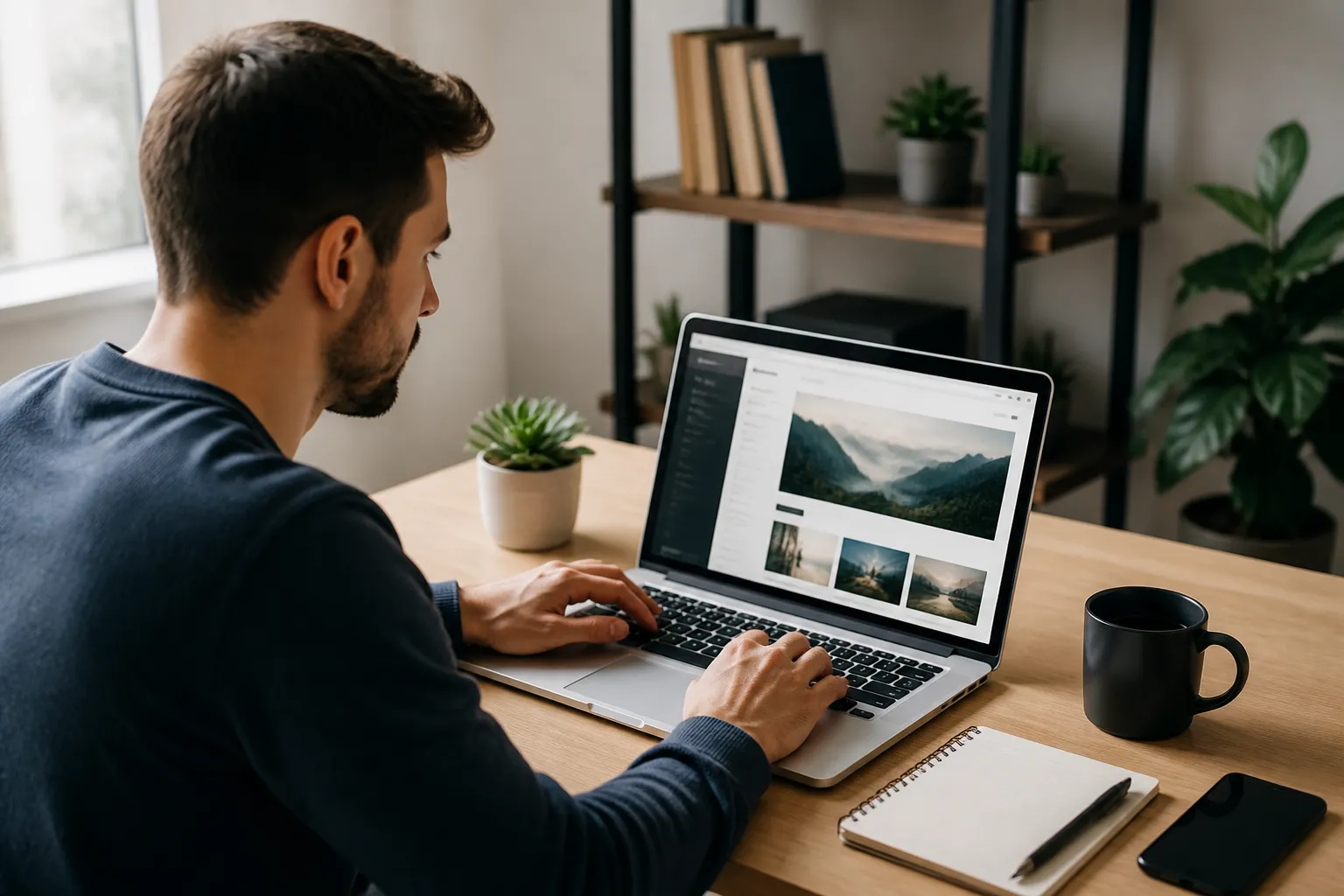
Log into the WordPress dashboard and review the basic settings before designing pages. Set the site title and tagline, confirm the administration email, choose a sensible time zone, and select the preferred date format. Decide whether visitors can register accounts; most informational sites should leave registration disabled unless it serves a specific purpose.
Use readable permalink settings, typically based on the post name. Clean addresses such as example.com/services are easier to understand than addresses filled with numbers. Changing permalinks later can create broken links, so make this decision early. If an established site is being rebuilt, plan redirects before changing existing addresses.
Delete sample posts, pages, comments, and themes you will not use. Keeping unused components can make administration confusing and may increase maintenance responsibilities. Do not delete the active theme or essential system files. Review discussion settings, comment moderation, and user roles. Give contributors only the permissions they need.
Create a backup routine before major changes. A useful backup includes the database and uploaded files, and it should be stored somewhere separate from the hosting account. Test restoration instructions rather than assuming a backup is usable. Automatic backups are valuable, but responsibility still rests with the site owner to monitor them.
Select a Theme and Build the Design
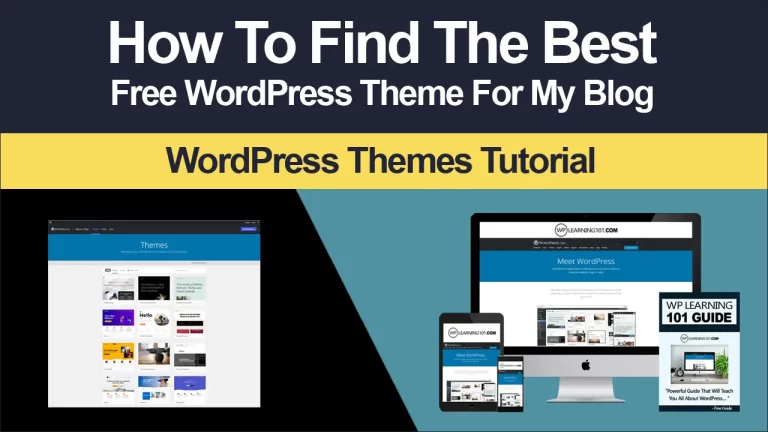
A theme controls the site’s visual framework, including layouts, typography, colors, menus, and template behavior. Choose a maintained theme that supports current WordPress features, responsive screens, accessibility basics, and the editing tools you intend to use. Review its documentation, update history, customization controls, and licensing terms.
Avoid selecting a theme solely because its demonstration looks impressive. Demonstration content often depends on photographs, plugins, and careful styling that may not match your needs. Instead, evaluate whether the theme makes your actual content readable. Check heading styles, button contrast, mobile navigation, spacing, archive pages, and footer controls.
The Site Editor can allow compatible themes to modify headers, footers, templates, and global styles from one interface. Other themes provide a Customizer or theme-specific options. Choose one editing approach and learn it thoroughly instead of installing several design systems. A child theme may be appropriate for advanced code changes, because direct edits to a parent theme can disappear during updates.
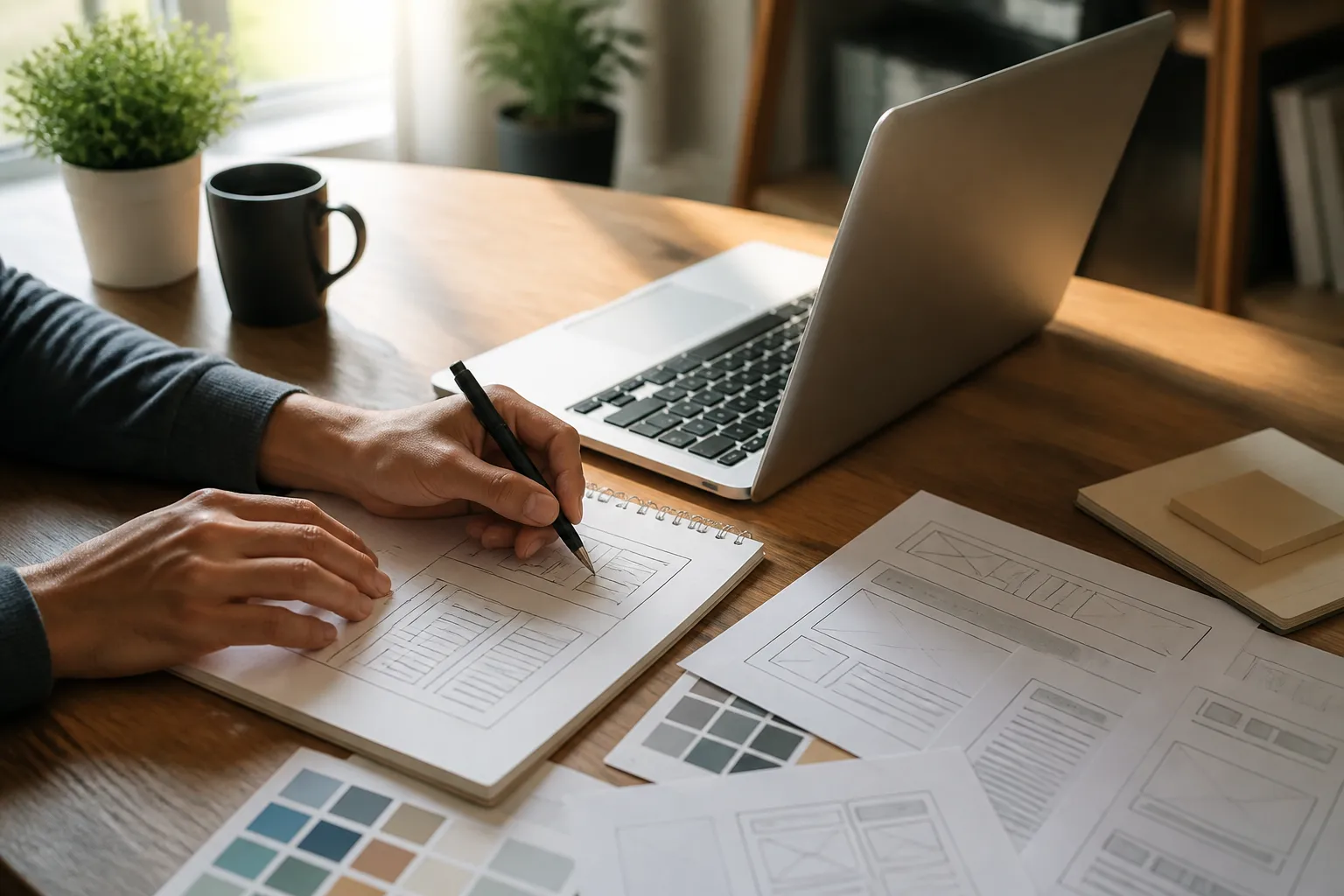
Establish a small design system. Use one body typeface, one heading treatment, a limited color palette, and consistent button styling. Keep paragraphs comfortable to read and preserve generous spacing. A recognizable design builds trust, while excessive animation, popups, and decorative effects can distract from the visitor’s goal.
Build Core Pages
Create pages in this practical order: Home, About, Services or Products, Contact, and any required legal pages. The homepage should immediately explain who you help, what you provide, and what visitors should do next. A clear headline, supporting explanation, relevant visual, and visible call to action are usually more effective than a crowded introduction.
The About page should explain your purpose, expertise, process, or background in language that matters to visitors. The Services page should describe outcomes, inclusions, limitations, and next steps. Avoid vague claims such as “best quality” unless you explain what the claim means. The Contact page should offer a form, email address, phone number, or another reliable method, while setting realistic response expectations.
Use headings in logical order. Start with one main page heading, then use lower-level headings for sections. Write descriptive link text instead of generic phrases such as “click here.” Add alternative text to meaningful images and mark decorative images appropriately. Accessibility is not merely a technical obligation; it helps more people understand and use the site.
Add Functionality Carefully
Plugins extend WordPress with features such as forms, search optimization controls, ecommerce, backups, caching, analytics connections, memberships, and calendars. Install only what solves a defined problem. Every additional plugin introduces another interface, update responsibility, and possible compatibility issue.
Before installing a plugin, check whether it is actively maintained, compatible with your WordPress version, documented clearly, and supported by a credible developer. Read its privacy implications and understand what data it collects. Prefer one well designed tool that covers a need over several overlapping tools.
For a contact form, include only necessary fields, explain how submitted information is handled, and test delivery to more than one address. For a store, configure payment methods, taxes, shipping, inventory, customer emails, refunds, and order security before inviting purchases. Make a test order and inspect the entire process from product page to confirmation message.
If you publish a blog, define categories that reflect visitor interests and use tags sparingly. Create an editorial process for drafting, fact checking, image licensing, editing, and updating. Consistent, useful publishing is more valuable than posting frequently without a clear purpose.
Improve Performance, Security, and Search Visibility
Performance begins with appropriate hosting and efficient content. Resize images before uploading, select modern formats when supported, and avoid placing enormous files in small display areas. Limit unnecessary fonts, sliders, videos, and external scripts. A caching tool may help, but configure it carefully and test pages after changes.
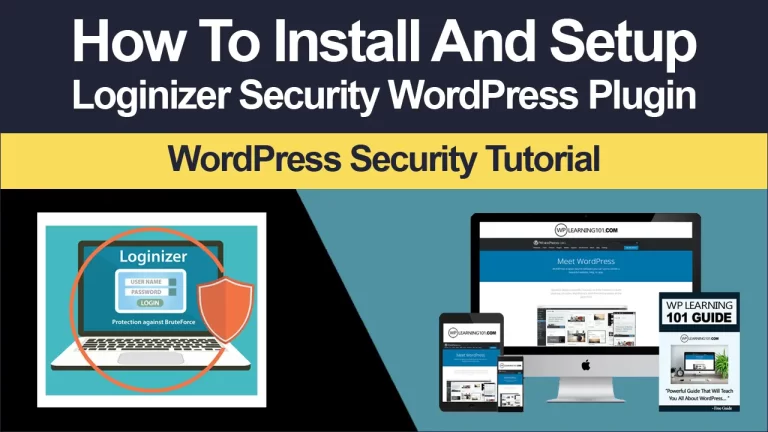
Security requires layers. Keep WordPress, themes, and plugins updated, remove unused components, use strong unique credentials, limit administrator accounts, and enable two factor authentication where possible. A security plugin can provide monitoring or protection, but it cannot replace updates and sensible permissions. Review login activity and investigate unexpected changes promptly.
Search visibility depends on useful content, understandable structure, and technical access. Give each important page a specific title and concise description. Use natural phrases that match the audience’s questions, but do not force keywords into awkward sentences. Create internal links that help visitors discover related information. Submit a sitemap through the relevant webmaster tools after launch, and check whether important pages are indexable.
Do not promise instant rankings. Search performance develops through relevance, technical reliability, clear organization, and ongoing improvement. Measure actions that matter, such as qualified inquiries, completed purchases, downloads, or bookings, rather than celebrating traffic alone.
Test Before Launch
A launch checklist prevents small problems from damaging confidence. Open the website on a phone, tablet, and desktop. Test menus, buttons, forms, search, embedded media, downloads, payment steps, and every important link. Check pages while logged out, because administrators sometimes see content that ordinary visitors cannot.
Read the copy aloud or ask another person to review it. Correct spelling, inconsistent capitalization, missing punctuation, confusing instructions, and outdated contact details. Confirm that the logo links home, the footer is complete, and the browser title is appropriate. Review cookie notices, privacy wording, accessibility features, and marketing permissions according to the laws relevant to your audience.
Check loading behavior on an ordinary connection rather than relying only on a fast office network. Inspect image dimensions, layout shifts, and error messages. Create a final backup and record the versions of major themes and plugins. If a staging environment is available, test updates there before applying them to the live site.
Launch and Maintain the Website
Remove any setting that discourages search engines when the site is ready. Confirm HTTPS, connect analytics if appropriate and legally permitted, and notify essential partners of the new address. Announce the launch only after the core user journey works reliably.
Maintenance is part of ownership, not an optional cleanup task. Establish a regular schedule for updates, backups, security reviews, link checks, performance checks, and content refreshes. Do not apply every update blindly to a critical site; take a backup and review compatibility first. If an update causes trouble, restore or troubleshoot methodically rather than making multiple unrecorded changes.
Review real questions from visitors and use them to improve pages. Replace outdated prices, staff details, screenshots, policies, and service descriptions. Refresh older articles when information changes. Keep a change log so you can identify what was modified and when.
Common Mistakes to Avoid
A frequent mistake is trying to serve everyone. A focused message helps the right visitors recognize value quickly. Another is choosing a complex theme before understanding the content; design should support information, not conceal it.
Avoid installing plugins for every minor visual effect. Avoid copying text from competitors, using unlicensed images, or collecting personal information without explaining its purpose. Never treat accessibility as an afterthought. Do not publish placeholder content, broken links, or unfinished pages simply to meet an arbitrary launch date.
Avoid making the homepage carry every detail. Use dedicated pages and helpful navigation. Finally, do not assume a website is finished when it goes live. Visitor behavior reveals which sections need clarification, stronger calls to action, or simpler paths.
Frequently Asked Questions
Is WordPress free to use?
The WordPress software can be used without a license fee, but a functioning website normally requires a domain, hosting, and possibly paid themes, plugins, professional services, or premium support. Budget according to the site’s needs rather than assuming every paid option is necessary.
Should I use WordPress.com or self hosted WordPress?
They offer different management models. A hosted plan can simplify infrastructure, while self hosted WordPress provides more control over hosting, plugins, files, and customization. Compare storage, monetization rules, support, backups, and upgrade flexibility before deciding.
How long does building a website take?
A small site can be assembled quickly when content and branding are ready. More time is needed for custom design, ecommerce, integrations, accessibility review, legal requirements, and approval cycles. The quality of preparation often affects the schedule more than the software itself.
Do I need coding skills?
No. Blocks, templates, and visual settings can create many professional sites. Coding becomes useful for custom layouts, integrations, performance improvements, or precise behavior, but beginners can launch successfully without writing code.
How many plugins should I install?
There is no universal ideal number. Judge plugins by necessity, quality, maintenance, performance, and overlap. A carefully maintained site with several useful plugins can be healthier than one with fewer poorly chosen components.
How can I protect my website?
Use reliable hosting, HTTPS, strong unique passwords, limited permissions, updates, backups, and two factor authentication. Monitor the site and maintain a recovery plan. Security is ongoing risk reduction, not a single installation.
What should I do if the site breaks?
Avoid changing many things simultaneously. Note the error, restore a known good backup if necessary, and deactivate recent additions methodically. Hosting support or a qualified developer can help when the issue affects payments, data, or a production business site.
Conclusion
A successful WordPress website begins with a clear purpose, dependable infrastructure, useful content, and a simple path for visitors. Choose hosting and a domain carefully, configure the foundation, select a maintainable theme, add only necessary functionality, and test every important interaction before launch. Then protect the investment through updates, backups, security checks, and regular content improvements.
The strongest advantage of WordPress is its ability to grow with your goals. Start with a focused version that serves visitors well instead of building an overloaded system. As your audience responds, improve the pages, measure meaningful outcomes, and add features only when they solve genuine problems. With disciplined planning and ongoing care, your website can become a credible, accessible, and persuasive part of your organization’s work.