WordPress Tutorials for Beginners: Decide What Your Site Should Do
WordPress Tutorials for Beginners: Build Your First Site
WordPress is a flexible publishing platform for creating a blog, portfolio, business website, membership service, or online store without writing every line of code. The easiest way to learn it is to build one small, useful site while understanding what each decision does. This guide explains the process from planning and choosing hosting to publishing, maintaining, and improving your first WordPress website.
You do not need advanced technical knowledge. You need a clear purpose, a domain name, suitable hosting, a focused design, and a willingness to practice. WordPress becomes much less confusing when you distinguish the site’s content from its appearance and functions. Posts and pages hold information, themes control presentation, and plugins add capabilities. Keeping those roles clear prevents many beginner mistakes.
WordPress Tutorials For Beginners: Decide What Your Site Should Do
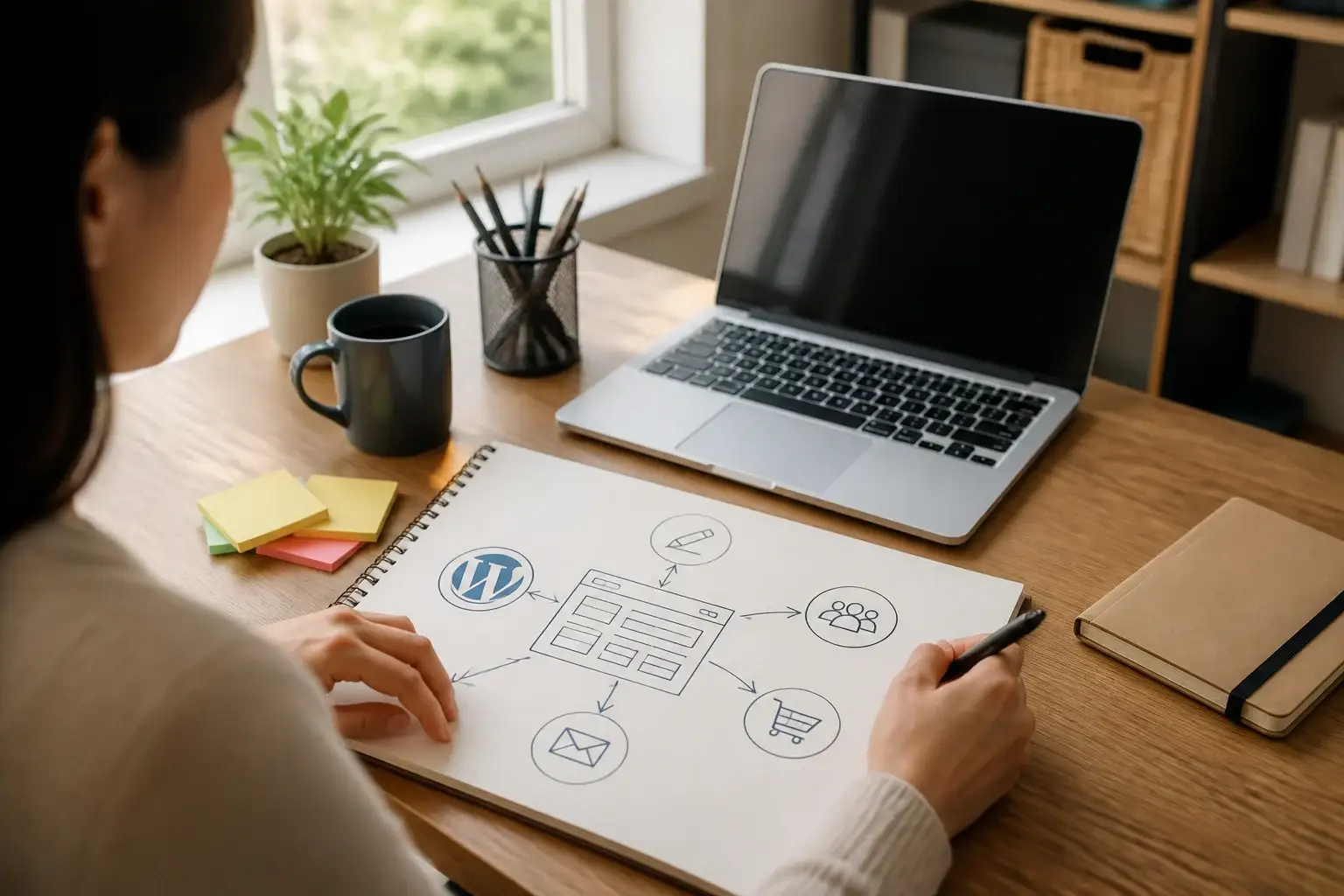
Begin with a short description of your site’s purpose. A personal blog might prioritize readable articles and subscriptions. A local service business may need service pages, contact details, opening hours, and location information. A portfolio needs strong project images, descriptions, and an easy way to inquire. An online shop requires product management, payments, shipping, and customer support.
Write down the audience, the action you want visitors to take, and the information they need first. This simple exercise guides every later choice. Avoid starting with colors or themes before you know the site’s job. Attractive decoration cannot compensate for unclear navigation or missing information.

Create a basic content outline. Most first sites need a home page, an about page, a services or portfolio page, a contact page, and a privacy page appropriate to their circumstances. A blog can add a posts page and categories. Keep the initial version manageable. Publishing five helpful pages is usually more valuable than planning fifty unfinished ones.
Choose a Domain and Hosting
A domain is your site’s web address, while hosting is the service that stores and delivers its files. Choose a domain that is easy to remember, spell, and say aloud. A short name connected to your identity or subject is generally preferable to a complicated phrase filled with punctuation.
WordPress can refer to two related options. WordPress.com provides hosted plans and handles much of the technical infrastructure. WordPress.org supplies the software for installation on hosting that you arrange separately. Neither option is universally best. Hosted WordPress can simplify maintenance, while self-hosted WordPress offers broader control over themes, plugins, and server settings, depending on the hosting plan.
When comparing hosts, look for current WordPress compatibility, dependable support, automated backups, security features, a clear renewal price, and a straightforward way to migrate your site. Do not choose solely on an introductory offer. Read what is included, whether email is available, and how performance resources are allocated. You may also need a secure HTTPS connection, commonly provided through an SSL certificate.
After purchasing hosting and connecting the domain, allow time for domain settings to update. Your host may provide an automated installer. Follow its instructions, create a strong administrator password, and avoid using “admin” as the username if the installer permits another choice. Save credentials in a reputable password manager rather than a plain text document.
Understand the WordPress Dashboard
Log in through the address supplied by your host, often a path ending in `/wp-admin`. The dashboard is your control center. Posts are time-sensitive entries commonly used for articles or news. Pages are relatively permanent sections such as About or Contact. Media stores uploaded images and files. Comments manages visitor responses. Appearance controls the theme and site design. Plugins handles extensions, and Settings contains important configuration options.
Spend a few minutes exploring without changing anything. Notice the difference between editing a page and customizing the site. The block editor builds content from individual blocks, including paragraphs, headings, images, lists, buttons, galleries, and columns. Each block has settings in the editor sidebar. The toolbar changes according to the selected block.
Use headings in a logical order. The page title is normally the main heading, followed by lower-level headings for sections. Do not select a heading merely because it looks large; use it to communicate structure. A screen reader and a visitor scanning quickly both benefit from meaningful hierarchy.
Select and Customize a Theme
A theme determines layout, typography, colors, templates, and other visual rules. Choose one that supports the features you actually need and is maintained by its developer. Favor readable designs with responsive layouts, accessible color contrast, and few unnecessary effects. A simple theme usually gives you more control than a crowded theme that promises every possible feature.
Preview the theme on mobile and desktop widths. Check menus, buttons, headings, forms, images, and footer content. Read the theme’s documentation before importing a demonstration site, because demo content can add pages, images, widgets, and settings that later require cleanup.
Depending on the theme, use the Site Editor or Customizer to adjust the logo, colors, fonts, header, footer, navigation, and templates. Change one element at a time, then view the result on the public site. Keep a note of original settings if you are experimenting. You can replace a theme later, but heavily customized layouts may need manual adjustment after the change.
Do not spend days pursuing a perfect appearance before creating useful content. Visitors judge whether they can understand and use a site, not only whether its colors are fashionable.
Build Essential Pages
Create your home page with a clear opening statement. Tell visitors what the site offers, who it serves, and what they can do next. A prominent button might invite them to contact you, read a guide, request a quote, or view products. Avoid vague claims that require visitors to interpret your purpose.
An About page should explain relevant background, values, or process without becoming an autobiography. A Services page should describe outcomes, inclusions, limitations, and the next step. A Contact page should offer a reliable method of communication and set reasonable expectations for replies. Add social links only when those profiles are active and useful.
Use the block editor to keep layouts clean. Break long text into short paragraphs, use lists for grouped information, and add descriptive captions where they clarify an image. Compress large images before uploading, choose suitable dimensions, and write alternative text that explains the image’s purpose. Decorative images may need empty alternative text so assistive technology can ignore them.
Create navigation through the site’s menu or navigation block. Put the most important destinations first and avoid overwhelming visitors with every available link. Test every menu item, button, form, and downloadable file before launch.
Publish Your First Post
Posts work well for tutorials, announcements, opinions, case studies, and updates. Choose one specific reader problem and promise a practical answer. A useful article generally needs a direct introduction, organized sections, examples, and a conclusion that suggests a sensible next action.
Before publishing, create a descriptive title and a readable URL. Use categories to group broad subjects and tags only when they provide meaningful additional organization. Do not create dozens of nearly identical categories. Add a featured image only when it represents the topic and displays correctly in expected layouts.
Preview the post on different screen sizes. Check spelling, links, heading order, image quality, and spacing. Confirm that the author, publication date, and comments settings match your intentions. WordPress may save revisions, allowing you to restore an earlier version, but revisions are not a substitute for deliberate editing.
A regular publishing schedule is helpful only if you can sustain it. Consistent, useful content builds a stronger site than occasional rushed posts.
Add Plugins Carefully
Plugins extend WordPress with forms, backups, security controls, analytics connections, search tools, commerce features, and more. Install only what solves a genuine requirement. Each additional plugin can introduce settings, maintenance work, conflicts, or security exposure, so a smaller, well-maintained collection is easier to manage.
Read the plugin description, documentation, compatibility information, update history, and support activity before installation. Confirm that it does what you need without duplicating an existing feature. Install from a trustworthy source, activate it, and configure the essential settings. Test the site afterward, especially forms, menus, checkout processes, and editing screens.
Remove plugins you no longer use rather than leaving them inactive indefinitely. Update WordPress core, themes, and plugins regularly, but take a backup before significant changes. If an update causes trouble, use the backup or the host’s recovery tools, and consult documentation instead of repeatedly changing unrelated settings.
Configure Important Settings
Open Settings and review the site title, tagline, language, time zone, date format, and membership options. Set the correct homepage and posts page if your theme or setup requires those choices. Use a readable permalink structure so URLs describe content rather than displaying an opaque sequence of numbers.
Review discussion settings before enabling comments. You can require approval, limit links, or disable comments on pages where they add little value. Contact forms should collect only information you genuinely need and should explain how submissions are handled. Privacy requirements vary by location and situation, so use authoritative guidance or professional advice when your site processes personal information, sells products, or uses tracking tools.
Set a site icon if your theme supports it, and check the browser title displayed on public pages. Remove sample content, unused widgets, placeholder text, and demonstration accounts. These small details strongly influence whether a new site appears trustworthy.
Improve Security and Reliability
Security begins with account habits. Use unique, strong passwords, enable two-factor authentication where available, and give contributors only the permissions they need. An administrator can change almost everything; an editor can manage content without necessarily controlling technical settings. Review users periodically and remove accounts that no longer require access.
Keep current backups stored somewhere separate from the website. A backup is useful only if it can be restored, so understand what it includes and how recovery works before an emergency. Hosting backups may have retention limits or restoration charges, which makes an independent copy valuable.
Use HTTPS, keep software updated, and monitor unexpected changes. Be cautious with unsolicited plugin recommendations, fake support messages, and requests for administrator credentials. If the site handles payments or sensitive information, use established services and seek qualified advice about security obligations.
Make the Site Accessible and Search-Friendly
Accessibility benefits everyone, including visitors using phones, keyboards, magnification, or assistive technologies. Use sufficient color contrast, descriptive links, visible focus indicators, captions when needed, and labels for form fields. Do not place essential information only inside images. Test keyboard navigation and examine pages at a narrow width.
Search visibility begins with useful, clearly organized content. Give each page a specific title, explain the subject naturally, and answer the visitor’s question better than a vague promotional paragraph. Use descriptive URLs, internal links, and accurate image alternative text. A sitemap and suitable indexing settings can help discovery, but no setting guarantees prominent placement.
Avoid copying text, hiding keywords, purchasing dubious links, or publishing many thin pages. Improve content for readers first. Search tools can reveal technical problems and questions visitors ask, yet they cannot replace judgment about accuracy, usefulness, and clarity.
Test Before Launch
View the site as a first-time visitor. Open the home page in a private browser window, follow the navigation, submit the contact form, and verify that messages arrive. Test on a phone and a larger screen. Check links, downloads, buttons, image cropping, page speed, and footer information.
Ask another person to complete a simple task, such as finding your services or contacting you. Watch where they hesitate without immediately explaining. Their confusion can reveal unclear labels or missing information more effectively than your familiarity with the site.
Make a short launch checklist: domain works, HTTPS is active, essential pages are complete, forms function, backups exist, software is current, privacy information is appropriate, and sample content is removed. Publish only when the core experience is dependable. You can improve styling and add features afterward.
Maintain and Improve the Site
A WordPress site is not finished at launch. Schedule periodic reviews of software, backups, users, links, forms, contact details, and content accuracy. Update old articles when recommendations, screenshots, products, or policies change. Delete obsolete drafts and media carefully, since files may still be used elsewhere.
Measure meaningful outcomes rather than chasing every available number. Depending on your goal, useful signals might include completed inquiries, newsletter registrations, product orders, or time spent finding important information. Interpret data cautiously because tracking tools can be incomplete and privacy choices affect what is recorded.
When a problem appears, change one thing at a time and record what you changed. Disable a recently added plugin only after backing up when practical. Check error messages and official documentation before installing another tool to compensate for an unknown cause.
Common Beginner Mistakes
Many beginners install too many plugins, choose a complicated theme, or redesign repeatedly instead of publishing. Others upload enormous images, ignore mobile layouts, or use unclear menu labels. Some forget to renew the domain or assume hosting backups solve every recovery need.
Another mistake is treating WordPress as a one-time purchase rather than an ongoing publishing system. Content needs review, accounts need protection, and software needs maintenance. A modest site cared for consistently is more valuable than an ambitious site abandoned after launch.
Finally, avoid copying a competitor’s structure blindly. Study successful patterns, but adapt them to your audience, resources, and legal context. Your clearest advantage is often precise information delivered with less friction.
Frequently Asked Questions
Is WordPress free?
The WordPress software is available without a license fee, but a website may still require hosting, a domain, premium services, paid themes, plugins, maintenance, or transaction costs. Hosted plans may bundle several services under their own terms. Review current pricing and limits before choosing.
Can I build a site without coding?
Yes. The block editor, site tools, and many plugins let beginners create substantial websites without programming. Coding becomes useful when you need custom behavior or styling, but it is not a prerequisite for a clear first site.
Should I use a free theme?
A free theme can be an excellent starting point if it is maintained, documented, responsive, and suitable for your content. Paid themes may include support or additional features, but payment alone does not guarantee quality. Evaluate the theme’s actual design and maintenance record.
How many plugins should I install?
There is no universally correct number. Install the fewest reliable plugins that meet genuine needs. Quality, compatibility, maintenance, and configuration matter more than a numerical limit.
Why is my site not appearing in search results?
New sites may take time to be discovered, and indexing is not guaranteed. Check that search visibility has not been disabled, confirm the site works publicly, publish useful content, and use available webmaster tools to inspect technical issues. Persistent problems may require qualified help.
What should I do if I get stuck?
Read the official WordPress documentation, your host’s support material, and the plugin or theme documentation first. Describe the exact symptom, recent change, and error message when asking for help. Avoid sharing passwords or granting administrator access to unverified people.
Conclusion
Building your first WordPress site is easier when you treat it as a sequence of understandable decisions rather than a single technical challenge. Define the purpose, choose dependable foundations, create essential content, select a restrained design, add only necessary tools, and test the visitor experience. Then protect the site with updates, backups, strong accounts, and regular reviews.
Start with a small version that genuinely helps its intended audience. Publish it, observe where visitors struggle, and improve one meaningful detail at a time. WordPress rewards that practical approach: its flexibility lets your site grow from a simple first project into a capable, professional platform without forcing you to solve every advanced problem on the first day.