WordPress Themes and Plugins: Understanding Themes

WordPress themes and plugins work together to determine how a website looks, behaves, and serves its visitors. A theme controls the visual foundation: layout, typography, colors, templates, navigation, and often the structure of key page types. Plugins add capabilities such as contact forms, search optimization, online stores, memberships, backups, analytics, security, and performance tools. Choosing them carefully is more important than collecting the largest possible library.
The strongest WordPress setup begins with purpose. A small business site needs clear service pages, contact options, and trustworthy presentation. A magazine needs flexible archives, readable article templates, and editorial controls. A store needs dependable product, payment, shipping, and order-management features. A portfolio needs strong galleries without slowing the browsing experience. When theme and plugins support the same goal, the site becomes easier to manage and more persuasive to visitors.
WordPress Themes And Plugins: Understanding Themes
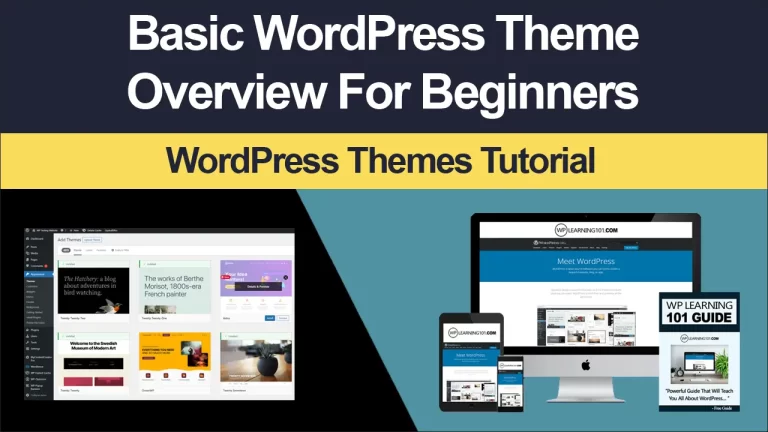
A WordPress theme is a collection of files and settings that presents a site to the public. Traditional themes commonly include templates for the homepage, posts, pages, archives, search results, headers, footers, and comments. Modern block themes use the Site Editor, allowing users to adjust templates and design elements through blocks rather than editing files directly.
The theme is not merely decoration. It influences how quickly users understand a page, how comfortably they read it, how confidently they navigate, and how easily the site adapts to phones and tablets. A polished theme with confusing navigation is less useful than a simpler theme with strong information hierarchy.
What to Evaluate
Start with responsive behavior. Review the theme on narrow and wide screens, and check menus, buttons, tables, galleries, and forms. A layout that looks impressive on a desktop may create horizontal scrolling or tiny text on mobile devices.

Next, examine customization. Useful controls might include global colors, typography, spacing, header layouts, footer columns, page-width settings, and reusable templates. Avoid themes that advertise endless settings but make basic changes difficult to locate.
Accessibility deserves equal attention. Look for readable contrast, visible keyboard focus, logical heading structure, meaningful link text, and controls that work without a mouse. No theme alone guarantees an accessible website, because content and configuration matter too, but a sound foundation reduces preventable problems.
Also investigate maintenance. Prefer themes with clear documentation, regular compatibility work, and a design that does not depend on dozens of bundled extensions. A theme should remain useful if you change a page builder, redesign a header, or replace an image gallery.
Theme Categories
Block themes are attractive for owners who want visual control across templates. They can make global redesigns efficient: changing a style setting may update headings or buttons throughout the site. However, users unfamiliar with template editing may need time to understand the difference between a page, a template, a pattern, and a global style.
Classic themes can offer a familiar Customizer workflow and dependable compatibility with established plugins. They may be preferable for teams that already know their settings or rely on a carefully configured page-builder system. Their limitation is that different theme components may expose separate controls, producing a less unified editing experience.
Multipurpose themes promise many layouts and demos. They can be convenient when a business needs a quick starting point, but their broad feature set may add scripts, styles, and options that the site never uses. A focused theme is often easier to optimize and maintain.
Minimal blog, business, portfolio, magazine, and commerce themes are designed around distinct content patterns. Choose the category that matches the site’s primary task rather than selecting a theme solely because its demonstration page looks attractive. Demo content is carefully arranged; your real content may have different lengths, images, and navigation needs.
Choosing Plugins Wisely
Plugins extend WordPress, but every additional component introduces code, settings, update requirements, and possible conflicts. The goal is not to install one plugin for every imaginable feature. The goal is to create a small, dependable toolkit that solves real problems.
Before installing, define the job in one sentence. “Collect inquiries from service pages” suggests a form plugin. “Sell physical products” suggests an ecommerce system. “Restore the site after a failed update” suggests a backup solution. If you cannot explain the purpose, postpone installation.
Assess the developer’s documentation, support process, update history, compatibility information, and user feedback. Reviews can reveal practical frustrations, but they are not a substitute for testing. A plugin may be excellent yet unsuitable for your hosting environment, workflow, privacy requirements, or editing system.
Check whether another installed plugin already performs the same task. Duplicate caching, optimization, security, or analytics tools may interfere with one another. Likewise, a theme may bundle sliders, forms, or page-building features that create dependence on the theme. Consider whether the feature should remain available if the theme is replaced.
Essential Plugin Groups
Forms and Communication
A form plugin can support contact requests, quotations, registrations, surveys, and file submissions. Choose one that provides useful field types, spam controls, notification settings, validation, and a clear way to export or review submissions. Configure confirmation messages so visitors know whether their request was received.

Forms also require responsible data handling. Collect only information you need, explain the purpose of collection, restrict administrative access, and avoid sending sensitive information through ordinary email unless appropriate safeguards exist. Privacy obligations vary by location and situation, so consult qualified guidance when the site handles personal data extensively.
Search Optimization
Search optimization plugins can help manage titles, descriptions, canonical settings, social previews, XML sitemaps, and structured information. They do not replace valuable writing, sound navigation, accurate business details, or performance improvements. Treat their recommendations as tools, not automatic instructions.
Avoid changing established URLs casually. If a page must move, plan a suitable redirect and update internal links. A plugin can assist with technical configuration, but it cannot decide which content deserves attention or whether a promise made in a search result matches the page.
Performance and Caching
Performance tools may cache pages, compress assets, optimize images, delay certain scripts, or connect the site to a content delivery network. Benefits depend on hosting, theme construction, traffic patterns, and configuration. Measure before and after changes using consistent pages and conditions rather than trusting a single score.
Do not enable every optimization switch at once. Aggressive combinations can break menus, forms, checkout processes, or visual editors. Change one setting, test important user journeys, clear relevant caches, and document what changed. A slightly less optimized site that works reliably is better than a fast-looking site that loses inquiries.
Security and Backups
Security plugins can support login protection, malware monitoring, firewall rules, and audit logging. They are useful layers, not complete protection. Strong passwords, limited administrator accounts, timely updates, reputable hosting, and sensible permissions remain fundamental.
Backups are equally important, but a backup is valuable only when it can be restored. Keep copies in a location separate from the website, retain an appropriate history, and periodically test restoration. Before major updates, create a fresh backup and confirm that it is available.
Ecommerce and Memberships
Commerce plugins can transform WordPress into a store, but they introduce operational responsibilities. Product data, taxes, shipping, payment gateways, refunds, stock, customer accounts, transactional email, and order security must work together. Select a system whose extensions and support match your business model.
Membership plugins add registration, restricted content, subscription rules, and account management. Plan the customer journey before installation: registration, payment, access, cancellation, renewal, and support. Complexity grows quickly when memberships, courses, forums, and multiple payment services are combined.
Analytics and Accessibility
Analytics tools help you understand traffic and conversions, but install only the tracking you can interpret and justify. Decide which actions matter, such as completed forms, purchases, downloads, or calls. Review data regularly and respect applicable privacy requirements.
Accessibility plugins may identify or improve selected issues, but automated overlays cannot make every site accessible. Write descriptive alternative text, use proper headings, label controls, provide captions where needed, and test with keyboard navigation. Human review remains essential.
Matching Themes and Plugins
Compatibility is more than whether two products can be activated simultaneously. A plugin may rely on specific templates, styling conventions, editor blocks, or JavaScript behavior. A theme may override plugin templates or change checkout markup. Before committing, test the complete path a visitor follows.
For a service website, pair a lightweight business theme with a form plugin, SEO controls, backup solution, performance tools, and analytics. For a store, prioritize a commerce-compatible theme, payment extensions, caching configured for dynamic pages, security measures, and reliable transactional email. For publishing, choose a readable editorial theme, structured SEO tools, image optimization, backups, and a membership or newsletter solution only when needed.
Use a staging environment whenever possible. Copy the site, update themes and plugins there, test menus, forms, search, accounts, checkout, email, and mobile layouts, then schedule production changes. If staging is unavailable, take a verified backup and update during a period when problems can be investigated.
Building a Practical Stack
A sensible stack usually contains a theme, a backup method, security basics, performance management, forms or commerce features, and carefully selected measurement tools. It may also include SEO, redirects, image optimization, email delivery, multilingual support, or accessibility testing. The correct number is the number required by the site, not a target to reach.
Keep an inventory recording each component’s purpose, vendor, version, renewal information, dependencies, and configuration notes. This record helps when a team member leaves, an update causes trouble, or a replacement must be evaluated. Remove inactive plugins instead of leaving them forgotten, and delete unused themes except for a reasonable fallback where appropriate.
Avoid selecting products solely because they are free, popular, attractive, or heavily promoted. Evaluate total cost, including premium extensions, support, development time, migration effort, and the consequences of failure. A modest subscription can be sensible when it protects revenue or saves repeated technical work; an unnecessary purchase remains unnecessary regardless of its discount.
Common Mistakes
One frequent mistake is choosing a theme before defining content. The result is a site forced into attractive but unsuitable layouts. Sketch the navigation, page types, calls to action, and content volume first. Then select a theme that supports that structure.
Another mistake is using several plugins for the same function. Multiple caching systems, page builders, image processors, or security scanners can conflict and make troubleshooting difficult. Assign one primary tool to each major responsibility unless a deliberate exception is justified.
Users also postpone updates because they fear disruption. That can leave known defects or compatibility problems unresolved. Instead, establish a routine: back up, review release notes, update staging, test essential journeys, and then update the live site. For high-risk changes, involve a developer.
Finally, many owners overlook content quality. No theme can compensate for vague service descriptions, poor photographs, missing contact information, or calls to action that disappear on mobile screens. Design and functionality should make good information easier to find and act upon.
A Selection Checklist
Before choosing a theme, confirm that it supports your content types, displays well on mobile devices, offers usable typography, provides accessible structural options, and remains manageable without unnecessary dependencies. Check the editor experience with realistic sample content rather than relying only on a demo.
Before installing a plugin, identify its purpose, compare alternatives, inspect documentation, review compatibility, understand data handling, and confirm how you will test and remove it. Ask whether the feature belongs in WordPress at all; some external services may be more dependable for specialized email delivery, payments, or customer support.
Before launching, test navigation, search, forms, error pages, image display, metadata, backups, user permissions, email delivery, and important conversions. Review the site as a first-time visitor using a phone and a slower connection. Clear language and reliable interaction usually persuade more effectively than decoration.
Frequently Asked Questions
Can I change my theme later?
Yes, but a theme change can alter templates, menus, widgets, styles, and specialized content. Create a backup and test the replacement on staging. If the old theme stored content in proprietary modules, plan a migration rather than assuming everything will transfer cleanly.
How many plugins should a site have?
There is no universally safe number. A small, well-maintained set can work better than a short list of poorly chosen tools. Judge plugins by quality, necessity, performance, compatibility, and maintenance. Remove features that no longer serve a clear purpose.
Are premium themes and plugins always better?
No. Paid products may offer support, documentation, updates, or integrations that justify their cost, but price does not guarantee quality. Free products can be capable and responsibly maintained. Evaluate fit, transparency, support, and long-term sustainability.
Should I use a page builder?
A page builder can help teams create custom layouts without coding, especially when its workflow matches their skills. It may also add dependence, markup, assets, or migration work. Use one when its flexibility produces meaningful value, not simply because a demo contains elaborate effects.
What happens when a plugin conflicts with my theme?
First create a backup and identify the change that preceded the issue. Test with a staging copy, temporarily deactivate likely plugins, and switch to a standard theme for comparison. Review error logs and documentation. If the problem affects payments, security, or important data, seek qualified technical help.
Do plugins slow down every WordPress site?
Not automatically. Impact depends on code quality, database queries, scripts, external requests, configuration, hosting, and how frequently features run. A well-built plugin may have little visible effect, while one poorly configured feature can create a serious bottleneck. Test real pages and workflows.
Is a backup plugin enough for security?
No. Backups help recovery; they do not prevent every compromise. Combine recoverable backups with updates, strong authentication, restricted permissions, secure hosting, monitoring, and a plan for responding to suspicious activity.
How often should I review my setup?
Review it whenever the site’s goals, traffic, content, payment process, or legal responsibilities change. A quarterly check is a practical starting point for many small sites. Confirm updates, licenses, backups, performance, accessibility, and whether each component still has a purpose.
Conclusion
The best WordPress themes and plugins are not the ones with the longest feature lists. They are the components that support your audience, content, workflows, and future maintenance without creating needless complexity. Choose a theme for structure and usability, select plugins for clearly defined capabilities, test combinations before launch, and maintain the system deliberately.
A persuasive website depends on more than visual polish. Visitors need fast, readable pages, trustworthy information, obvious next steps, working forms, secure transactions, and consistent experiences across devices. By treating themes as the design foundation and plugins as carefully managed tools, you can build a WordPress website that is attractive today, practical to operate tomorrow, and flexible enough to grow with confidence.