WordPress Tutorials For Beginners: Start Building with WordPress Today

WordPress Tutorials For Beginners: Start Building with WordPress Today
WordPress is a flexible publishing platform for websites, blogs, portfolios, online stores, membership communities, and service businesses. Its greatest advantage for beginners is not simply that it is popular; it is that you can begin with a modest site and expand it as your confidence grows. You do not need to understand programming before publishing a useful website. You need a clear plan, reliable tools, and a willingness to learn through small, practical steps.
This beginner tutorial explains how to choose the right WordPress option, prepare a site, select a design, create essential pages, publish content, improve security, and maintain your website. Each stage builds on the previous one, so avoid trying to master everything at once. A simple website that is clear, fast, and useful is a stronger starting point than an ambitious site filled with unfinished features.
Understand the WordPress Options
Before purchasing anything, distinguish between WordPress.com and WordPress.org. WordPress.com is a hosted service. The provider manages the server environment, and you typically choose a plan, select a theme, and build within the features available to that plan. This route can be convenient when you want fewer technical responsibilities.
WordPress.org refers to the self-hosted software. You download or install WordPress through a hosting company, then manage the website, updates, backups, themes, and plugins yourself. Self-hosting offers broad control and can suit businesses, creators, and organizations that need flexible customization.
Neither choice is automatically best. Choose hosted WordPress when convenience, guided setup, and reduced maintenance matter most. Choose self-hosted WordPress when you want greater control over plugins, themes, hosting arrangements, or future development. Read plan details carefully because storage, support, ecommerce features, backups, and customization permissions differ between providers.

Plan Your Website Before Installing
A brief plan prevents many beginner mistakes. Write one sentence describing your website’s purpose, such as, “This site helps local homeowners book dependable gardening services.” Then identify the main audience and the action you want visitors to take. That action might be reading an article, requesting a quote, joining a mailing list, making a purchase, or contacting you.
Next, list the information visitors need before acting. A service website may require descriptions, pricing guidance, examples of work, testimonials, an inquiry form, and contact details. A blog may need categories, author information, and a consistent publishing schedule. Keep your first version focused. You can add advanced features after visitors can already understand and use the site.
Choose a domain name that is easy to say, spell, and remember. Avoid unnecessary numbers, confusing punctuation, or wording that limits future growth. Select hosting based on reliability, support, performance, backups, and transparent renewal pricing rather than an attractive introductory price alone. Confirm that the host supports current WordPress requirements and provides secure access.
Install WordPress and Learn the Dashboard
Many hosts offer an automated installation. You usually enter a site name, administrator username, password, and email address, then wait while the host creates the installation. Use a unique administrator username and a strong password stored in a reputable password manager. Do not use a predictable username or reuse a password from another service.
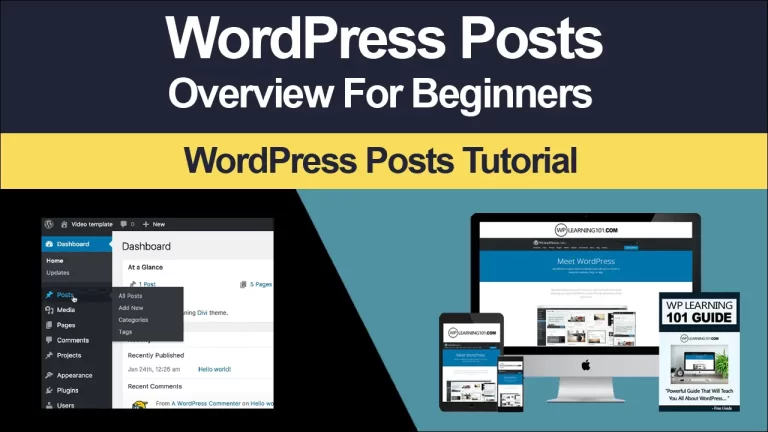
After signing in, you will see the WordPress dashboard. The left menu commonly includes Posts, Media, Pages, Comments, Appearance, Plugins, Users, Tools, and Settings. Menu labels can vary by theme or hosting setup, but the purpose remains similar. Spend a few minutes opening each section. Familiarity reduces hesitation and helps you identify where future tasks belong.
Update your site title, tagline, language, timezone, and date format under Settings. Visit the Permalinks screen and choose a readable structure that includes the post name. A clear address is easier for people to understand and share than one containing unexplained numbers. Save changes, then check the public site to confirm that the installation works.
Choose a Theme Carefully
A theme controls the visual framework of your website, including layouts, typography, colors, navigation, and responsive behavior. Start with a theme that matches your purpose and offers settings you can understand. A simple, well-supported theme is usually more valuable than a visually impressive theme packed with options you will never use.
Preview a theme on phones, tablets, and desktop screens. Check whether headings are readable, menus are accessible, buttons are noticeable, and content has enough spacing. Look for an active support channel, recent maintenance, useful documentation, and compatibility with the WordPress features you need. Avoid choosing only because a demonstration site contains attractive photographs; your own content may produce a very different result.
Install a theme through Appearance, then activate it. If the theme provides a site editor, use it to adjust global styles and templates. Change colors and fonts deliberately. Two or three coordinated colors and a small set of readable type styles often create a more professional result than constant decoration. Preserve contrast between text and its background, especially for visitors using small screens or bright environments.
Build Essential Pages
Most websites need a small group of foundational pages. Create a Home page that quickly explains who you serve, what you offer, and what visitors should do next. Create an About page that establishes relevance and trust without becoming a complete personal history. Create a Services, Products, or Portfolio page that gives visitors enough detail to evaluate your offer.
Add a Contact page with a clear method of communication. Include an email address, form, phone number, location, or suitable combination. Explain when people can reasonably expect a response. If you collect personal information, create a privacy page that accurately describes what you collect and why. Depending on your activity and location, you may also need terms, cookie information, refund guidance, or accessibility information. Obtain appropriate professional advice for legal requirements.
Use Pages for relatively permanent information and Posts for dated, regularly published material. Keep page names familiar. “About,” “Contact,” and “Services” are generally clearer than creative labels that force visitors to guess. Write for scanning: use short paragraphs, descriptive subheadings, bullet lists, and visible calls to action.
Create Navigation That Makes Sense
A navigation menu should help visitors answer three questions: Where am I, what else is available, and what should I do next? Place your most important pages in the primary menu. Avoid filling it with every archive, tag, or minor page. If your site has many sections, use carefully named dropdowns, but do not create deep layers that are difficult to use on a phone.
Link related pages within your content. An article about choosing running shoes might link to a fitting guide, a product category, and a contact page. These links provide useful next steps and help visitors discover more of your site. Review menus after adding pages because WordPress does not always add new pages automatically.
Publish Helpful Content
Good content solves a real problem for a specific audience. Before writing, identify the reader’s question, desired outcome, and likely concerns. Then provide a direct answer early. Add explanations, examples, instructions, and cautions that help the reader act. Do not lengthen an article merely to make it appear comprehensive.
Use the block editor to build posts from paragraphs, headings, images, lists, quotations, buttons, tables, and other blocks. Apply headings in a logical order. Use one main page title, then organize sections with lower-level headings. Do not use bold text as a substitute for a heading when the text introduces a new section.
Images can make a page clearer, but they should support the message. Use relevant photographs, diagrams, or screenshots, and write meaningful alternative text when an image conveys information. Decorative images may need empty alternative text so assistive technology can skip them. Resize large files before uploading when possible, and avoid adding images that slow the page without improving understanding.
Before publishing, check the title, introduction, links, spelling, headings, images, and call to action. Preview the post on different screen sizes. Schedule content only when you can maintain a realistic rhythm. Consistent usefulness matters more than publishing frequently.
Add Plugins with Discipline
Plugins extend WordPress with functions such as forms, backups, ecommerce, analytics, accessibility tools, caching, and security controls. Install a plugin only when you can explain the problem it solves. More plugins mean more settings, updates, possible conflicts, and maintenance responsibilities.
Review a plugin’s documentation, update history, compatibility information, support activity, and reputation before installing it. Prefer established solutions with clear configuration instructions. Remove inactive plugins you do not need; deactivating is not always the same as removing associated files or settings. Take a backup before major changes, and test important functions afterward.
Do not install several plugins that perform the same task unless you understand their interaction. For example, multiple caching or security tools may conflict. Configure one solution carefully, then measure whether it solves the original problem. A smaller, maintained plugin collection is generally easier to protect and troubleshoot.
Protect and Maintain Your Website
Security begins with basic habits. Use strong, unique passwords, enable two-step verification when available, limit administrator access, and create separate user accounts for contributors. Give each person only the permissions needed for their work. Never share one administrator login among several people.
Keep WordPress, themes, and plugins updated. Updates may address security weaknesses, improve compatibility, or fix defects. Before updating a production site, ensure that a recent backup exists. For important websites, test updates in a staging environment when your host provides one. If an update causes trouble, restore the backup or contact the relevant provider promptly.
Backups should be stored somewhere separate from the website. A backup that remains only on the same server may be unavailable during a server failure. Decide how often your content changes and choose a backup schedule accordingly. Periodically test restoration rather than assuming a backup is usable.
Monitor your site for broken links, failed forms, outdated information, unexpected users, and unusual performance. Maintenance is not a one-time project. A monthly review can catch small problems before they damage trust.
Improve Speed, Accessibility, and Clarity
Performance affects patience and usability. Start by choosing dependable hosting, a lightweight theme, and appropriately sized images. Avoid automatically playing video, excessive animation, and unnecessary third-party scripts. Keep pages focused, and review whether every visual element earns its place.
Accessibility improves the experience for everyone. Use descriptive link text, sufficient color contrast, keyboard-friendly controls, meaningful headings, captions where appropriate, and alternative text for informative images. Do not rely on color alone to communicate meaning. Test the site using keyboard navigation and a phone. Accessibility is not merely a technical checklist; it is a way of respecting different abilities and circumstances.
Search visibility begins with useful content and understandable structure. Give each page a specific topic, write a descriptive title, use a clear URL, and connect related pages with relevant links. Avoid stuffing repeated phrases into text. Search tools and plugins can suggest improvements, but they cannot replace accurate information or a satisfying visitor experience.
Troubleshoot Common Beginner Problems
If changes do not appear, clear your browser or caching layers and confirm that you edited the correct page. If a layout looks wrong, temporarily disable recently installed plugins and switch to a standard theme to identify conflicts. Reactivate items one at a time so you can isolate the cause.
If a form fails, submit a test message and check both the form settings and receiving mailbox. Confirm that required fields work and that a confirmation message appears. If images look blurry, upload a better source at an appropriate size instead of enlarging a small file. If the site is slow, inspect large images, unnecessary plugins, heavy scripts, and hosting limits before making complicated changes.
When an error appears after an update, record what changed, preserve the exact message, and consult the plugin or host documentation. Avoid deleting files randomly. A calm, reversible troubleshooting process is safer than repeated guesses.
FAQ
Is WordPress difficult for a complete beginner?
WordPress has a learning curve, but basic publishing is approachable. Learn one task at a time: create a page, edit a menu, publish a post, and make a backup. Advanced development is optional, not a prerequisite for launching a useful site.
Do I need coding knowledge?
No. The editor, themes, and plugins allow many common tasks without code. Basic HTML or CSS can become useful later for small adjustments, but you can build a strong first website without programming.
How much should my first website include?
Include only what visitors need to understand your offer and take the next step. A focused home page, about page, offering page, contact page, and a few helpful posts can be enough. Add features after observing genuine needs.
Should I use a free theme?
A free theme can be an excellent starting point if it is maintained, documented, responsive, and compatible with your requirements. Evaluate its support and settings rather than assuming paid automatically means better.
How often should I back up?
Choose a schedule based on how often your content changes. A site that publishes daily needs more frequent backups than a rarely updated brochure site. Always create a backup before major updates, and test restoration occasionally.
What should I do before launching?
Proofread every page, test menus and forms, inspect the site on a phone, verify contact details, check links, confirm privacy information, and remove demonstration content. Ask another person to complete a simple visitor task, such as finding your services or sending an inquiry.
Conclusion
WordPress becomes manageable when you treat website building as a sequence of practical decisions rather than one enormous technical challenge. Define your audience, choose the appropriate platform, create a focused structure, select a dependable theme, publish useful content, and protect your work with updates and backups. Then improve the site according to real visitor needs.
Begin today with one clear goal and a small first version. Build the home page, add a direct contact path, test it on a phone, and invite a trusted person to review the experience. Every improvement you make will strengthen your skills and your website. The most persuasive WordPress site is not the one with the most features; it is the one that helps the right people confidently take the next step.