WordPress Themes and Plugins for Better Websites

WordPress themes and plugins work together to shape how a website looks, behaves, and serves its audience. A theme controls the visual framework: layout, typography, colors, templates, navigation, and often the presentation of posts, pages, products, and portfolios. A plugin adds functions that are not limited to appearance, such as forms, search optimization, security, backups, analytics, memberships, ecommerce, and performance tools.
Choosing them well is less about collecting attractive options and more about building a dependable system. The right combination makes publishing easier, improves visitor experience, supports business goals, and leaves room for future growth. The wrong combination can create slow pages, conflicting settings, confusing maintenance, and avoidable security risks. This guide explains what to look for, how to compare alternatives, and how to assemble a practical WordPress setup.
WordPress Themes And Plugins: Understanding Themes and Plugins
What a theme does
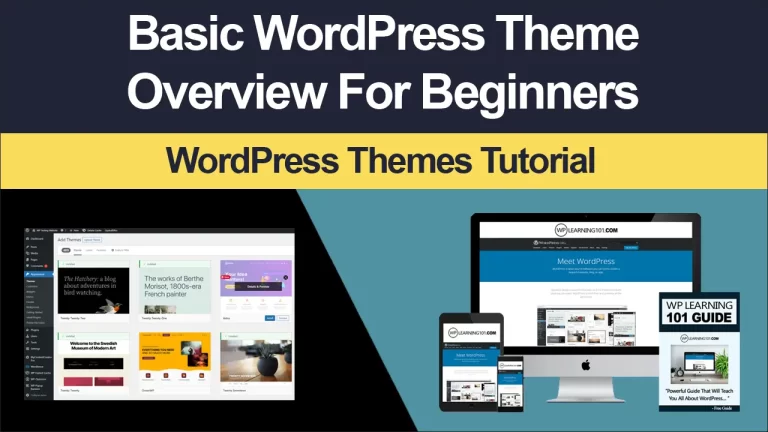
A WordPress theme provides the design language and structural rules of a site. It may include a header, footer, menus, content templates, archive layouts, widget areas, and customization controls. Block themes use the Site Editor and blocks to let administrators modify many parts of a website without editing theme files. Classic themes rely more heavily on the Customizer, widgets, menus, and theme-specific settings.
A theme should support the purpose of the website before it impresses you visually. A magazine, local service company, online store, nonprofit, and photographer need different content priorities. Examine the homepage structure, mobile behavior, typography controls, accessibility practices, and compatibility with the editor you intend to use. A polished demo is only a starting point; real content may look very different from sample text and images.
What a plugin does
A plugin extends WordPress through additional code. One plugin may create a contact form, while another may connect a payment provider, organize a directory, compress images, or restrict content. Plugins are powerful because they separate many functions from the theme. If you change the design later, essential business features can remain in place.

That separation is important. A theme should generally handle presentation, while plugins should handle durable functionality. If an ecommerce theme stores products through custom systems that disappear when the theme changes, migration becomes difficult. Before installing a specialized theme, identify which features are portable and which depend on the theme.
Selecting a WordPress Theme
Start with purpose and content
Write a short list of the pages and actions your site requires. You might need service pages, a blog, a booking request, a product catalog, a members area, or a multilingual interface. Then compare themes against those needs rather than selecting one because its demo resembles a desired brand.
Review the theme’s templates and editing method. Can you build the pages without custom code? Can you control spacing and responsive behavior? Does the theme offer useful patterns without locking every section into proprietary controls? A flexible foundation usually remains useful longer than a highly decorated design with limited editing options.
Evaluate usability and accessibility
A good theme should make important information easy to find. Navigation should be understandable, links should look like links, headings should follow a logical order, and text should remain readable against backgrounds. Keyboard users need sensible focus behavior, while visitors using phones need controls large enough to operate comfortably.
Do not assume a theme is accessible because its description uses that word. Test a demonstration with keyboard navigation, zoom, different screen sizes, and a contrast checker. Check menus, forms, popups, sliders, and interactive elements separately. Accessibility is an ongoing responsibility, not a decorative feature or a one-time label.
Consider speed and maintenance
Images, animation, external fonts, page builders, and extensive scripts can affect loading performance. A lightweight theme with clear templates often provides a stronger starting point than a theme packed with features you will never use. Test representative pages, not only the homepage. A shop product page, long article, or portfolio gallery may reveal problems hidden by a simple demo.
Inspect update activity, documentation, support channels, and compatibility information. An actively maintained theme is more likely to respond to WordPress, browser, and PHP changes. Avoid choosing solely on download counts or visual popularity. A smaller project with clear documentation and responsible maintenance may be a better fit.
Choosing Useful Plugins
Define the job before installing
Every plugin should have a specific purpose. Describe the problem in one sentence: “Visitors need to send inquiries,” “Editors need scheduled backups,” or “Customers need to pay securely.” This makes comparison easier and discourages installing several overlapping tools.
Read the plugin’s feature list carefully. Determine whether it solves the complete problem or only part of it. Check configuration requirements, integrations, export options, and whether a paid plan is required for essential capabilities. Some plugins are excellent for simple sites but unsuitable for complex workflows. Fit matters more than the number of features.
Prefer quality over quantity
More plugins do not automatically make a site better. Each addition can introduce settings, database activity, scripts, update requirements, and compatibility questions. The risk is not simply the plugin count; poorly built, abandoned, redundant, or excessively complex plugins are more concerning than a small set of well-maintained tools.

Before installation, review the developer’s identity, documentation, support history, changelog, compatibility notes, and user feedback. Treat ratings as clues rather than proof. A plugin with clear answers to reported problems may deserve more confidence than one with a higher score but little visible maintenance.
Cover essential functions
Most sites benefit from a core maintenance plan. Use reliable backup tools and confirm that backups can be restored, not merely created. Add security protections appropriate to your hosting arrangement, including strong authentication, limited administrator access, software updates, and monitoring where practical. A security plugin cannot compensate for weak passwords or neglected updates.
A form plugin should support spam protection and accessible fields. An ecommerce plugin should work with the payment methods, tax settings, shipping rules, and privacy obligations relevant to your operation. A search optimization plugin can help manage titles, descriptions, structured settings, and sitemaps, but it cannot replace useful content or sound site structure.
Compatibility and Technical Fit
Test before publishing
Create a staging copy when your hosting provider supports one. Install or update the theme and plugins there, then test menus, forms, checkout, search, logins, emails, and responsive layouts. Pay particular attention to interactions between a theme and page builder, between caching and dynamic content, and between security settings and legitimate visitors.
If staging is unavailable, make a current backup and choose a low-traffic maintenance window. Change one major component at a time so that problems are easier to identify. Record previous versions and settings before testing. This simple discipline can significantly reduce confusion during troubleshooting.
Watch for overlapping features
Conflicts commonly arise when multiple tools control the same task. Two caching systems may generate incompatible files. Several optimization plugins may rewrite metadata or images differently. A theme, builder, and block extension may each provide buttons, sliders, or popups with competing styling controls.
Choose one primary tool for each major responsibility whenever possible. Disable unused modules rather than leaving every feature active. If a plugin offers many functions, enable only those you understand and need. Clear ownership of each task makes the site easier to maintain and reduces accidental duplication.

Protect portability
Avoid designs that make ordinary content difficult to export. Before committing to a builder or theme, ask whether headings, images, products, forms, and custom fields remain usable if the tool is removed. Proprietary shortcodes or unusual content formats can leave behind clutter and require substantial rebuilding.
Keep important content in WordPress’s standard structures when practical. Use clear categories, meaningful page names, and consistent media organization. Portability may seem unimportant during launch, but it becomes valuable when changing agencies, redesigning a site, moving hosts, or reducing subscription costs.
A Practical Setup Process
Step one: define the audience
Identify who visits, what they need, and what action matters most. A visitor might read an article, request a quote, schedule a consultation, buy a product, or join a list. This priority should influence the theme’s layout, plugin choices, calls to action, and analytics.
Step two: establish the foundation
Choose dependable hosting, configure a domain, enable secure connections, and set administrative roles carefully. Install WordPress, select a theme that matches the content model, and create basic pages. Do not install a large collection of plugins before the structure is clear.
Step three: add functionality gradually
Install one plugin at a time. Configure it, test it, and document important settings before adding another. Confirm that emails arrive, forms submit correctly, and users receive appropriate messages. Gradual installation makes cause and effect visible.
Step four: improve the experience
Use consistent headings, readable type, descriptive link text, compressed images, and predictable navigation. Test on phones, tablets, and desktop screens. Ask someone unfamiliar with the site to complete a key task. Their questions often reveal unclear wording or hidden navigation problems.
Step five: maintain deliberately
Set a routine for updates, backups, access reviews, broken-link checks, performance checks, and form testing. Read update notes before applying major changes. Remove inactive themes and plugins after confirming they are unnecessary and backed up. Maintenance is part of the product, not an afterthought.

Comparing Free and Premium Options
Free themes and plugins can be excellent, especially when distributed through established directories and maintained responsibly. They allow experimentation without immediate expense and may provide all the functionality a modest site requires. Their limitations can include fewer templates, slower support, restricted integrations, or advanced features reserved for paid plans.
Premium products may offer professional support, extended controls, specialized integrations, and more frequent development. Payment, however, does not guarantee quality. Review renewal terms, licensing limits, update policies, support scope, and what happens if a subscription ends. A product should be judged by its fit, reliability, documentation, and total ownership cost.
Avoid choosing a tool solely because it is free or expensive. Consider the value of time saved, the importance of the function, the cost of migration, and the consequences of failure. For a business-critical checkout or booking system, dependable support may justify an investment. For a simple brochure site, a smaller solution may be entirely adequate.
Common Mistakes to Avoid
Installing tools because they are popular can create unnecessary complexity. Popularity does not prove that a plugin suits your hosting environment, audience, or workflow. Likewise, importing every demo feature can leave unused scripts, confusing settings, and content that does not reflect your organization.
Another mistake is changing the theme to solve a plugin problem. If a form is unreliable, investigate the form plugin, email configuration, spam controls, and hosting restrictions before replacing the entire design. Conversely, do not blame a plugin for limitations caused by a poorly structured theme.
Ignoring updates creates avoidable exposure and compatibility trouble. Yet updating everything automatically without backups or testing can also cause disruption. Choose an update approach appropriate to the site’s importance, monitor the result, and keep a recovery plan.
Finally, do not treat speed as a score alone. A performance tool may improve one measurement while making editing or checkout less reliable. Evaluate real user tasks, especially on slower connections and mobile devices. A fast page that fails to answer a question is not an effective page.
FAQ
Can I change my theme without losing content?
Usually, posts, pages, media, and many standard settings remain in the WordPress database, but the presentation can change substantially. Theme-specific widgets, templates, custom fields, shortcodes, and settings may not transfer cleanly. Create a backup, review theme-dependent features, and test the replacement on staging before switching publicly.
How many plugins should a website have?
There is no universal ideal number. Use the smallest collection that reliably covers genuine requirements. Assess quality, maintenance, resource use, overlap, and compatibility rather than counting plugins. A carefully selected group may perform well, while one poorly developed plugin can create serious problems.
Are page builders necessary?
No. WordPress blocks and block themes can support many professional sites without a separate builder. A builder may be useful when its workflow, templates, or design controls match your team’s needs. Consider its effect on performance, accessibility, portability, licensing, and future editing before adopting it.
Should I use a multipurpose theme?
A multipurpose theme can provide flexibility and many starting designs, but unused features may add complexity. It is appropriate when you need varied templates and understand its controls. A focused theme is often easier to manage when the site has a clear purpose and modest requirements.
How can I improve plugin security?
Keep WordPress, themes, and plugins updated; use strong unique passwords and limited administrator accounts; maintain tested backups; remove abandoned or unnecessary software; and obtain plugins from trustworthy sources. Monitor unusual activity and ask qualified professionals for help when a compromise is suspected. No single plugin provides complete security.
What should I do when plugins conflict?
Record the symptoms, make a backup, and reproduce the issue on staging if possible. Temporarily deactivate plugins one at a time, using a controlled process, to identify the conflict. Check documentation and support forums, then update or replace the responsible component. Avoid deleting data until you understand its consequences.
Conclusion
WordPress themes and plugins are building materials, not decorations to collect. A suitable theme clarifies content, supports accessible responsive design, and remains manageable as the site grows. Well-chosen plugins add necessary functions while preserving portability, performance, and administrative control.
Begin with audience needs and business tasks. Select a theme for structure, usability, maintenance, and editor compatibility. Add plugins only for defined responsibilities, research their quality, test interactions, and protect the site with backups and disciplined updates. Compare free and premium options according to long-term value rather than price alone.
The strongest WordPress website is rarely the one with the most elaborate demo or longest feature list. It is the one that helps real visitors complete important tasks, gives editors confidence, and can be maintained responsibly. Plan the foundation carefully, test every critical path, and choose tools that serve the site instead of controlling it.