Best WordPress Themes and Plugins for Better Websites

WordPress Themes And Plugins: Building a Better WordPress Website
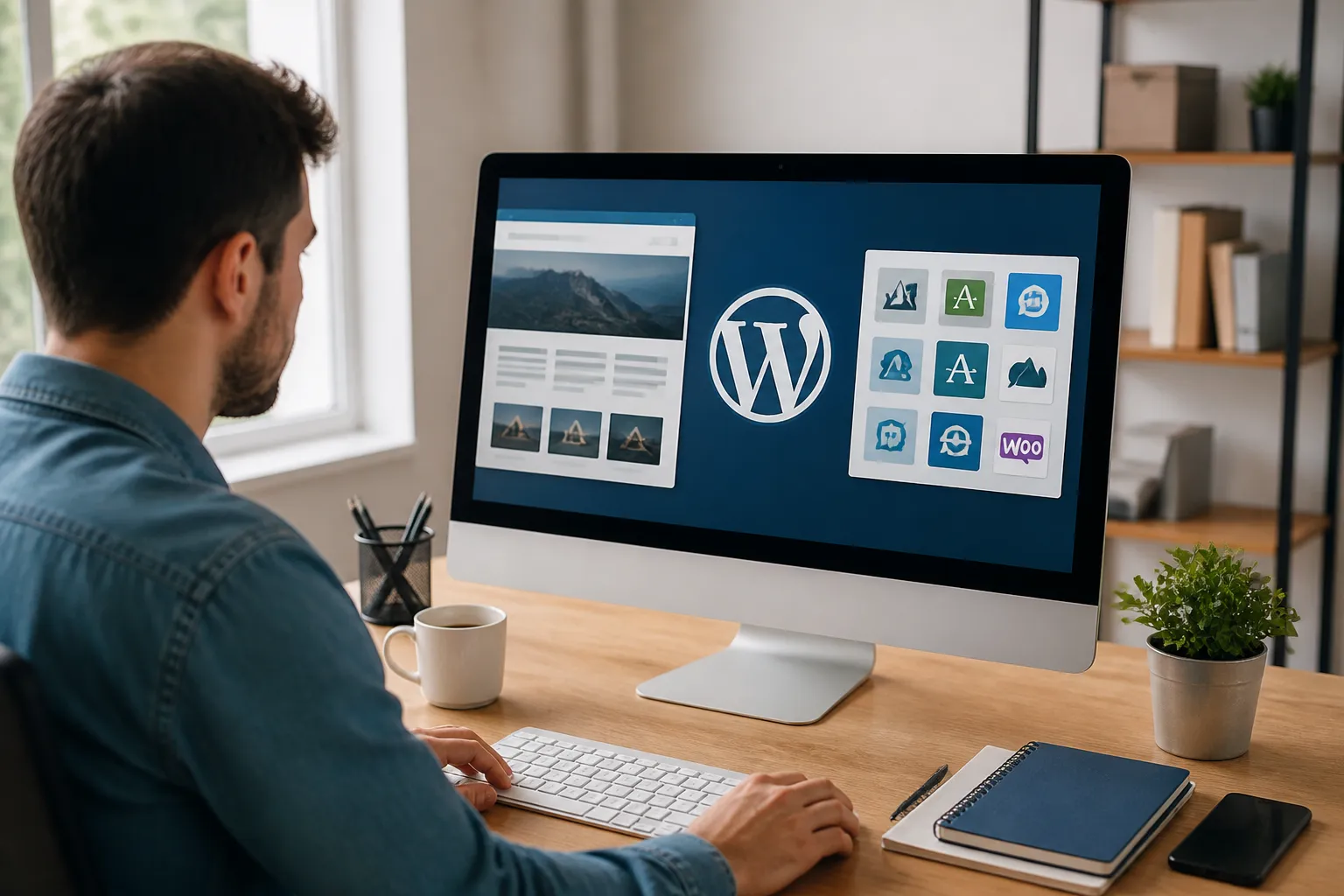
WordPress themes and plugins work together to shape how a website looks, feels, and performs. A theme controls the visual foundation, including layouts, typography, colors, navigation, templates, and responsive behavior. Plugins extend that foundation with practical functions such as contact forms, search optimization, online selling, security, backups, memberships, analytics, and performance improvements. Choosing both carefully can turn a basic installation into a professional, useful digital experience without requiring advanced programming.
The best combination is not the one with the longest feature list. It is the combination that supports your goals, remains easy to manage, and gives visitors a clear path toward useful actions. A local service business may need an elegant theme, appointment form, location information, and review display. A publisher may prioritize readable typography, categories, related content, and fast search. An online shop needs product templates, payments, inventory tools, shipping settings, and customer communication. Begin with the website’s purpose, then select tools that solve real requirements.
A dependable WordPress setup should balance design, speed, accessibility, security, flexibility, and cost. Attractive pages matter, but they cannot compensate for confusing navigation or slow loading. Powerful plugins are valuable, but unnecessary features may create maintenance work and compatibility risks. The strongest choices are focused, supported, and compatible with the current WordPress environment.
Understanding Themes
What a theme actually controls
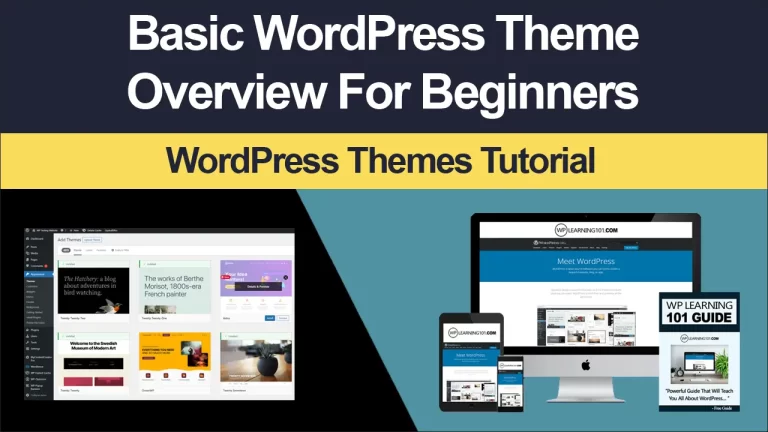
A theme is the presentation layer of a WordPress website. It determines the arrangement of headers, footers, menus, sidebars, archives, posts, pages, and often ecommerce templates. Modern block themes allow users to edit many parts of a site through the Site Editor. Classic themes may rely on a Customizer, theme options, widgets, or page templates.
When evaluating a theme, inspect more than its demonstration pages. A demo may contain premium photography, carefully written copy, and ideal spacing that do not appear automatically after installation. Check whether the theme offers the layouts, patterns, templates, and customization controls you genuinely need. Confirm that its typography remains readable, its buttons are obvious, and its mobile presentation works without excessive scrolling or awkward cropping.

Qualities of a strong theme
A strong theme begins with a clear visual system rather than decorative clutter. It should provide sensible spacing, consistent heading styles, accessible color contrast, responsive layouts, and predictable navigation. Clean code and restrained assets can help reduce unnecessary browser work. This does not mean every lightweight theme looks plain; it means visual impact should come from deliberate design instead of avoidable effects.
Look for regular updates, detailed documentation, and a support process that explains compatibility concerns. A theme should identify its requirements and make customization understandable. If you cannot determine how to change a logo, menu, template, or font before purchasing, management may become frustrating later.
Consider ownership and portability as well. Avoid building an entire brand around a theme feature that disappears when the theme changes. Content should remain in WordPress’s normal content areas wherever possible. A future redesign is easier when posts, pages, products, and settings are not trapped inside proprietary systems.
Choosing a Theme by Website Type
Business and service websites
A business website needs clarity before novelty. Select a theme with a prominent call to action, flexible service sections, team or testimonial layouts, contact details, and a straightforward header. Make sure visitors can reach important information quickly from a phone. A theme with reusable page patterns can help maintain consistent presentation while the business grows.
Blogs, magazines, and publications
Reading experience should guide editorial sites. Favor comfortable line length, generous spacing, clear category navigation, visible dates where relevant, and dependable archive templates. Check how images, captions, quotations, tables, and embedded media appear. A theme that looks impressive on a homepage may still produce tiring article pages, so review a realistic long post before deciding.
Stores and product catalogs
Store themes should support the ecommerce plugin you intend to use, not merely display attractive product cards. Examine product galleries, variations, filters, carts, checkout pages, account screens, and notices. Ensure that prices, stock messages, shipping information, and purchase controls remain prominent on smaller screens. Avoid themes that force excessive animations around essential buying tasks.
Portfolios and creative sites
Creative professionals often need strong image presentation, but visual drama must not hide context. Select a theme that supports project descriptions, services, contact information, and accessible captions. Examine compression options and loading behavior for large images. A portfolio should demonstrate skill without making prospective clients wait for every element to appear.
Essential Plugin Categories
Plugins add behavior and data structures to WordPress. Install them because a specific need exists, not because an extension is popular. Before adding one, describe the problem in a sentence, identify the feature required, and check whether WordPress or an existing plugin already provides it.
Search optimization
Search optimization plugins can help manage titles, descriptions, canonical information, sitemaps, social sharing data, and structured settings. They cannot replace useful content, accurate information, logical organization, or a technically sound site. Choose one focused solution rather than installing multiple tools that attempt to control the same metadata.
Forms and communication
A form plugin should support the fields, notifications, confirmation messages, spam controls, and privacy practices your organization needs. Test delivery from the live website rather than assuming successful submission means the message reached its destination. Provide clear labels, explain required information, and offer an alternative contact method when appropriate.
Security
Security plugins may provide login protection, monitoring, firewall features, or file-change alerts. They are only one part of a broader plan. Use strong unique credentials, limit unnecessary accounts, keep software current, and maintain reliable backups. Configure security tools carefully because aggressive settings can block legitimate visitors or administrators.
Backups
A backup plugin is useful only if restoration is possible. Determine what it stores, where copies are kept, how often they run, and how long versions remain available. Keep at least one copy separate from the website’s hosting account when practical. Perform a controlled restoration test before relying on backups during an emergency.
Performance
Caching, image optimization, database cleanup, and asset management plugins can improve responsiveness, but more tools do not automatically produce a faster site. Overlapping optimization features may conflict. Change one important setting at a time, test representative pages, and check logged-in and logged-out experiences. A fast theme, appropriate hosting, compressed media, and limited scripts often matter as much as optimization software.
Ecommerce and payments
An ecommerce plugin turns WordPress into a catalog and transaction system, but selling online involves more than displaying products. Plan payment methods, taxes, shipping, refunds, inventory, customer emails, privacy notices, and order access. Add extensions only after identifying a genuine operational need. Confirm that payment extensions are maintained and compatible with the ecommerce platform’s current requirements.
Analytics and consent
Analytics tools can reveal which pages visitors use and where navigation fails. Select measurements that support decisions rather than collecting information without purpose. Review consent, retention, access, and regional obligations before enabling tracking. A simple, understandable reporting setup is often more useful than a crowded dashboard full of unexamined metrics.
Compatibility, Quality, and Maintenance
Check before installing
Read the plugin’s requirements, changelog, documentation, and support discussions. Look for recent maintenance activity, but do not treat a date alone as proof of quality. Review whether the plugin works with your WordPress version, theme, hosting environment, and other essential extensions. If a plugin modifies checkout, login, caching, or editing, test it on a staging copy first.
Do not judge quality solely by ratings or installation numbers. A widely used plugin may be unsuitable for your particular workflow, while a smaller tool may be well maintained and precisely focused. Evaluate support responses, update clarity, settings quality, and the ability to export or remove your data.
Use a staging workflow
A staging site lets you test updates without exposing visitors to unfinished changes. Create a backup, update staging, inspect key pages, and test forms, menus, accounts, purchases, searches, and email notifications. If everything works, repeat the backup and update process on production during a suitable maintenance window.
Keep a short change log. Record what was installed, why it was needed, and which settings were changed. This simple habit makes troubleshooting easier and prevents accidental duplication. Remove inactive plugins when they are no longer needed, but preserve a backup before major cleanup.
Plan for accessibility
Accessibility should be evaluated throughout design and content creation. Use meaningful headings, keyboard-friendly controls, visible focus indicators, descriptive links, alternative text for informative images, and sufficient contrast. Do not rely on color alone to communicate status. Test menus, forms, popups, and checkout with keyboard navigation and, when possible, assistive technology.
A theme or plugin can support accessibility, but site owners still control many outcomes. Poorly labeled buttons, vague link text, missing form instructions, and decorative images marked as informative can undermine an otherwise capable setup.
Creating a Practical Selection Framework
Before choosing products, write a short requirements list. Separate essential functions from preferences. For example, a consultant may require a responsive service layout, appointment form, testimonials, analytics, backups, and basic optimization. A multilingual shop may additionally require translation compatibility, localized payments, shipping logic, and customer account support.
Next, establish constraints. Consider budget, technical confidence, update frequency, hosting resources, content volume, and expected growth. A free solution may be suitable for a small project, while a paid product can be worthwhile when support, advanced controls, or operational reliability save substantial time.
Score each candidate against the same questions:
- Does it solve a documented requirement?
- Is it compatible with the current WordPress environment?
- Is the interface understandable for the people who will manage it?
- Does it have credible documentation and support?
- Can the site remain usable if the product is replaced?
- Will its performance and maintenance demands fit the hosting plan?
- Does it handle privacy, accessibility, and security responsibly?
This framework discourages impulse purchases and makes tradeoffs visible. One plugin may offer more options, while another may be easier to maintain. Select the option that fits the project’s real priorities rather than the largest feature count.
Common Mistakes to Avoid
Installing too many plugins
Every additional plugin can introduce settings, updates, scripts, database activity, and compatibility considerations. This does not mean a small plugin count guarantees quality. It means each extension should earn its place by providing clear value. Consolidate overlapping functions and remove abandoned experiments.
Changing themes without preparation
A theme change can affect menus, widgets, templates, custom styles, image crops, and page layouts. Back up the site, create staging, document current settings, and preview important pages before switching. Check archives, search results, forms, and ecommerce screens after activation.
Ignoring updates
Updates may include security fixes, compatibility adjustments, or improvements. Delaying them indefinitely increases risk, but updating blindly can also cause disruption. Use backups, staging, release notes, and a repeatable testing routine. Prioritize security-related updates while still validating the wider site.
Overdesigning the interface
Excessive popups, moving backgrounds, autoplay media, and complicated navigation can distract from the visitor’s goal. Ask whether every visual effect improves understanding or action. Strong design often comes from hierarchy, spacing, useful imagery, and clear language rather than constant motion.
Forgetting content structure
A beautiful theme cannot fix disorganized content. Define categories carefully, use descriptive page titles, connect related information, and create a menu based on visitor questions. Plugins work best when they support a coherent content model instead of compensating for one.
A Reliable Launch Checklist
Before launch, confirm that the site has a clear purpose, consistent branding, readable content, and working navigation. Test it on common screen sizes and several browsers. Submit every form, verify notifications, inspect links, and review error messages. If selling, complete the entire purchase process in a safe test mode and examine customer and administrator emails.
Check page titles, descriptions, headings, image alternatives, permalinks, sitemap settings, and social previews. Confirm that visitors can find contact details, policies, returns information, and other essential notices. Remove demonstration content, placeholder images, unused users, and unnecessary plugins.
Review performance using representative pages rather than only the homepage. Test an article, product page, archive, form, and checkout when applicable. Optimize large images and reconsider scripts that do not support a clear objective.
Finally, prepare ongoing ownership. Assign responsibility for updates, backups, renewals, content review, and incident response. Store license information and administrative access securely. A website is not finished at launch; it becomes dependable through consistent care.
Frequently Asked Questions
Can I use any theme with any plugin?
Not always. Many plugins follow WordPress standards, but themes can alter templates, styling, scripts, or content behavior. Read compatibility notes and test important workflows, especially forms, ecommerce, memberships, and page builders.
Are premium themes and plugins always better?
No. Paid products may provide support, documentation, updates, or advanced functions, but price does not guarantee suitability. Compare maintenance quality, usability, compatibility, and total ownership cost with free alternatives.
How many plugins should a website have?
There is no universal ideal number. A focused site may need several, while a complex store may require more. Judge each plugin by value, quality, performance, and maintenance impact instead of counting extensions.
Should I use a page builder?
A page builder can help teams create layouts without code, particularly when its editing workflow matches their skills. However, it may add complexity or create dependence on proprietary elements. Consider the long-term editing, performance, and migration implications before committing.
What should I do when an update breaks the site?
Restore from a known-good backup if necessary, identify the recent change, and use staging to isolate the conflict. Review error messages and support documentation. Avoid repeatedly changing several products at once because that makes the cause harder to identify.
Do I need a security plugin?
A security plugin can add useful controls, but it is not mandatory for every site and cannot replace secure hosting, strong passwords, updates, limited access, and backups. Choose one only when its functions match a defined security need.
How can I improve speed without rebuilding everything?
Start with image sizes, hosting quality, unnecessary scripts, caching configuration, and plugin overlap. Test before and after each meaningful change. If a theme remains fundamentally heavy or difficult to optimize, a carefully planned redesign may be more effective than endless patches.
Conclusion
The right WordPress themes and plugins create a website that is attractive, purposeful, manageable, and ready to grow. Choose the theme for structure and communication, then add plugins for clearly defined functions. Evaluate compatibility, accessibility, performance, support, privacy, and portability before installation. Test changes on staging, maintain backups, document decisions, and review the experience from a visitor’s perspective.
A persuasive website does not need the most elaborate toolkit. It needs a dependable foundation, useful content, intuitive paths, and technology that quietly supports the people using it. By selecting fewer, better-fitting tools and maintaining them responsibly, you can build a WordPress website that earns trust, reduces friction, and delivers lasting value to both visitors and its owners.